
Assigning members
Staff members onto a period's charge codes with their hours, bill rate, and access start.
A direct charge code starts with no one able to log to it. Members get access through an assignment: their authorization to charge one code, carrying the hours you've allocated them, their bill rate, and the date their access opens. Assigning is how you staff a contract period, and it's what decides whose hours can land where.
How a member gets access
Each assignment ties one member to one direct charge code and records three things:
- Hours allocated, the hours you expect that member to spend on the code.
- Bill rate, their hourly rate for billing.
- Access start, the first day they can log time to the code.
An open assignment is the source of truth for who may log to a code. No open assignment, no access. Indirect codes (PTO, overhead) are the exception: members reach those through their role, and an individual grant adds a code beyond what the role covers, never less. See Indirect code access.
Add members to a period
- Open the contract period and select the Members tab.
- Select Add Member.
- Choose the members to add, then pick the charge code they'll log to, or create a new one.
- Set each member's Hours allocated and Bill rate, then confirm.
The assignments take effect today, and the members appear on the period with their hours.
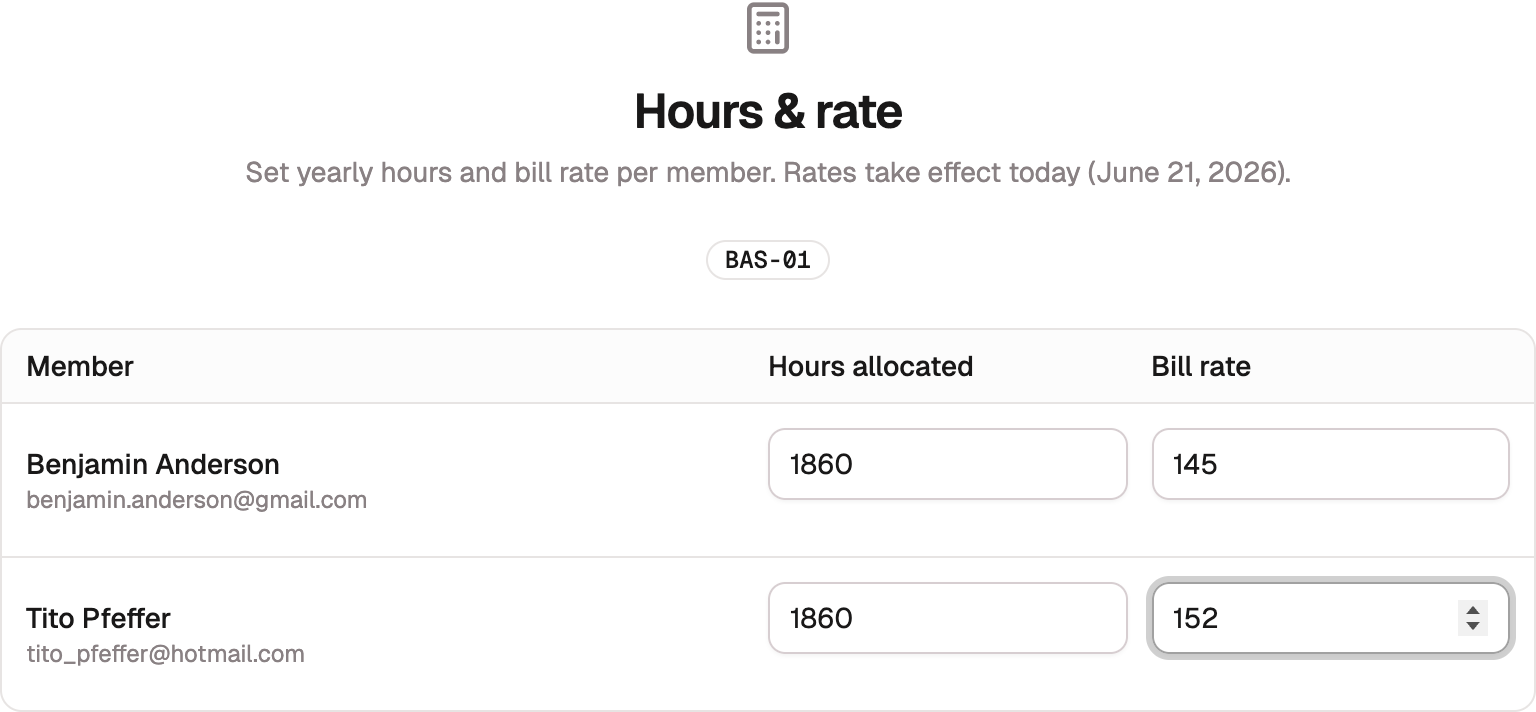
The assignment card
Every assignment has a card on the charge code's Edit page, under Member Assignments, and the same card appears under Direct charge codes on the member's page. The card shows the member's hours used against their allocation, their Bill Rate, and Access from with the date their access opened. When that date is still ahead, the label reads Access starts and the card carries a not-eligible-yet warning.
Three actions on the card change the assignment in place: Change hours, Change rate, and Change access start. History expands the rate history. Remove ends the assignment after you confirm, so the member can no longer log to the code. A member holds only one open assignment per code at a time.

Two dates on an assignment
An assignment carries two dates that are easy to mistake for one another:
- The access start is when the member can begin logging time to the code. It says nothing about billing.
- A bill rate's effective date is when that rate starts applying to their entries. It says nothing about who may log time.
Change the access start to let someone fill earlier days. Change the bill rate to change what those days cost. Each dialog says which one it changes, and the rate dialog links to the access-start dialog for the same assignment.
Change the access start
Every assignment opens on an access start, and a member can't log time to the code before it. Assignments added from Add Member open the day you create them.
To cover someone who joined earlier and needs to fill past days, move their access start back:
- Open the charge code's Edit page, or the member's page, and find their assignment card.
- Select Change access start.
- Choose the new Access start. Today or earlier only, since access can't open ahead of today.
- Enter a Reason. It's saved to the audit trail, because moving the access start changes which time was authorized.
- Select Save.
If the new date lands before the assignment's earliest bill rate, the dialog offers to extend that rate back to the new date, checked by default, so the added days are billable in the same save. Leave it checked unless those days should carry a different rate. If you uncheck it, the days stay uncovered until you set a rate for them, and the toast says so.
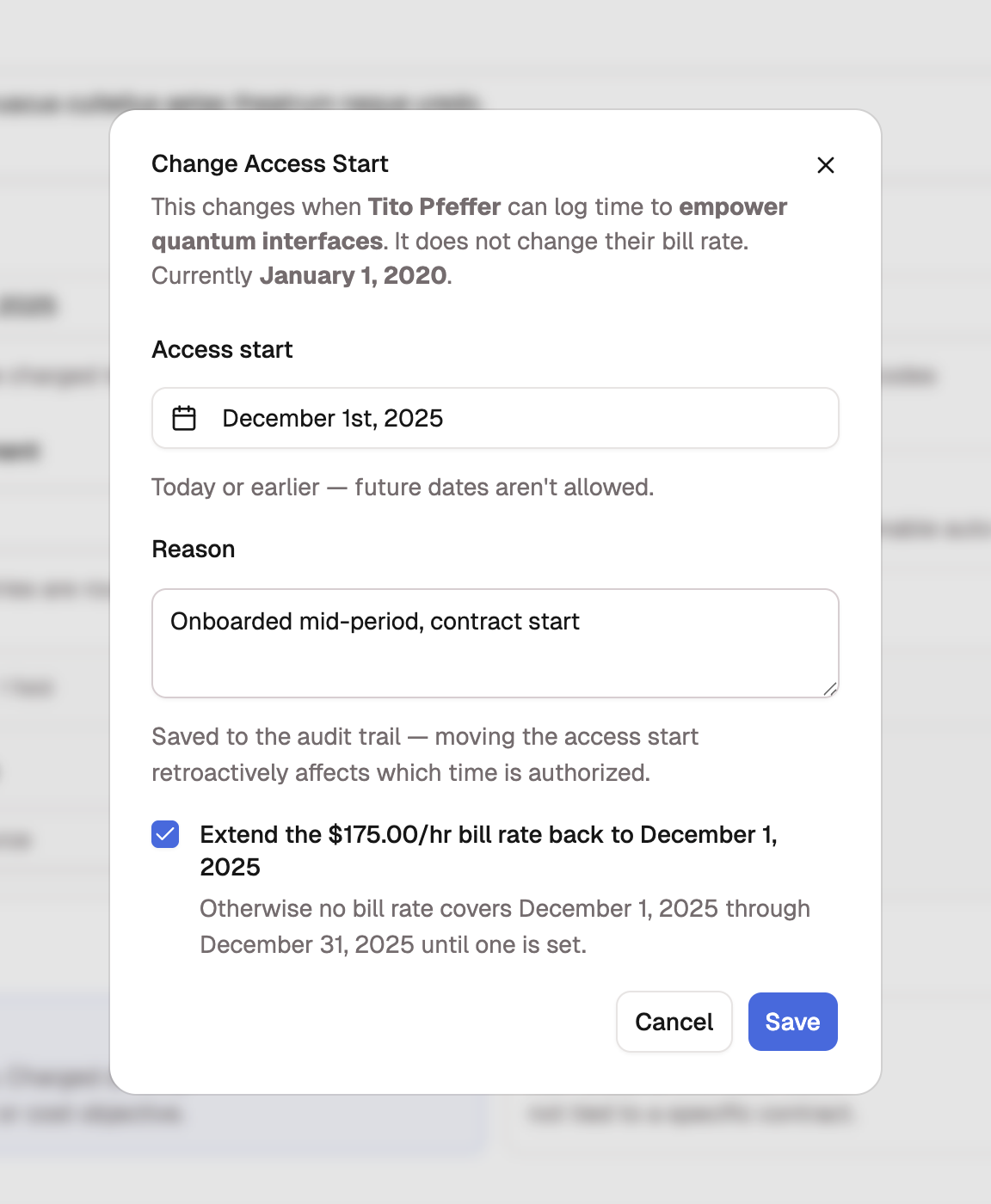
If a member tells you an expected code is missing, check that the assignment exists and that its access start isn't later than the day they're trying to fill.
Change a bill rate
A bill rate change applies from an effective date forward and never touches when the member can log time.
- On the assignment card, select Change rate.
- Enter the New rate per hour.
- Choose the Effective date. It defaults to today, or to the access start when that's still ahead. The earliest date you can pick is the access start.
- Enter a Reason for the audit trail.
- Check the preview, then select Save change.
The preview on the right shows the Current and New rate side by side and lists what the save will do:
- Ends the rate in effect since… when your date falls after the current rate started. The old rate ends the day before, and any rate already scheduled after yours is unchanged.
- Replaces the rate that started… when your date is the same day the current rate began. The old rate is rewritten and kept in the audit trail.
- Fills a gap in the rate history when no rate covers your date, such as the days before a backdated access start. The new rate runs up to the next rate, or onward if there is none.
A Retroactive change row appears when the date is in the past. Unapproved timesheet entries from that date recalculate at the new rate; approved entries stay locked at their original rate; and a period that has already been invoiced blocks the change.
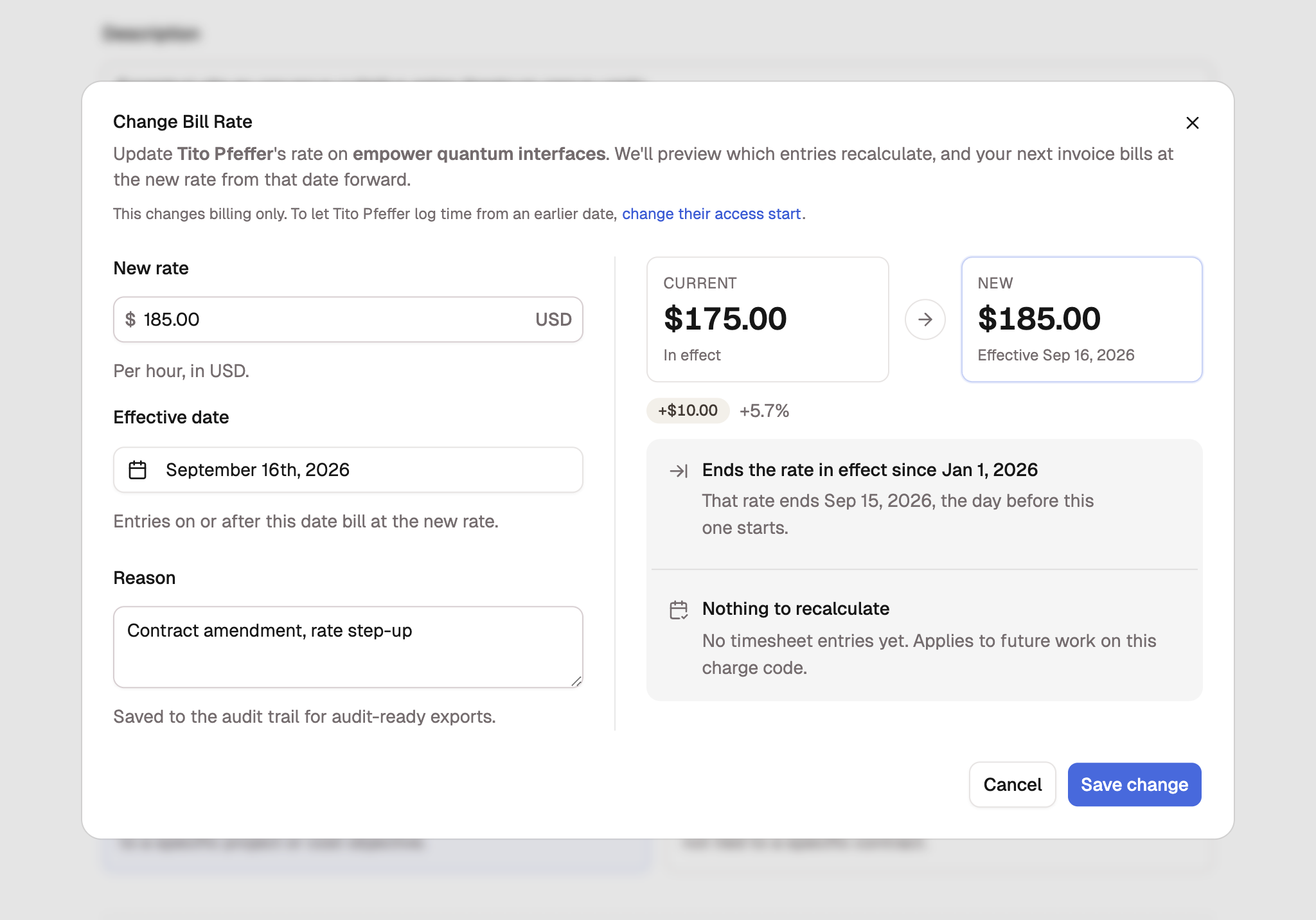
Tip
A backdated access start with no rate behind it shows No bill rate before… on the assignment card, with a Set rate link. It opens Change rate on the access start, so one save covers the gap.

End an assignment
When someone rolls off, mark them as having left the period rather than deleting their history.
- On the Members tab, open the ⋯ menu on the member's row.
- Select Mark as Left and confirm.
Marking a member as left preserves their record
The member is flagged inactive on the period and stops being able to log new time to it, but their existing timesheet entries are kept for audit. To bring someone back, add them again, which opens a fresh assignment.