
Indirect code access
See who can charge an indirect code, and grant access per person when a role isn't enough.
Direct charge codes are staffed through assignments. Indirect codes (PTO, overhead, G&A) work differently: a member reaches one through their role or through an individual grant, never both. Role access is set once, on the Permissions page, and reaches everyone with the role; an individual grant adds one person beyond what their role covers. This page is where you see and change both.
Choose access when you create a code
A new indirect code asks who can charge it up front. Its form ends with Who can charge this code: a checkbox per role, all checked by default, so a new code is organization-wide unless you uncheck a role. Reviewer has no checkbox; a reviewer reaches an indirect code only through an individual grant. Below that, Individual members (optional) grants the code to specific people regardless of role, which is how a per-member plan code (a PTO tier, say) starts life with its role boxes unchecked.
The choice you make here is the whole story. Saving or editing a code later never rewrites role access, and detaching the code from a leave bank keeps its holders, so a Permissions-page toggle can't be undone by an unrelated code save.
See who has access
- Open Charge Codes from the Management menu.
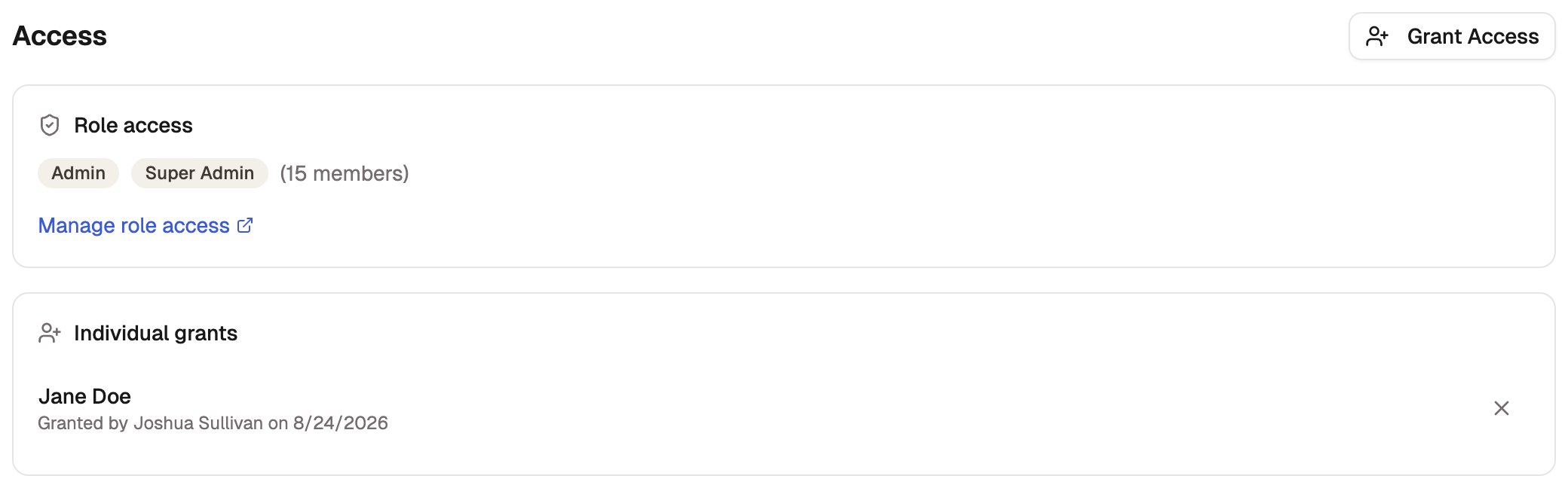
- Select an indirect code. Its Access section lists two sources of access:
- Role access shows the roles that reach this code, with a count of the members they cover. Select Manage role access to change which roles get which indirect codes; that mapping lives on the Permissions page and applies across all codes at once.
- Individual grants lists the people given this code directly, each row noting who granted it and when. When the list is empty, everyone with access has it through a role.
Both lists sort alphabetically, so a specific person or code is a quick scan rather than a hunt.
Grant a code to one member
When one person needs an indirect code their role doesn't cover, grant it directly:
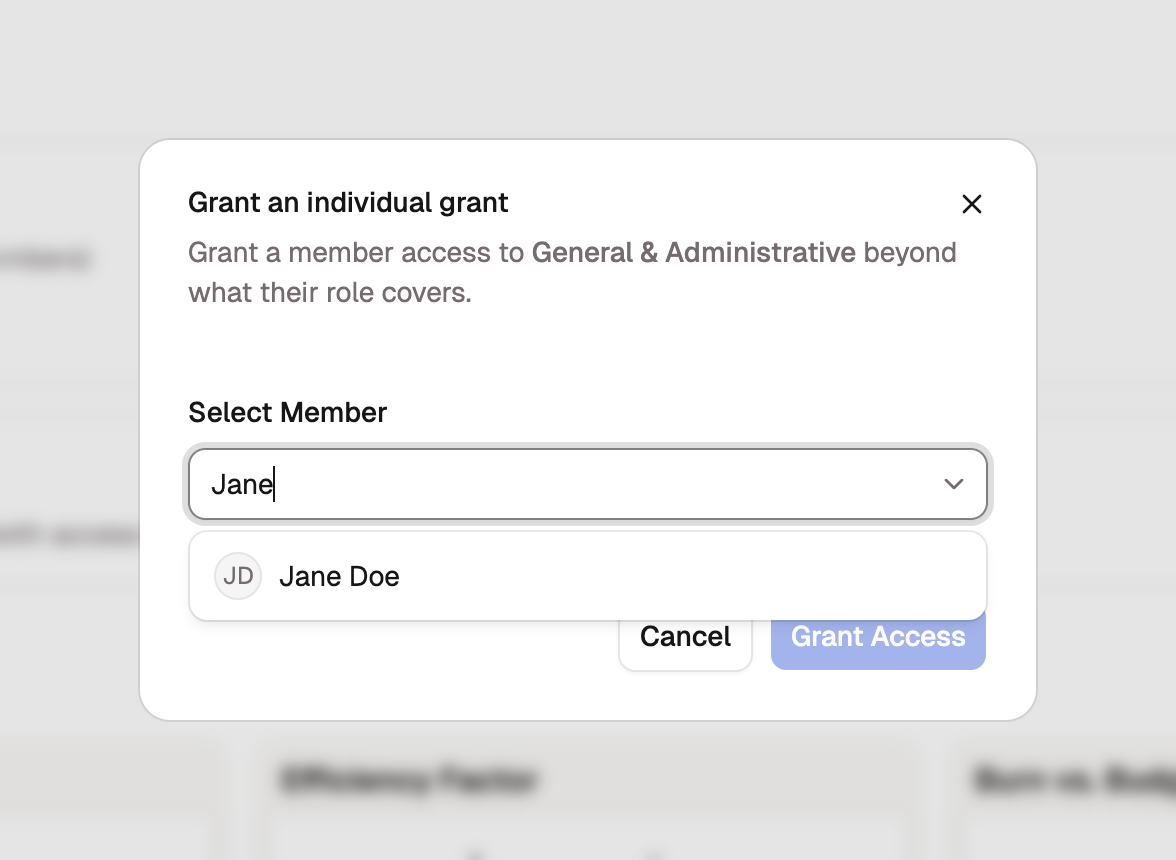
- In the code's Access section, select Grant Access.
- In the Grant an individual grant dialog, find the person under Select Member. Type to search; a member matches on their name or any email on record. Members the role already covers aren't listed, because a grant only ever adds access beyond the role. If the list is empty, everyone already has the code.
- Select Grant Access.
The same grant works from the other direction. On a member's page, the Indirect charge codes section shows every code they can reach and how: a via … role badge for role access, an Individual grant badge otherwise. Select Grant Access there and pick the code in the Grant an indirect charge code dialog instead; it searches by the code or its name, and it too skips codes the member's role already covers.
Revoke a grant
Select the revoke control on the grant's row and confirm in the Remove individual grant dialog. Only individual grants can be revoked this way; role access changes only on the Permissions page or when the member's role changes.
Codes that spend a leave bank
When an indirect code is linked to a leave bank, access to the code is also access to the bank: whoever can charge the code sees the bank, accrues in it, and spends from it. The Permissions page marks these codes with a badge naming the bank they spend.