
Contract periods
Manage base periods and option years, exercise options, and work inside a period.
A contract period is a span of a contract's period of performance. Every project has one base period and can have option years after it. The period is where the real work lives: it scopes the charge codes your team logs against and holds the funding obligated to that stretch of the contract. This page covers managing periods after a project exists.
Base periods and option years
A project's period of performance is built from two kinds of period:
- A base period is the contract's initial term. Every project has exactly one, and it's in force from its start date.
- An option year is a follow-on term the customer may choose to exercise. Option years are numbered in sequence (1, 2, 3) and start out unexercised: planned, but not yet in effect.
Period start and end dates are inclusive. A period stays in force through the whole of its end date and expires the day after.
Open a contract period
- Open Projects from the Setup menu, then select the project.
- In the project's Contract Periods list, select the period you want.
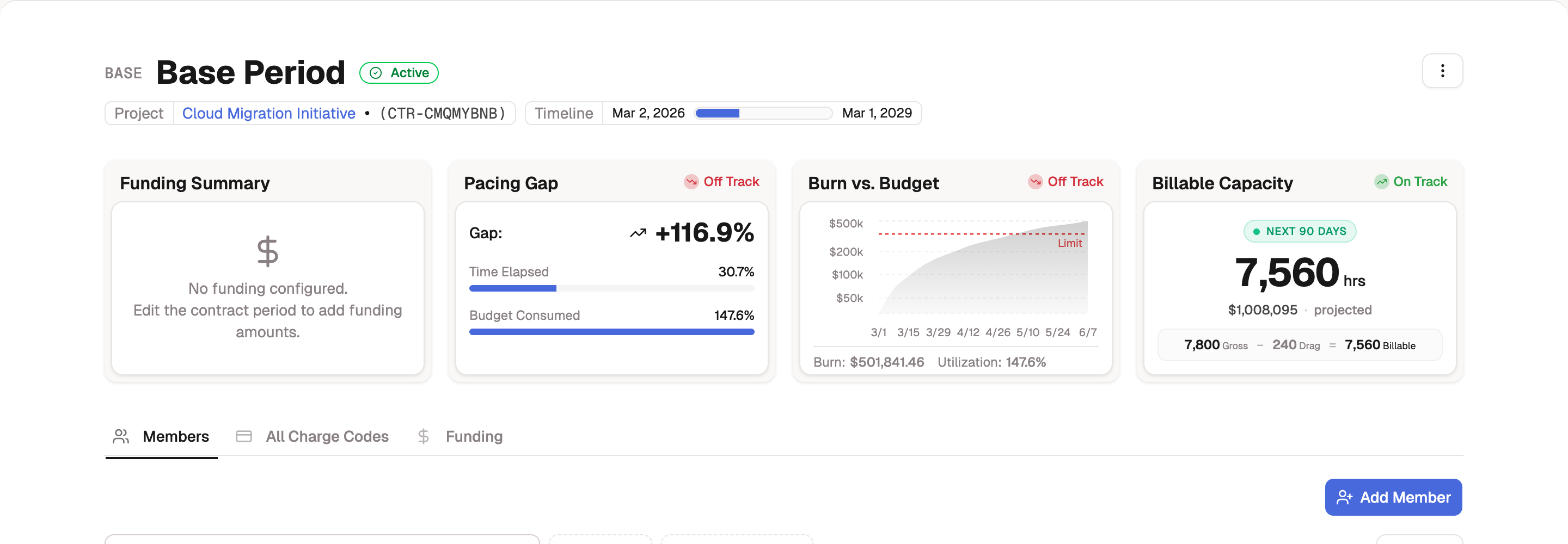
The period opens to its own screen: a header with the period name, whether it's Active or Archived, the project and contract number, and a timeline showing where this period sits in the overall period of performance. Below that are the period's analytics and its tabs.
Add an option year
Add option years as the contract grows, without rebuilding the project.
- Open the project.
- Select Add Option Year.
- Name the period and set its start and end dates. BadgeOut numbers it as the next option in sequence.
- Save. The option year appears in the project's period list, unexercised.
Exercise an option
An option year does nothing until you exercise it, the point where it becomes the contract's in-force period.
- Open the option period.
- Select Exercise.
- Enter the exercise date and any notes, then confirm.
If the option can't be exercised yet, BadgeOut tells you why instead of exercising it (for example, an earlier option still needs to be exercised first).
Carry your charge codes forward
When you exercise an option and another period was active, BadgeOut offers to migrate that period's charge codes into the new one, and optionally their member assignments. Take it to avoid rebuilding the same codes year over year.
Until an option is exercised, its funding and burn cards stay locked, marked Available once the Contract Period is exercised.
Work inside a period
The period screen has three tabs:
- Members lists who's staffed to the period and their logged hours, and is where you add or remove people. See Assigning members.
- All Charge Codes lists the direct codes scoped to the period and is where you add new ones. See Charge codes in a contract period.
- Funding holds the period's funding tranches and burn. See Funding and burn.
Edit or delete a period
Open the period and use the ⋯ menu in the header:
- Edit changes the period's name, dates, and funding amounts.
- Delete removes the period.
Deleting a period can't be undone
Deleting a contract period permanently removes it and its associated data, so BadgeOut asks you to type the period's name to confirm. If you only need to retire a period, leave it in place: past periods stay on the project as a record and keep their timesheets intact.