
Funding and burn
Record a period's funding, watch utilization and runway, and stay ahead of the FAR threshold.
Funding tracking is how you see whether a contract period is on pace to spend its money before its time runs out. You record what's been obligated, BadgeOut measures it against what your team has logged, and the period's cards tell you the utilization, the runway, and whether you've crossed a notification threshold.
Funding and burn are part of Contract Budget Tracking, a Plus feature. On other plans you can still build projects, periods, and charge codes; the funding amounts and burn views are what's gated. The dollar figures are visible to administrators only.
Contract ceiling, funded, and spent
Three numbers describe a period's money:
- Contract ceiling is the most the contract can be worth: its not-to-exceed value.
- Funded is what's been obligated so far, available to spend. It's the sum of the period's funding tranches.
- Spent is what your team has burned against it, from approved hours and rates.
The gap between funded and spent is your remaining funding. The gap between funded and the ceiling is room still to be obligated.
Record a funding tranche
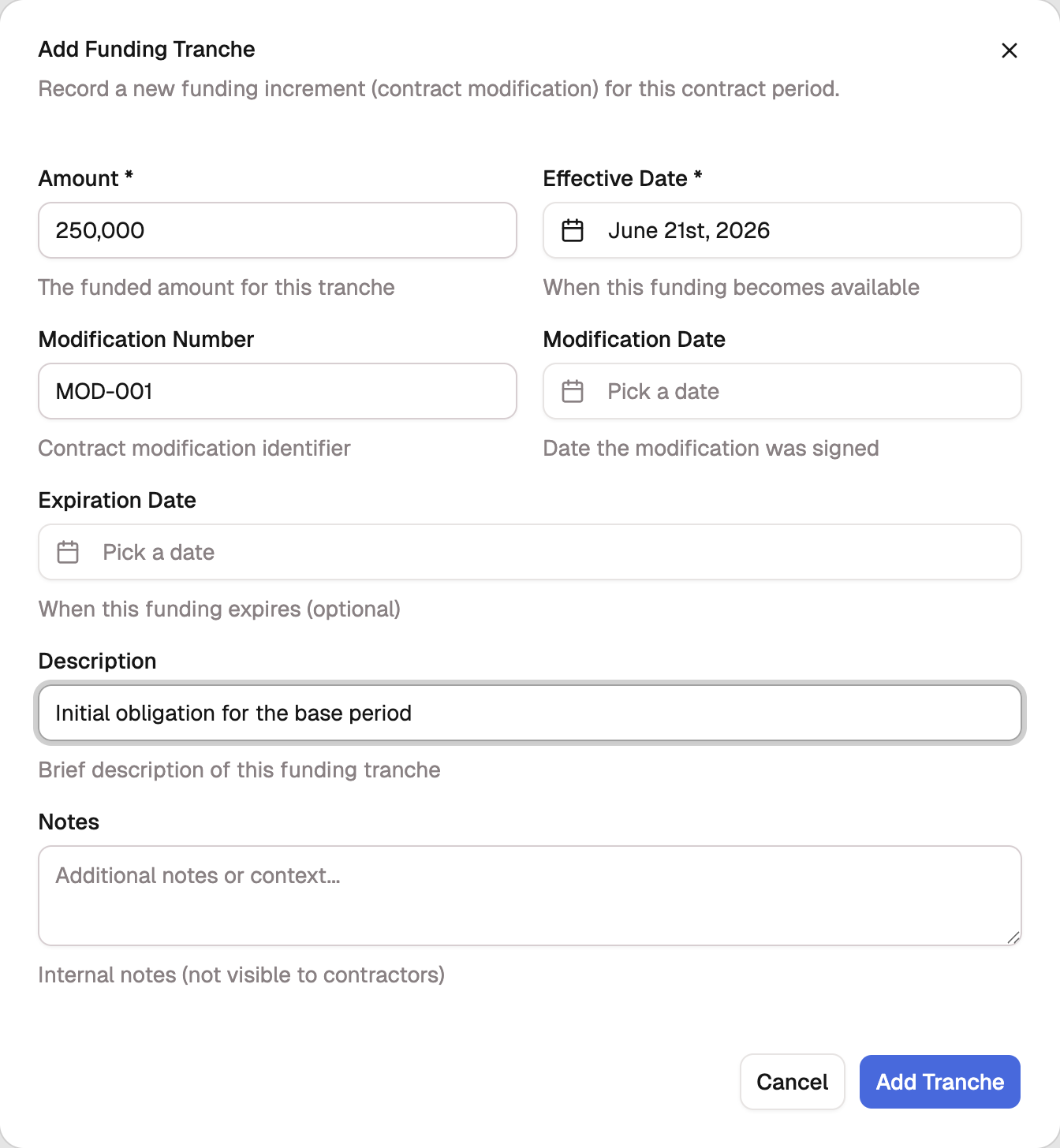
Funding usually arrives in increments, one contract modification at a time. Record each as a funding tranche so the period's funded amount stays accurate.
- Open the contract period and select the Funding tab.
- Select Add Funding Tranche.
- Enter the Amount and the Effective date (when the funding becomes available). These two are required.
- Optionally add the Modification number, Modification date, Expiration date, a Description, and internal Notes.
- Select Add Tranche.
Read the funding summary
The period's Funding Summary card turns those numbers into a status. It shows utilization (spent as a percentage of funded), the spent of funded amount, and an estimated runway in days at the current burn rate. Open it for the full breakdown of Allocated, Funded, Spent, and Runway.
The status tracks utilization against the bands government contracts care about:
| Utilization | Status |
|---|---|
| Under 50% | Healthy |
| 50% and up | Monitor Utilization |
| 75% and up | FAR 52.232-22 Threshold |
| 85% and up | Critical Utilization |
| 95% and up | Stop Work Imminent |
| 100% | Funding Depleted |
The 75% mark is a notification trigger
When utilization reaches 75%, the card raises a FAR 52.232-22 Notification Required flag. Under that clause, a contractor must notify the contracting officer as funds approach the limit, so treat 75% as the cue to send that notice, not as a problem to absorb quietly.
Watch the pace
Alongside the summary, the period's Burn vs Funding and Pacing Gap cards compare how fast you're spending against how much of the period of performance has elapsed. A period that's 60% through its calendar but 90% through its funding is running hot, and these cards surface that before the runway does.
BadgeOut also raises a funding alert as a period crosses each threshold. The alert banner names the period, its current utilization, and links straight to the period so you can act.
Track spend across the portfolio
The period cards cover one period at a time. To see funding across every project at once, use Reports:
- Spend Summary lays out approved spend versus remaining funding across contract periods.
- Project Burn shows funding consumed against the period of performance, project by project.
- A custom Contract period funding report lets you build your own view of funded, spent, and remaining.