Editing a member's details
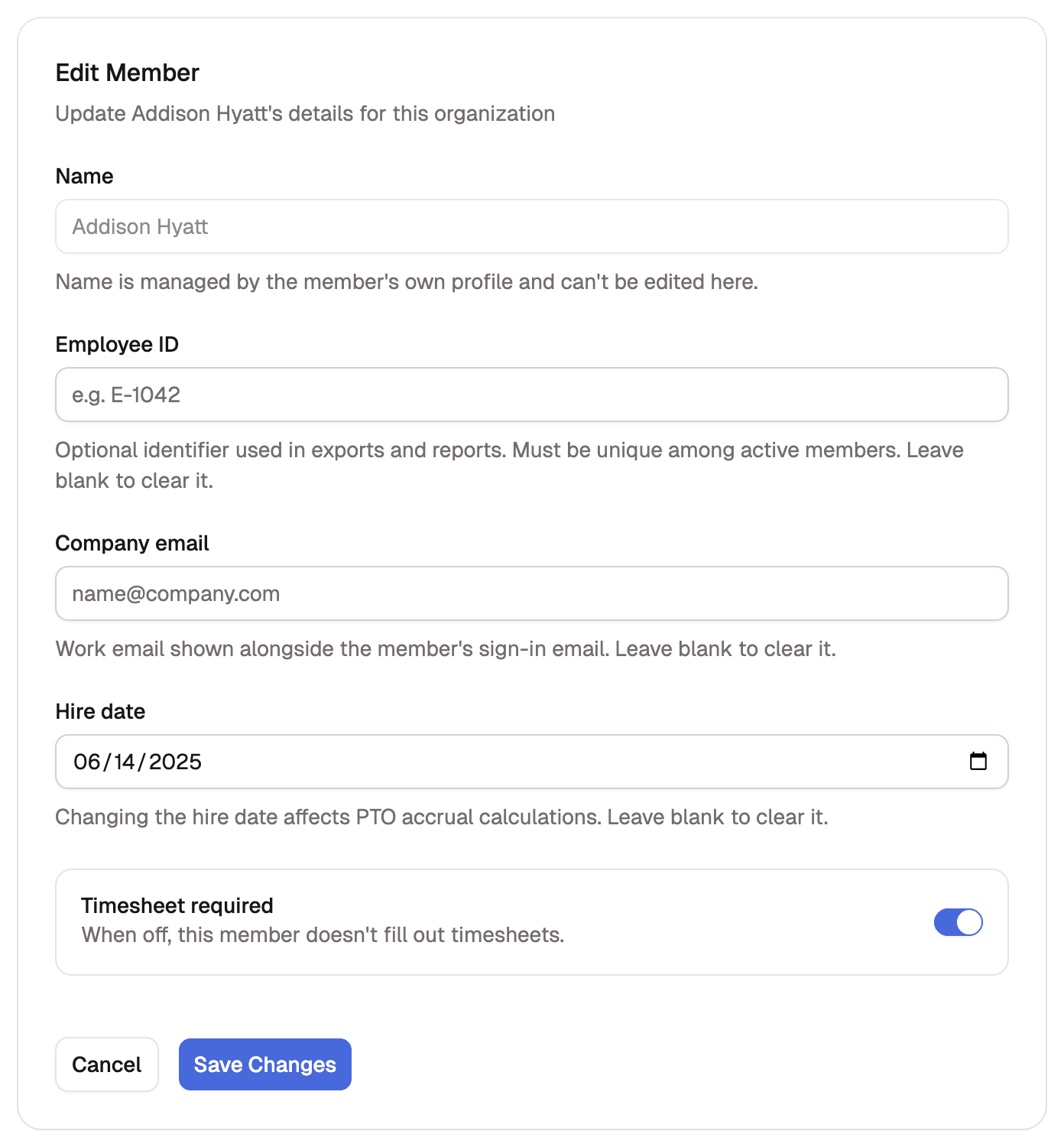
Update a member's Employee ID, company email, hire date, and timesheet requirement.
Managers can edit members with a role below their own.
Administrators can edit any member.
Some of a member's details belong to your organization rather than to them: the Employee ID your exports use, the company email you list beside their sign-in address, the hire date their PTO accrues from. You edit all of these from the member's page.
Edit a member's details
- Open Members and select the member.
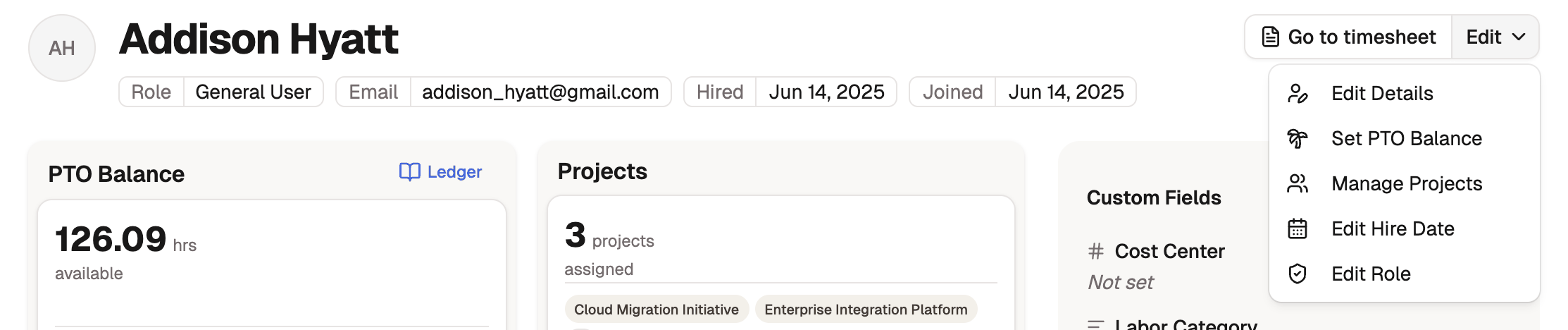
- Select Edit in the page header, then Edit Details. The Edit Member page opens.
- Update the fields you need, then select Save Changes.
| Field | What it does |
|---|---|
| Employee ID | Optional identifier used in exports and reports. Must be unique among active members. Leave it blank to clear it. |
| Company email | Work email shown alongside the member's sign-in email. Leave it blank to clear it. |
| Hire date | The date PTO accrual counts from. Changing it affects the member's accrual calculations. |
| Timesheet required | Turn it off for someone who doesn't log hours and only needs the dashboard. |
Name shows on the form but is locked: it's managed by the member's own profile. The exception is a pending member who hasn't accepted their invitation yet; until they do, their name is yours to edit, as separate First name and Last name fields. Accepting the invitation carries those parts into the account they create.
The rest of the Edit menu
The Edit menu on the member's page gathers every change you can make to them:
- Set PTO Balance re-anchors their leave balances. See Setting and verifying balances.
- Manage Projects changes which projects they log time against. See Assigning members to a project.
- Edit Hire Date changes the hire date on its own (administrators only).
- Edit Role moves them between General User, Reviewer, Manager, Admin, and Super Admin. A role change also changes which leave banks and indirect codes reach them through the role; individual grants stay put. See Roles and permissions.