One-click anomaly fixes
Let members correct clear-cut timesheet anomalies with one click.
Administrators turn anomaly fixes on and configure them.
Once enabled, anyone editing a timesheet can apply the fixes.
Some of the anomalies your rules catch have exactly one sensible correction: an entry that should be rounded, PTO nobody needed, hours logged on a day that hasn't happened. Anomaly fixes let the person editing the timesheet apply those corrections in one click instead of hunting each one down, while anything that takes judgment stays flagged for a human.
Turn on anomaly fixes
- Open Settings, then select General under Core Organization.
- Find the Anomaly Fixes card and turn on Enable one-click anomaly fixes. Two more options appear.
- Leave Require confirmation on to show a dialog summarizing the corrections before they're applied.
- Optionally choose an indirect charge code under Even out short days with. When a day falls short of its expected hours, the fix adds the missing time to that code: 7.25 logged on an 8-hour day adds 0.75 to it. Members must be assigned to the code for this fix to apply. Leave it on Don't even out short days to skip this fix entirely.
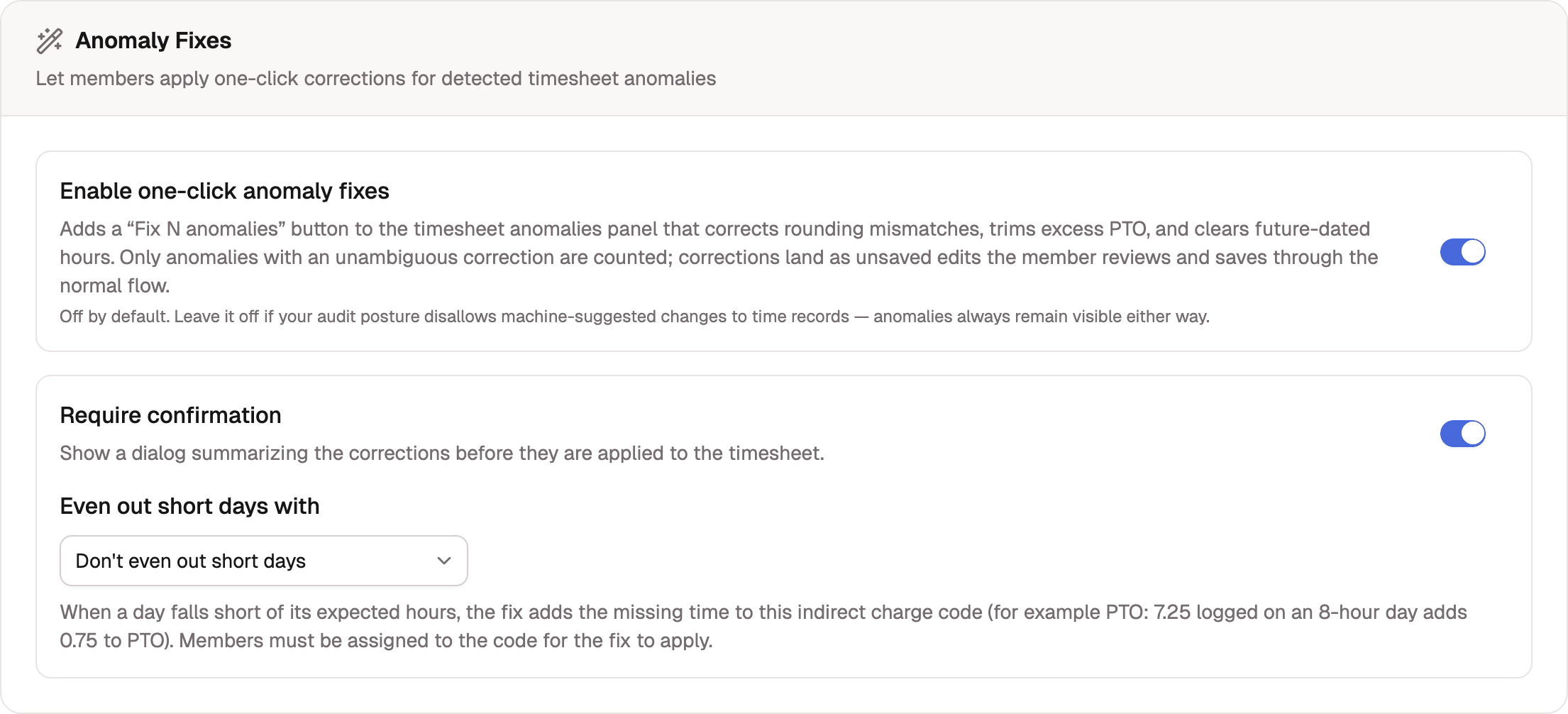
The setting is off by default. Leave it off if your audit posture disallows machine-suggested changes to time records; anomalies stay visible either way.
What the button fixes
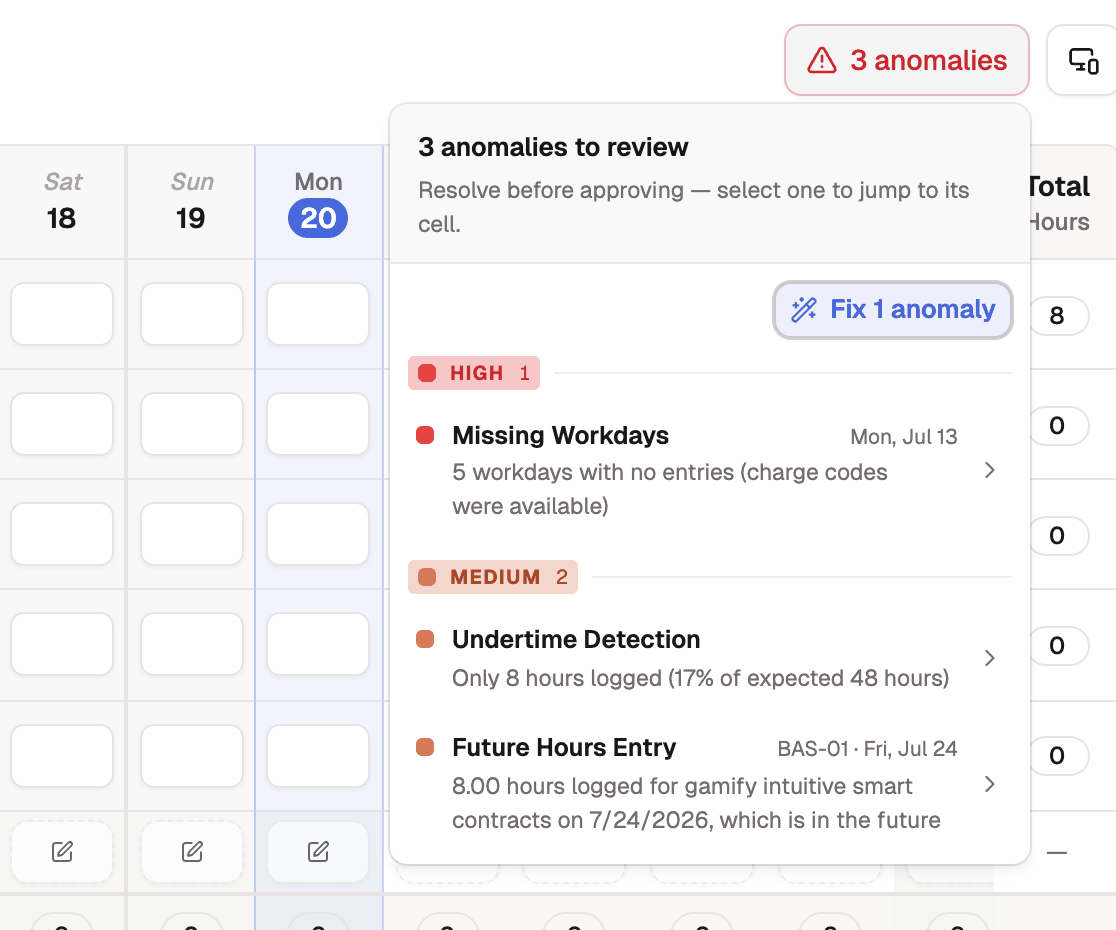
Only anomalies with one unambiguous correction get fixed. Everything else stays listed for a person to resolve.
| Anomaly | The fix |
|---|---|
| Punch Rounding Mismatch | Sets the entry to the code's rounded value. |
| Unnecessary PTO | Trims the excess when a day's PTO sits in a single cell. |
| Future Hours Entry | Clears hours logged on a date that hasn't happened. |
| Insufficient Daily Hours | Tops the day up on your even-out charge code, if you've chosen one. |
Anomalies like missing days or undertime have no single right answer, so the button never touches them.
Applying the fixes
With the setting on, an editable timesheet's anomalies panel gains a Fix N anomalies button. The count is a promise: it covers only the anomalies the button will actually fix, which can be fewer than the panel lists. When none of the listed anomalies has an automatic fix, the button disables and explains that they need your judgment.
Selecting it (and confirming, if you've kept the confirmation on) applies the corrections as unsaved edits. Nothing is written automatically: the changed cells are highlighted for review, and the corrections only stick when the timesheet is saved through the normal flow. Your members see the same button on their own timesheets, and you see it when editing on a member's behalf.