
Submitting your timesheet
Send your hours for approval, and recall them if you need to make a change.
When the period is done and your hours are right, you submit. Submitting sends your timesheet to your manager for review and approval.
Submit for approval
- Open Timesheet and check your entries for the period.
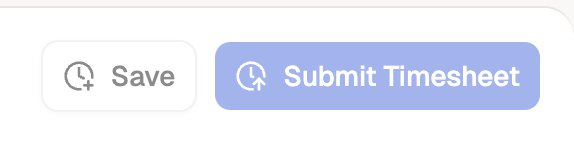
- Save any hours you've entered. Submission reads saved entries only, and the confirmation dialog counts your unsaved changes and holds its Submit Timesheet button until you've saved them from the grid.
- Clear any flags in the anomalies bar so nothing surprises your reviewer.
- Select Submit Timesheet, then confirm.
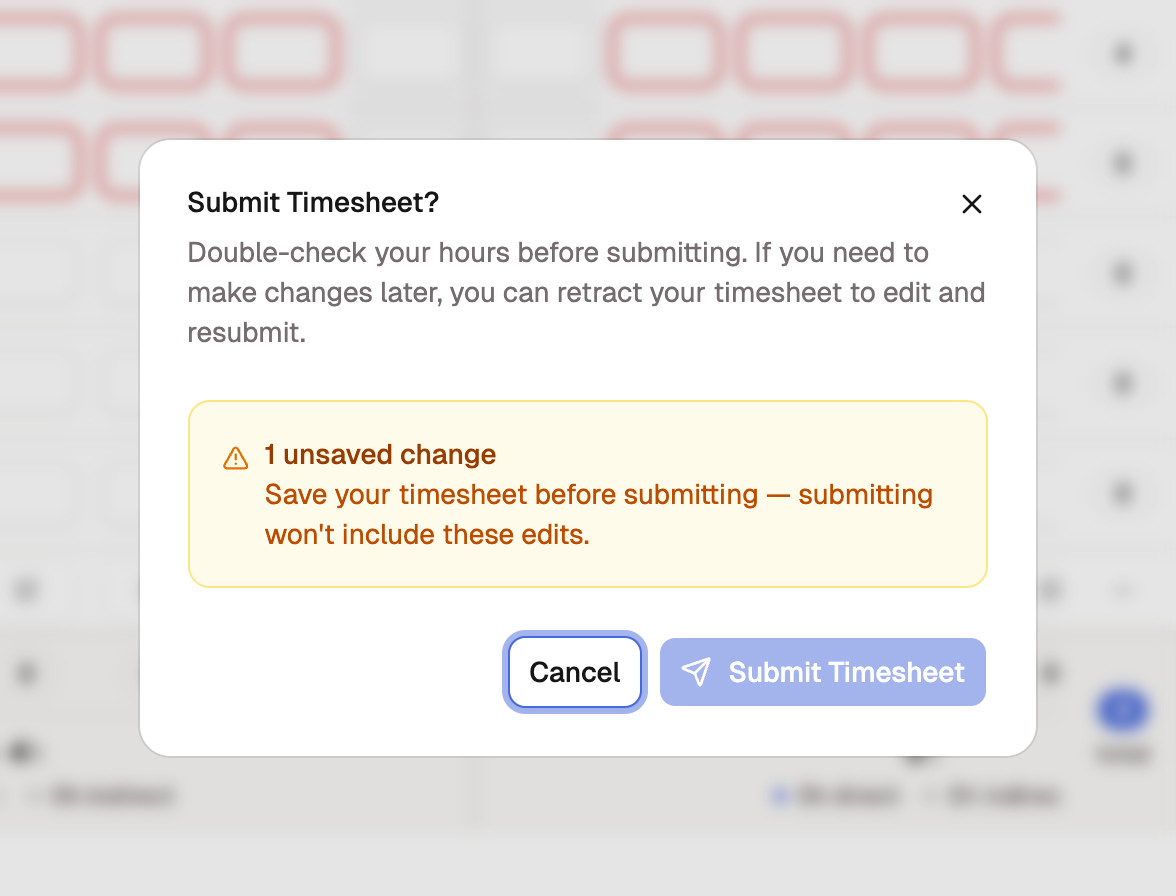
Your timesheet's status changes from Draft to Submitted, and it moves into the review queue.
After you submit
A submitted timesheet locks, so you can't edit it. If you need to change something, recall it before a reviewer gets to it, or ask your reviewer to send it back.
Recall a timesheet
Changed your mind before review? Recall the timesheet to put it back in your hands.
- Open the submitted timesheet.
- Select Recall.
It returns to Draft, you make your edits, and you submit again.
When recall isn't available, because review has started or the timesheet is already approved, select Request Edits on the timesheet instead. Your request, with the reason you give, goes to an administrator who can reopen the timesheet; once they do, you make the change and submit again. A timesheet whose cycle has closed can't be reopened this way; your administrator would need to reopen the cycle itself.
What the statuses mean
Your timesheet moves through a few states. The header always shows where it stands.
| Status | What it means |
|---|---|
| Draft | Yours to edit. Not in the approval queue yet. |
| Submitted | Sent for review and locked from edits. |
| Reviewed | A reviewer has looked it over, ahead of approval. |
| Approved | Signed off and final. |
| Rejected | Sent back for changes, and editable again. |
If your timesheet comes back as Rejected, open it, make the change your reviewer asked for, and submit it again.