Joining your organization
Accept your invitation, sign in, and move between organizations you belong to.
Someone on your team set up BadgeOut and invited you. This page gets you from that invitation email to signed in, and shows you how to switch between organizations if you belong to more than one.
Accept your invitation
Your invitation arrives by email. Open it and follow the link to your organization, then set up how you'll sign in.
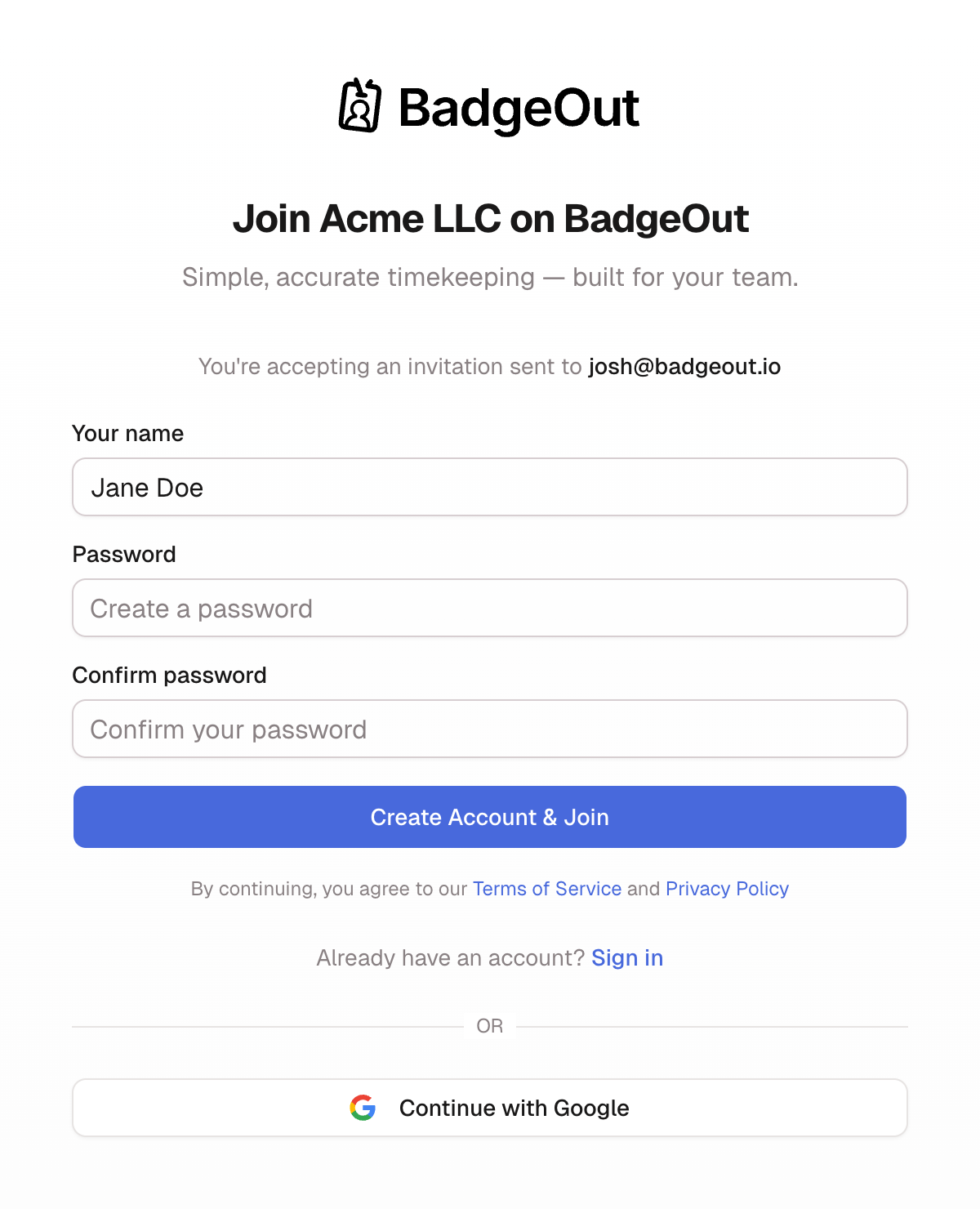
- New to BadgeOut: check your First name and Last name (they come prefilled from your invitation), enter a Password and Confirm password, or select Continue with Google. Then select Create Account & Join.
- Already have a BadgeOut account: select Sign in, and you'll join the organization once you're signed in.
You land in your organization, on your Timesheet.
Didn't get an invitation?
Check your spam folder first. If it's not there, ask whoever set up BadgeOut for your team to resend the invite. Accounts are added by invitation, so there's nothing to sign up for on your own.
Sign in
Coming back later? Open the sign-in screen, enter your Email and Password (or select Sign in with Google), then select Sign in. Google always shows its account picker, so if you keep separate work and personal accounts, choose the one your invitation went to. Signed in but seeing "You don't have access to this organization"? See Signing in.
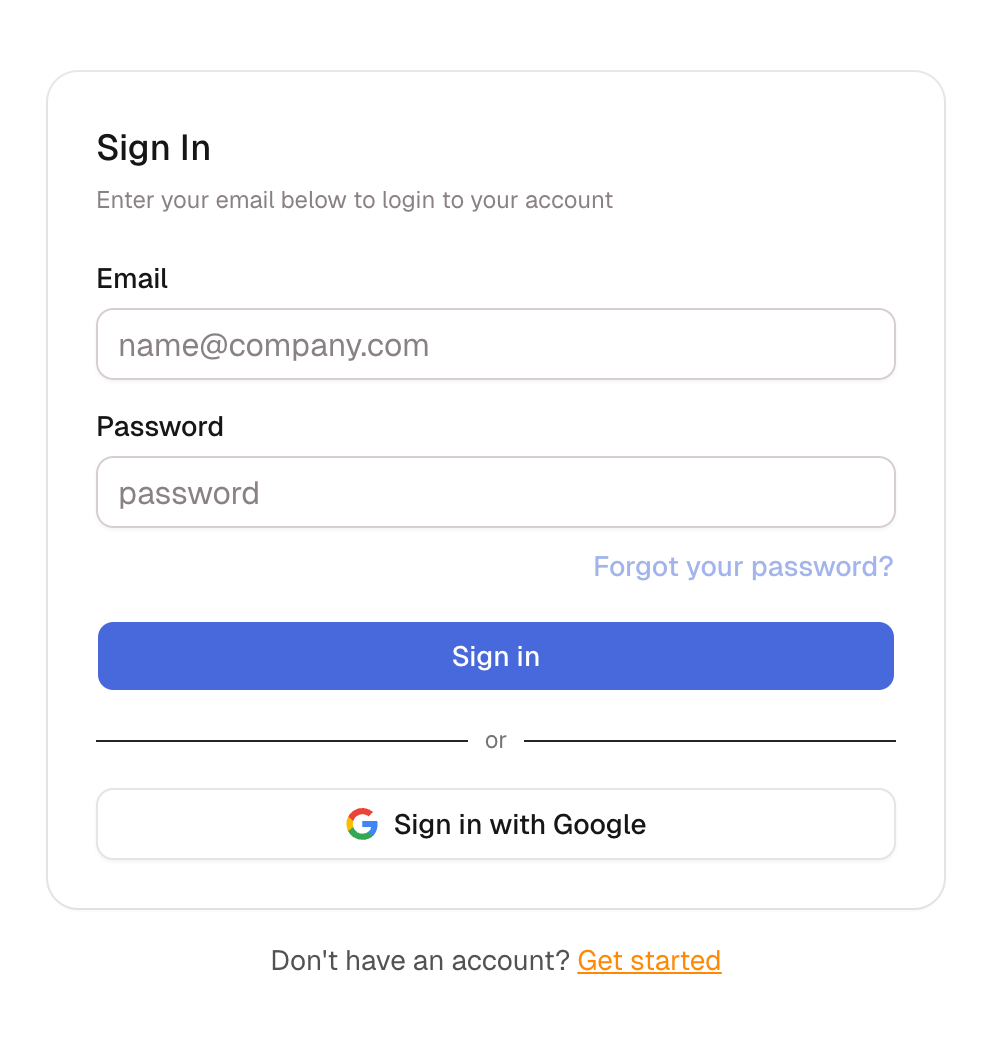
Forgot your password? Enter your email, then select Forgot your password? to get a reset link. See Resetting your password for the full walkthrough.
Switch organizations
You can belong to more than one organization, each with its own timesheets, charge codes, and settings. Your name and sign-in stay the same across all of them.
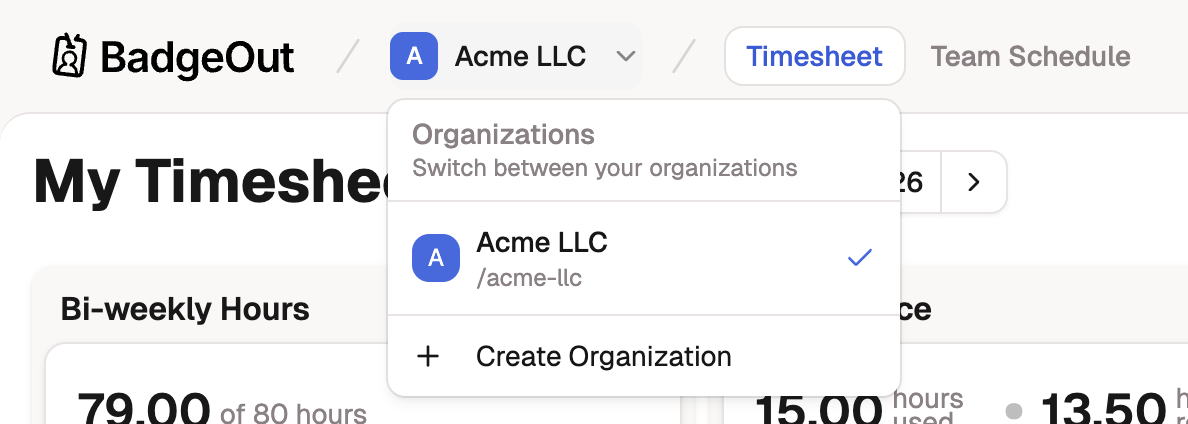
- Open the organization menu beside the logo, top left.
- Choose the organization you want. A checkmark marks the one you're in now.
BadgeOut switches you over and opens that organization's Timesheet. Your hours never cross between organizations, so log time in whichever one you're working under.