Logging your time
Open your timesheet, enter hours against your charge codes, and keep a running total.
Your timesheet is where you record the hours you work. You'll come back to it through the pay period, adding time as you go, so the total is right by the time it's due.
Open your timesheet
Select Timesheet in the top header. It opens to the current pay period, and if you log your own hours, you also land here right after you sign in.

Enter your hours
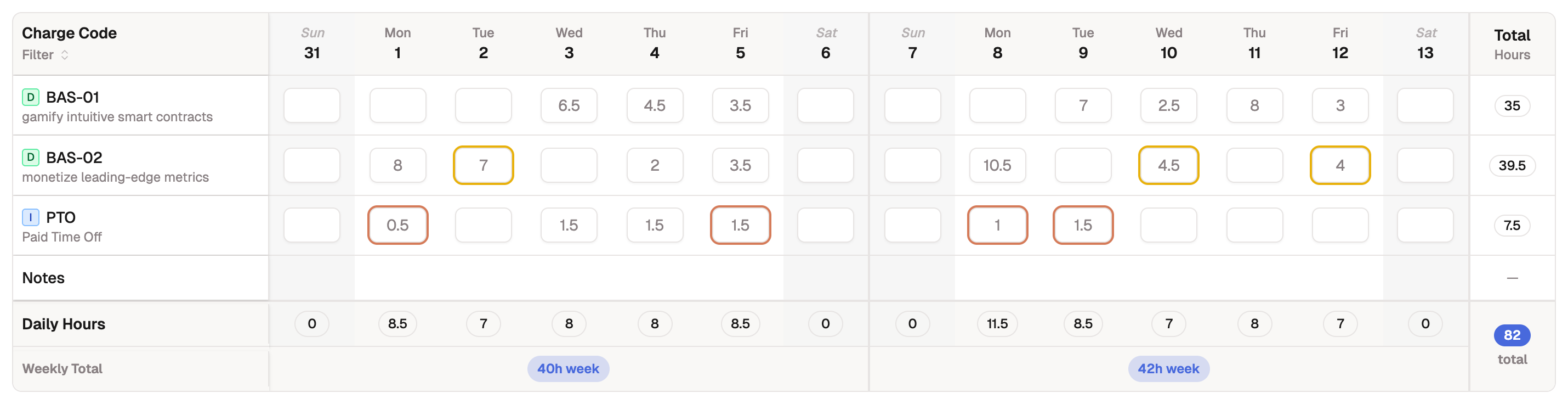
Each row in the grid is a charge code assigned to you, and each column is a day in the period. Enter the hours you worked in the cell where the code and day meet.
- Find the day you want to log.
- Enter your hours against the relevant charge code.
- Repeat for each day. Your running total updates as you go.
Tip
A long list of codes can crowd the grid. Select Filter above the grid to show only the codes you need. A row that already has hours stays visible, so you won't lose sight of time you've logged.
If you don't see a charge code you expect, your administrator assigns codes to people, so reach out to them rather than looking for an add option here.
Returning leave you didn't take
Logged PTO and ended up working instead? Enter negative hours on the leave code and the time goes back to your balance when the timesheet is approved. Your PTO ledger records it as a Giveback.
Save as you go
Select Save to keep your hours as a Draft. A draft is yours to edit, and nothing reaches the approval queue until you submit. Come back as often as you like through the period.
Unsaved hours won't slip away silently: if you leave the page, close the tab, or refresh with unsaved changes, BadgeOut asks you to confirm first. Submitting is blocked until you save, too, so hours you can see on the grid can't be left out of the timesheet you submit. And if a save stops partway, BadgeOut tells you how many cells landed and keeps the rest marked unsaved so you can retry.
Read your stats
A few cards above the grid keep you oriented as you fill the period in.
- A period-hours card, named for your cadence (like Bi-weekly Hours or Monthly Hours), totals your hours so far against what's expected, with the workdays in the period and how complete you are.
- PTO Balance shows how much paid time off you have. A Verified badge means the figure was confirmed at your last approved timesheet. If you can spend from more than one kind of leave (Vacation and Holiday, say), the card shows a tab per balance; a bank you can no longer use keeps its tab, read-only, until the remaining hours reach zero. Select Ledger to open the full history on your PTO ledger. If the card says No starting balance set, your administrator hasn't recorded your starting balance yet.
- Charge Code Utilization shows how your logged hours track against each of your codes, so you can see where your time is going.

When something looks off
If BadgeOut notices a possible issue, like a day left blank or an unusually long shift, it flags it in the anomalies bar above the grid. Select a flag to jump straight to the cell it's about. Clearing these before you submit saves a trip back through review.
Some organizations turn on one-click fixes. When yours does, a Fix N anomalies button appears above the flags that have an obvious correction, like hours on a day that hasn't happened yet. Selecting it applies the corrections as unsaved edits: review the highlighted cells, then save. Flags that take judgment stay listed for you to resolve.