Finding your way around
A quick tour of the BadgeOut header: the account menu, your notifications, and the Help menu.
BadgeOut keeps things simple for you. Almost everything you do happens on your Timesheet, and the few other places you'll visit are one click away in the header. Here's the lay of the land.
The top navigation
The bar across the top is how you move around. As a member who logs hours, you have two stops:
| Link | What you use it for |
|---|---|
| Timesheet | Log the hours you work and submit them for approval. |
| Team Schedule | See who's out and put your own time off on the calendar. |
That's the whole tour. The setup and oversight controls (projects, charge-code management, reviewing other people's hours) only appear for the people who help run the organization, so you won't see them unless that's part of your role.

The account menu
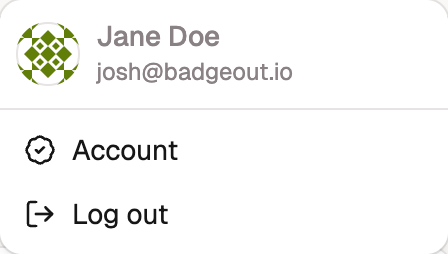
Open the avatar on the right end of the header for your personal options:
- Account opens your profile, sign-in, and display settings.
- Log out signs you out of BadgeOut.
Notifications
The notifications icon beside your avatar opens your Inbox, a quick list of recent updates with Inbox and Archived tabs and a count of anything unread. It's where BadgeOut flags things like a timesheet that's due or a note that a reviewer sent one back.
Select View all notifications to open the full Notifications page, your complete history under the same Inbox and Archived tabs:
- Filter the list by notification type, and on the Inbox tab by read state (All, Unread, or Read). Unread rows are marked Unread in text, and sorting a column reorders the whole list.
- Mark as read or Archive any row. Archived notifications keep their history on the Archived tab; nothing is deleted.
- Page through a long history with the footer: it counts what you're looking at ("Showing 1–20 of 45 notifications."), and Rows per page chooses how many you see at once. The choice sticks for next time.
To control which updates reach you, select Preferences there: a global Email and In-App switch, plus per-type toggles like Submission Reminders and Timesheet Rejected, so you keep the ones you want and mute the rest.
Help and what's new
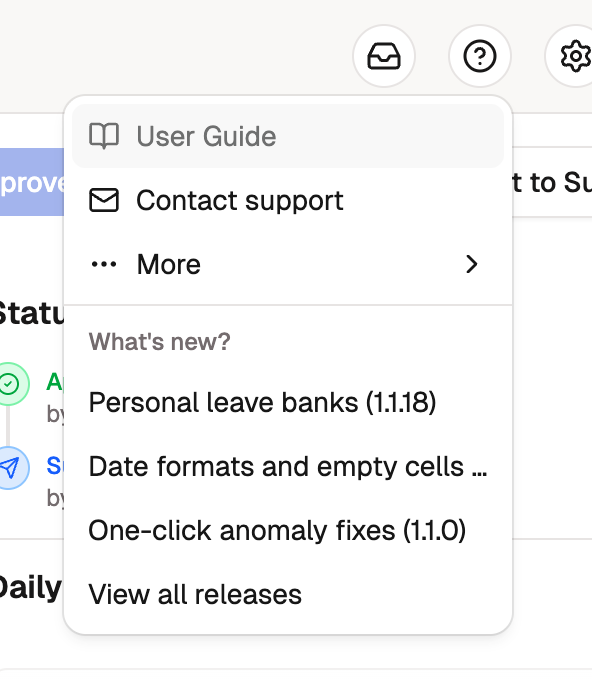
The question-mark button between Notifications and your avatar opens the Help menu:
- User Guide opens these guides in a new tab.
- Contact support starts an email to the BadgeOut support team.
- More holds the Privacy Policy, the Terms of Service, and the version of BadgeOut you're running.
Below those, What's new? lists the three most recent release posts, and View all releases opens the full history. A dot marks each post you haven't opened, and the button carries one while any post is unread. Opening the menu clears the dots.
On a phone the header has no room for the button, so the same options open from Help in your account menu.