
Reviewing timesheets
Work through a cycle's queue, check each timesheet, and approve it or send it back.
When a member submits, their timesheet lands in the cycle's review queue waiting on you. Reviewing is how those hours move from Submitted to Approved, the point where they become a record you can report and bill against. This page walks the queue end to end: reading it, opening a single timesheet, and acting on it.
Open the review queue
- Open Review Timesheets from the Management menu in the top header.
- Select the period you want to work. An active period shows Manage; a finished one shows View.
The cycle opens to its queue: every member who's expected to file, their current status, and anything flagged for a closer look.
Read the queue
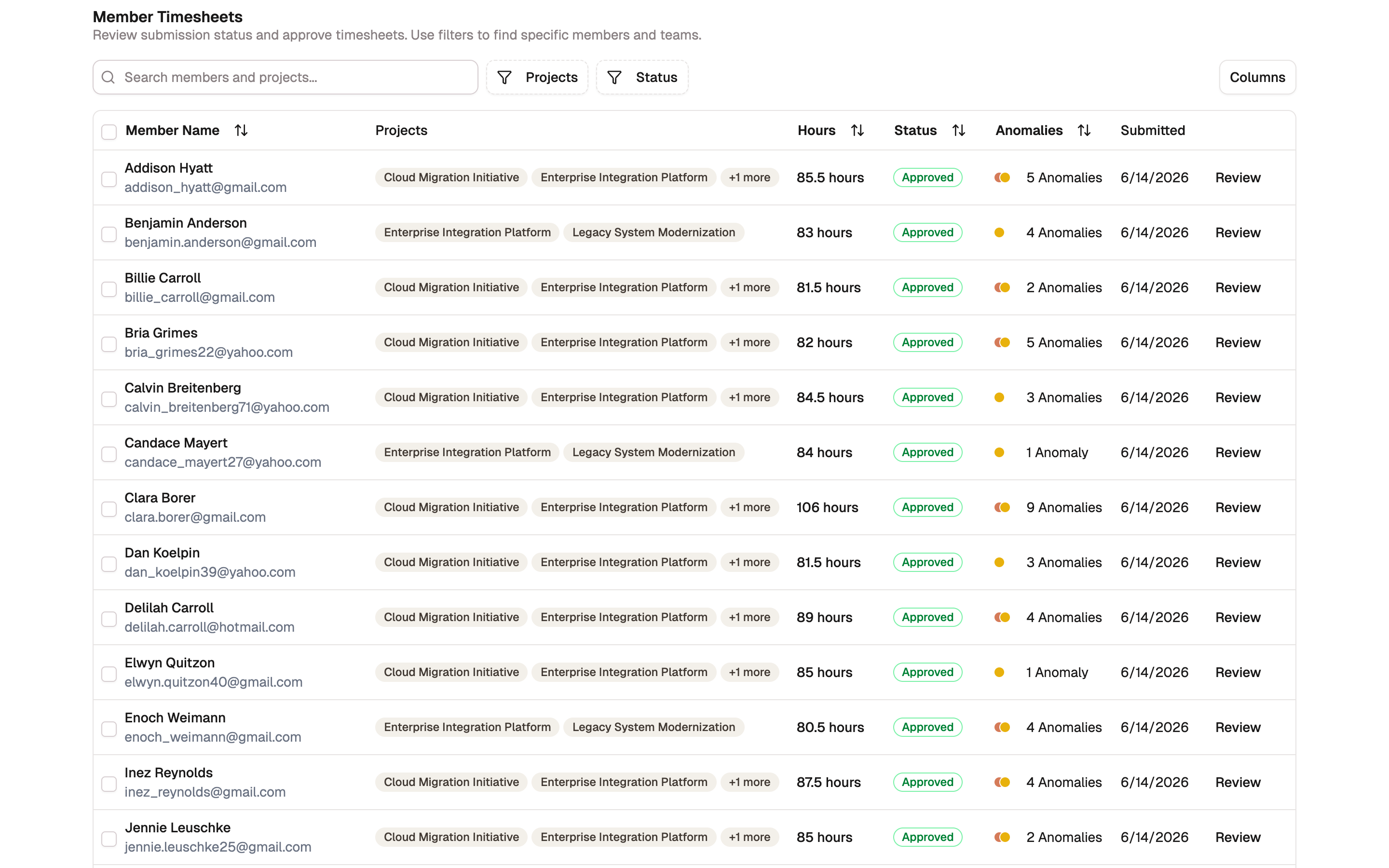
The queue is one row per member, so you can see the whole period at a glance before opening anything.
- Member shows who filed, with a flag if someone logged hours when they weren't expected to.
- Projects and Hours summarize what they worked and how much.
- Status is where each timesheet sits (Submitted, Reviewed, Approved, and so on).
- Anomalies counts the patterns your rules flagged, by severity.
- BadgeOut Rating (Plus) gives each submitted timesheet a verdict: Looks correct, Needs a look, or Likely issue. Hover the badge to read why.
- Submitted shows when it arrived, or Not submitted if it hasn't.
The Anomalies count comes straight from your anomaly rules, so you know who needs a closer look before you approve. When a cycle has anomalies, a banner across the top also tallies them, for example "12 anomalies detected across 4 timesheets." The BadgeOut Rating column reads the whole timesheet, flags included, against the member's own history, so a row with no anomalies can still be worth opening first. See BadgeOut Rating for how the verdicts are made.
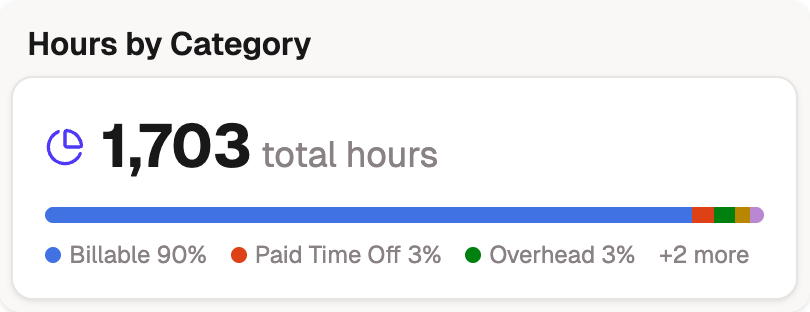
Above the queue, the Hours by Category card sums the period into a stacked bar: billable work, overhead, and one slice per leave bank, so Holiday hours read separately from PTO instead of blending into one leave number.
Review one timesheet
Select Review on a row to open that member's timesheet in full.
The timesheet opens as a grid: each day down the side, each charge code across the top, and the hours in the cells, with daily and period totals. Flagged entries are marked in place, so an anomaly points you straight at the day and code it came from. Any notes the member left on a day show here too, and a history panel records every step the timesheet has taken. On the Plus plan the timesheet's BadgeOut Rating sits beside the anomalies button above the grid; select it to read the reasoning and vote on whether the rating was right.
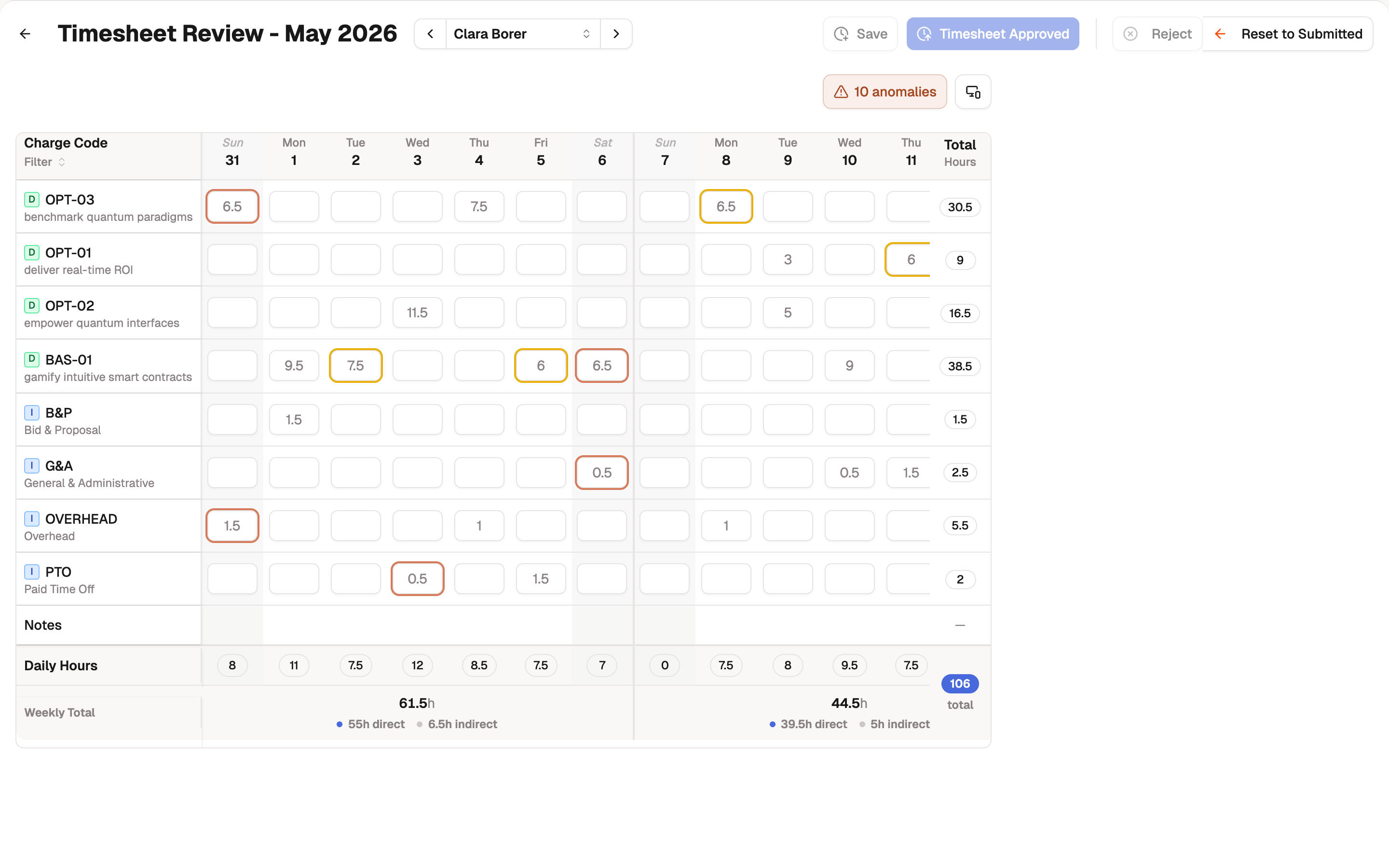
The action buttons sit in the header. What you see depends on your role: reviewers get Mark as Reviewed, while managers and administrators also get Approve, Reject, and Reset to Submitted.
Fix an entry as you review
As an administrator, the grid on the review view is editable even after the timesheet locks: correct a submitted, reviewed, or approved timesheet in place, your own included, and save. Every save is recorded in the timesheet's activity log, attributed to you and stamped with the status it landed on, so the audit trail stays intact. Reviewers and managers see a read-only grid here; to have hours changed, they send the timesheet back instead.
Correcting leave on an approved timesheet corrects the balance too. When you change a leave day's hours or add a leave day, BadgeOut reverses what the approval charged, charges the new hours with you recorded as the approver, and re-attests the member's PTO balance. If the day's charge code no longer draws a leave bank, though, you can't change its hours this way. Delete the entry, or reset the timesheet to submitted and approve it again.
Mark a timesheet as reviewed
Marking a timesheet Reviewed says you've vetted the hours without yet approving them. It's the one review action available to the reviewer role, and it's how a team splits checking from sign-off: reviewers comb through the detail, a manager gives the final approval.
- Open the timesheet and confirm the hours and any flagged entries look right.
- Select Mark as Reviewed. Its status moves to Reviewed and the owner is notified.
Selected the wrong one? Unreview puts it back to Submitted.
Approve
Approving is the final sign-off, available to managers and administrators. Because BadgeOut tracks leave for compliance, approving also records a balance checkpoint for the period: the attested figure the next period counts from.
- Select Approve. The Approve & Set PTO Balance dialog opens. On the Plus plan it repeats the timesheet's BadgeOut Rating and reasoning above the balance figures.
- Check the member's PTO for the period: starting balance, accrued, used, and ending balance. Adjust a value and add a reason if you need to correct it. When the member can spend from more than one leave bank, each additional bank gets its own section below, so every balance is attested in one pass. The dialog covers the banks the member has access to; for a member without access to the default PTO bank, its section is skipped rather than attested empty.
- Select Confirm & Approve. The status moves to Approved and the owner is notified.
BadgeOut checks the dialog's figures again when you confirm. If the member's starting balance moved while the dialog was open (another administrator corrected one of their earlier timesheets, for instance), the approval is refused and asks you to reopen the dialog. Reopen it, check the current figures, and approve again. A starting balance you overrode still goes through, as long as the balance underneath it hasn't moved.
If a member has no starting PTO balance on record, the dialog stops at No Initial PTO Balance Set. Select Set Initial Balance, enter the hours, then Set & Continue, so the checkpoint has somewhere to count from. The form defaults to the month before the period, because the approval only recognizes a balance dated on or before the period start. If a balance already exists, the button reads Overwrite & Continue, so you replace it knowingly.
Save your edits before you approve
If you edited the grid, approve only after saving. The checkpoint is computed from saved entries, so Confirm & Approve stays disabled while unsaved edits exist: the dialog counts them in a banner ("2 unsaved changes") with an inline Save changes button, and saving refreshes the balance figures in place. The Reject dialog shows the same banner but only warns; unsaved edits stay in your browser until you save them.
Send a timesheet back
When something needs fixing, send the timesheet back instead of approving it. Rejecting is a manager or administrator action.
- Select Reject.
- Add a note explaining what needs to change. The owner sees this, so be specific.
- Confirm. The status moves to Rejected and the owner is notified with your note.
A rejected timesheet doesn't vanish or reset the member's work. Their entries are kept exactly as filed; they read your note, correct the hours, and resubmit, which brings it back to your queue.
You can't reject an approved timesheet directly
Once a timesheet is Approved, the Reject button is unavailable. To send an approved timesheet back, first Reset to Submitted (below), then reject it. A timesheet that hasn't been submitted yet can't be rejected at all.
Reset to submitted
Reset to Submitted reopens a finished timesheet for another pass. Use it on an Approved, Reviewed, Rejected, or Edit unlocked timesheet to pull it back to Submitted, so you can re-review, re-approve, or send it back. It's your undo for a sign-off that turned out to be premature.
Chase missing timesheets
You can't approve hours nobody filed. For anyone still in Draft or Not started, nudge them without leaving the queue:
- Select Send Reminder on that member's row to nudge that one person.
- Select Send Bulk Reminders to notify everyone who hasn't submitted at once.
Each reminder reaches the member in the app. Your members then open Timesheet, finish their hours, and submit, which moves them into your queue.