
Leave banks
Give each kind of leave its own named balance, accrual, and rules.
A leave bank is a pool of hours your members draw down when they take time off: Vacation, Sick, Personal, Holiday. Every organization starts with one default PTO bank, and you can add more so each kind of leave keeps its own balance and its own rules.
How leave banks work
Each bank owns three things: a balance, an accrual strategy that decides how the balance grows, and a negative-balance policy that decides how far it can be spent down. Members never log time to a bank directly. They log hours to an indirect charge code linked to the bank, and those hours drain its balance. Link several codes to one bank and they share a single pooled balance, while reports still show usage per code.
Who can use a bank follows the same seam: a member sees a bank, accrues hours in it, and spends from it only if they can charge one of its linked codes. Who can use a bank below covers how that access is granted.
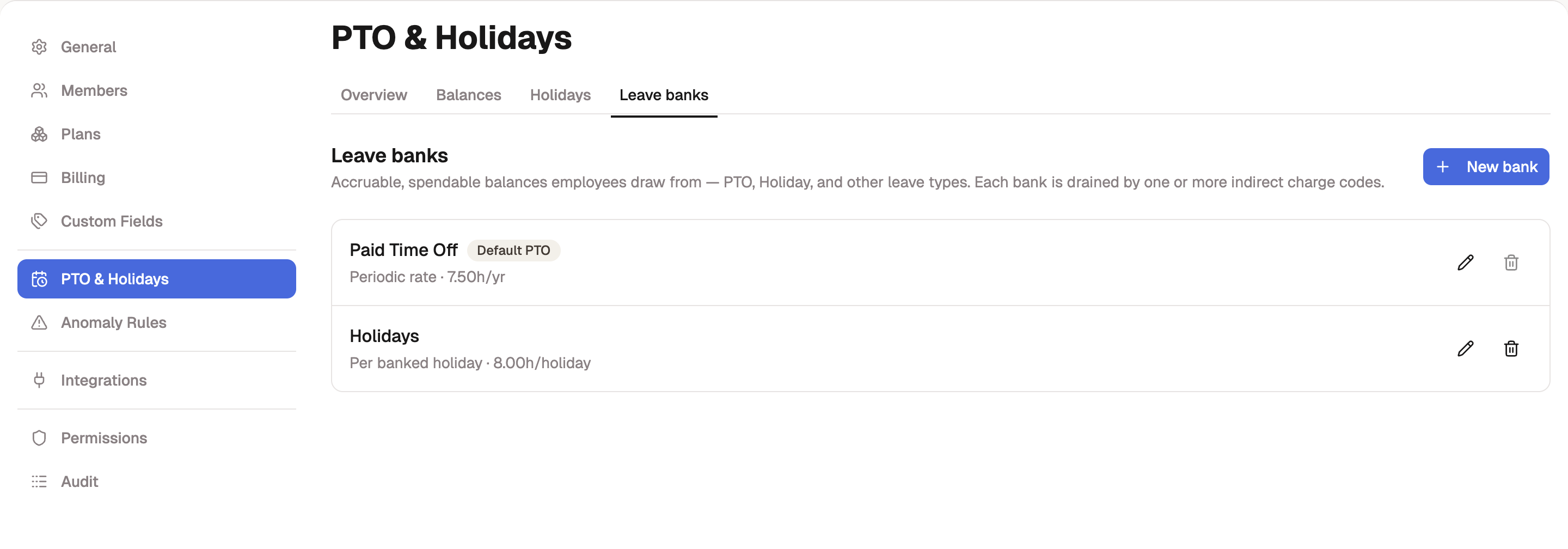
Your organization's default PTO bank is created with the organization and wears a Default PTO badge in the list. It's the bank your built-in PTO charge code drains, and the one whose balance is verified at each timesheet approval, so it can't be deleted. Beyond that it behaves like any other bank: same balance, same accrual settings, same controls.
Find your leave banks
- Open Settings, then select PTO & Holidays under Time-Related.
- Select the Leave banks tab.
Each row shows the bank's name and a summary of how it accrues, with controls to edit or delete it. Managers can view this page; changing banks takes an administrator.
Create a bank
-
Select New bank.
-
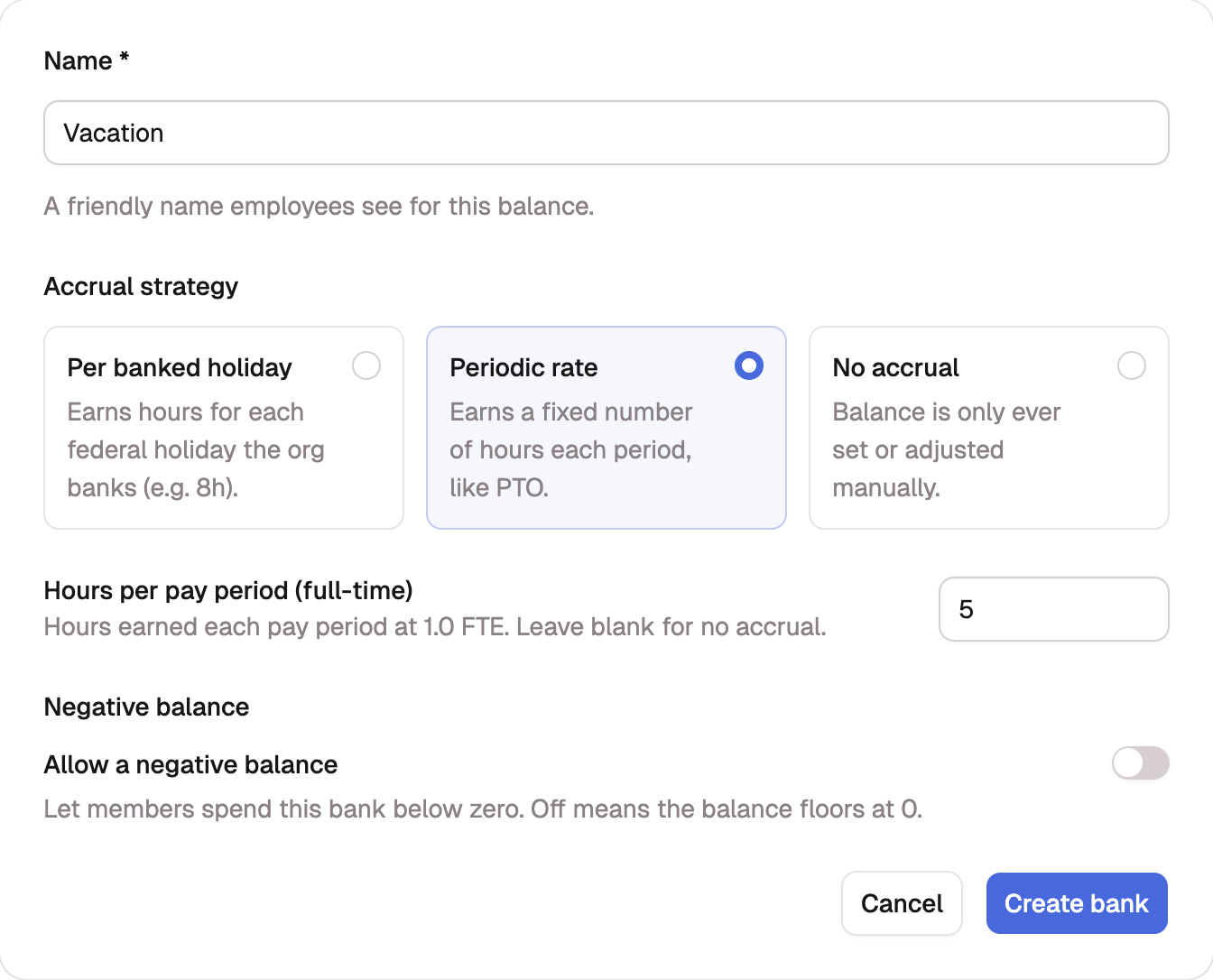
Enter a Name your members will recognize, such as "Vacation" or "Sick".
-
Choose an Accrual strategy:
Strategy How the balance grows Periodic rate Earns a fixed number of hours each pay period, like PTO. Per banked holiday Earns hours for each holiday your organization banks. No accrual Only grows when you set or adjust it by hand. -
Enter the rate. A periodic bank asks for Hours per pay period (full-time); a per-holiday bank asks for Hours per holiday. Both scale with each member's FTE, so a half-time member earns half. Rates display in your organization's pay-period unit wherever they appear, so a monthly cadence reads "18.33h/mo" and a bi-weekly one "18.33h/period".
-
Select Create bank.
A new bank starts empty and unreachable. Give it at least one spend code (below), grant access to that code so members can draw the bank down, and set starting balances from Setting and verifying balances.
Allow a negative balance
Each bank decides for itself whether members can spend past zero. Under Negative balance, turn on Allow a negative balance, and optionally set a Maximum negative balance (hours): the furthest below zero the bank may go. Leave the cap blank for no limit.
When the toggle is off, the bank floors at zero: the timesheet won't accept leave beyond what's left, and an approval that would end the period negative is refused. Because the policy is per bank, Vacation can run negative while Sick floors at zero.
The floor governs what members can spend, not what you can grant. An adjustment that takes a balance past the limit warns you and still saves.
Connect charge codes
Hours reach a bank through the indirect charge codes linked to it. You can make the link from either side:
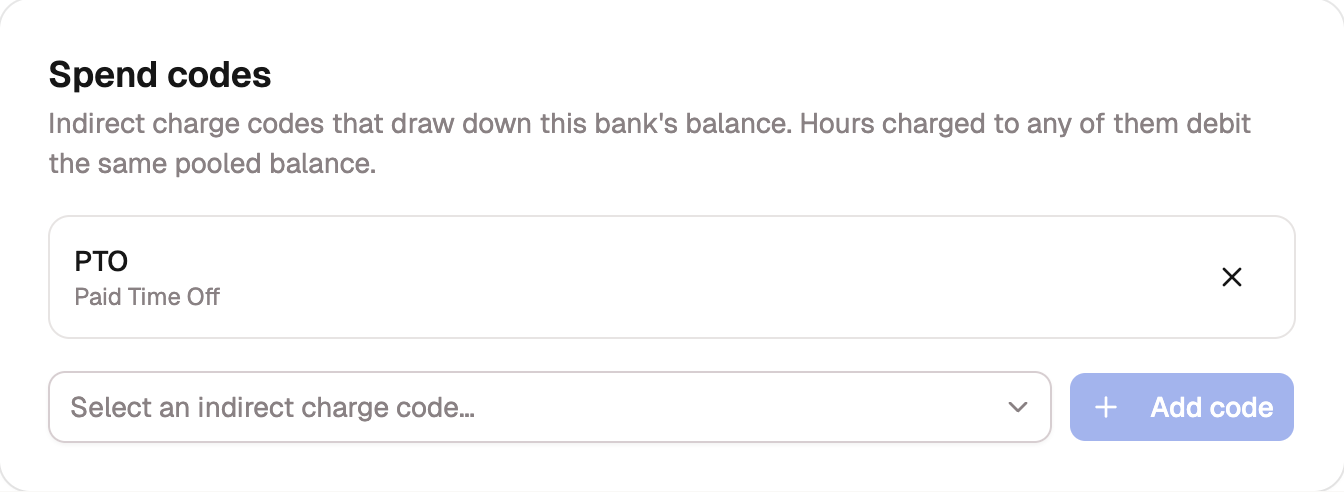
- From the bank: open the bank's edit page and use the Spend codes panel. Pick an unlinked indirect code and select Add code.
- From the code: on an indirect charge code's form, choose the bank in the Leave bank field. Leave it as None for an indirect code that isn't leave at all, like Training or Overhead.
Only indirect codes can carry a bank. The Leave bank field appears on indirect codes alone, and BadgeOut refuses a save that would leave a bank on a direct code, including a type change on a linked code.
Every code linked to a bank debits the same pooled balance. That's how a single "PTO" balance can be spent through separate Vacation, Sick, and Personal codes while you still see where the hours went.
Detaching a code doesn't change who can charge it: the code keeps its role and individual grants and only stops draining the bank. Linking or saving a code never rewrites role access either; that lives on the Permissions page and changes only when you change it there.
Givebacks
Spend codes also work in reverse. A member who logged leave and ended up working can enter negative hours on the code, and approval credits the hours back to the bank. The member's ledger shows a Giveback entry rather than usage, and usage figures across BadgeOut count net of givebacks, so returned leave never reads as extra time taken.
Who can use a bank
A member reaches a bank one of two ways, never both:
- Through their role. Granting a role one of the bank's spend codes on the Permissions page reaches everyone with that role. The default PTO bank ships this way: its PTO code is granted to General Users, Managers, and Admins from the start.
- Through an individual grant. A grant adds one member beyond what their role covers. It never duplicates the role: the pickers that grant access only offer what the role doesn't already cover.
New members arrive with the banks their invited role can spend from. The invite form shows those as included and lets you grant extra banks to that person alone.
Members with access
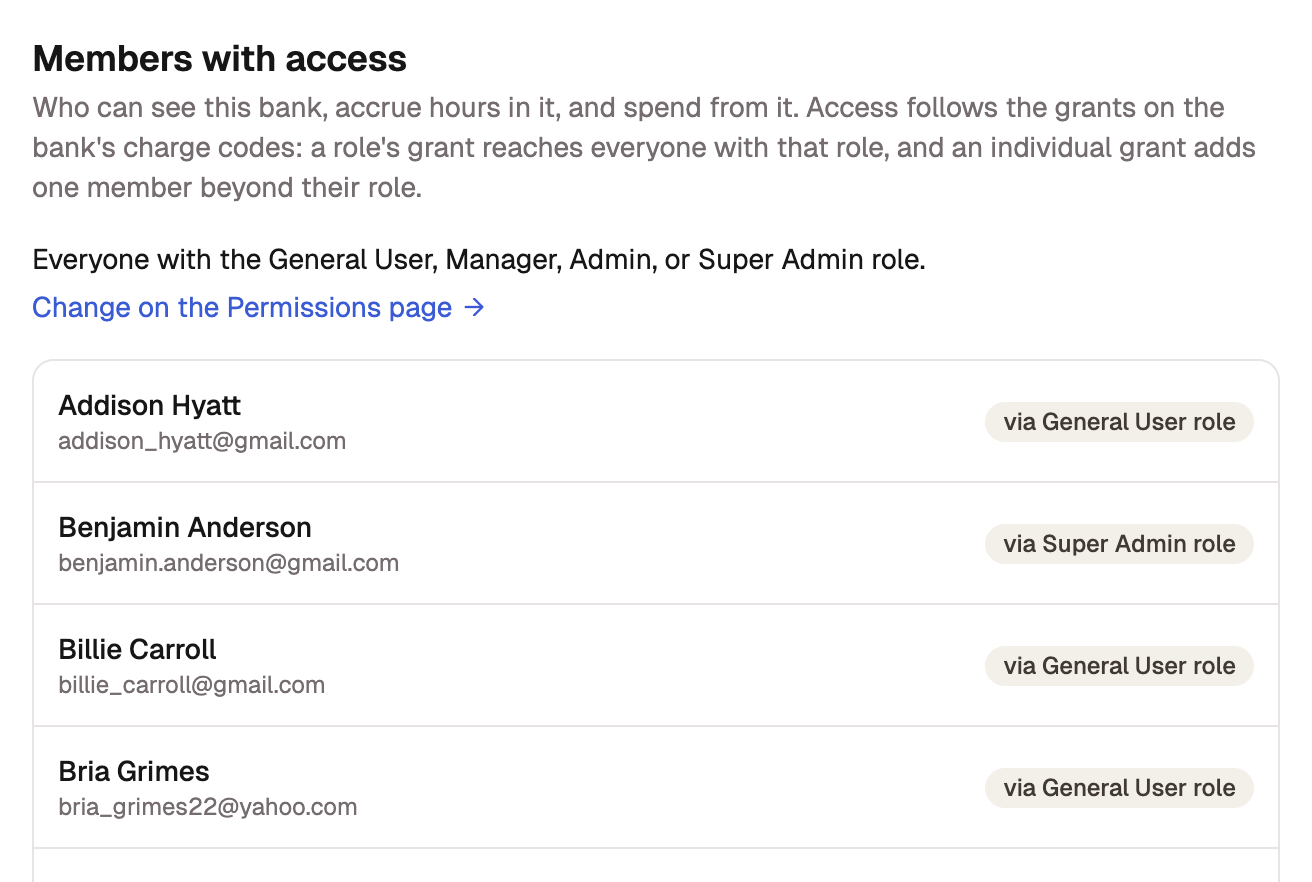
The bank's edit page ends with a Members with access card: everyone who can see, accrue in, and spend from the bank, derived live from the grants on its spend codes. The card leads with the roles that reach the bank ("Everyone with the General User role."), with a link to change that on the Permissions page, then lists each member. A member covered by their role wears a via … role badge and can't be removed here; a member added individually shows a remove control instead.
- Grant access: pick people under Select members… and select Grant access. Each grant is individual, on top of whatever roles cover.
- Remove access: select the remove control on the member's row and confirm.
Removing access stops the member from accruing in the bank or spending from it. What happens next depends on their balance:
- Hours they still hold stay theirs. The bank stays visible to them, read-only, until the balance reaches zero.
- A zero balance drops the bank from their timesheet right away.
- A negative balance stays on record until it settles back to zero.
You can grant access again at any time.
Delete a bank
Select the delete control on the bank's row and confirm. Deleting can't be undone, and BadgeOut refuses when the bank is still in use:
When a bank can't be deleted
The default PTO bank can never be deleted. A bank with approval history keeps its ledger and stays put. A bank with linked charge codes asks you to detach them first, from the Spend codes panel or each code's Leave bank field. To retire a bank you can't delete, detach its codes and set its strategy to No accrual; it stops growing and stops being spent.