
Approving in bulk
Clear a stack of timesheets in one pass, with a PTO checkpoint for each.
Once a cycle fills up, approving one timesheet at a time gets slow. Bulk approval lets you clear a whole stack in a single pass while still recording the PTO checkpoint every approval needs. It's a Plus feature, available to managers and administrators.
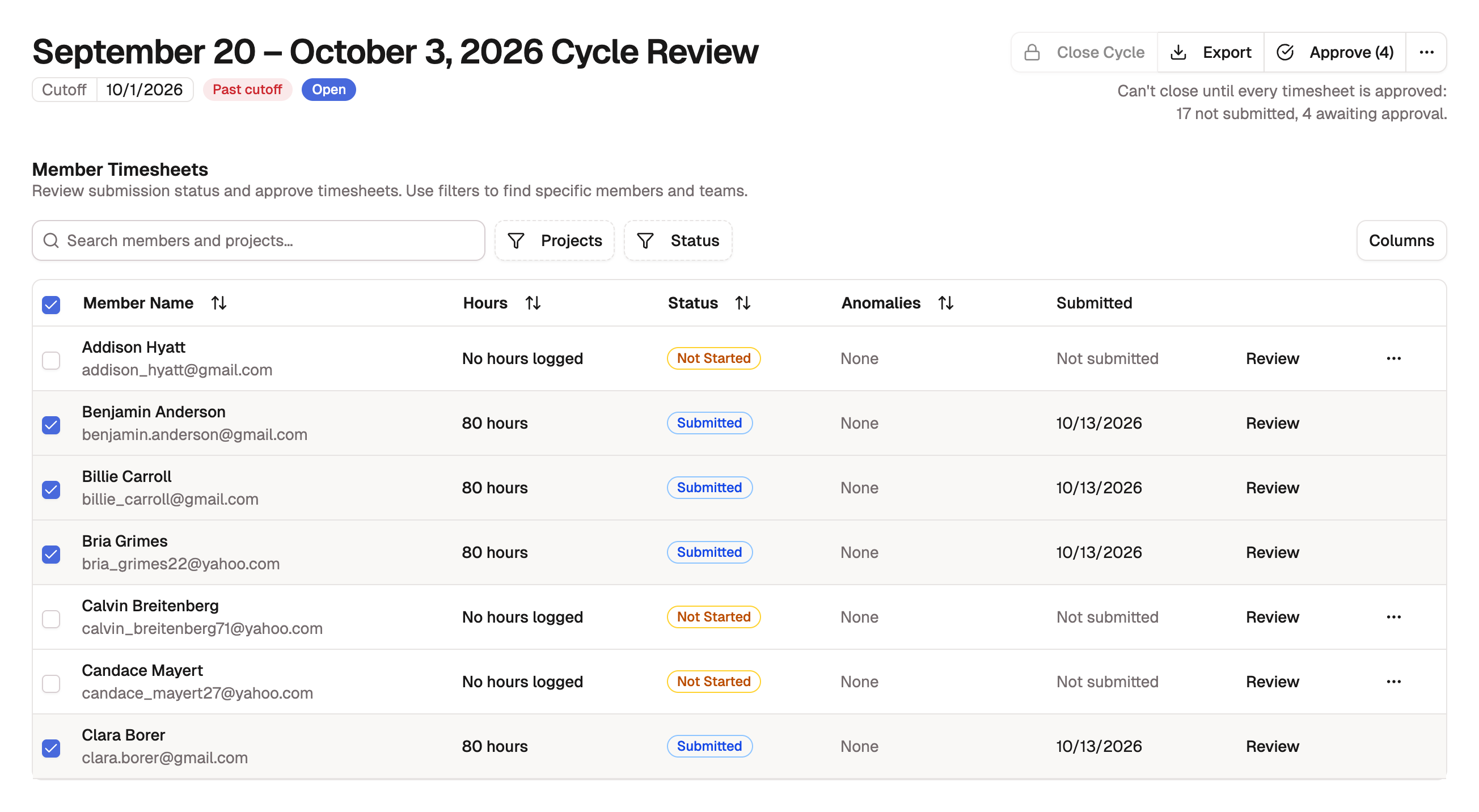
Select the timesheets
In the cycle's queue, a checkbox appears on every timesheet that's ready to approve, meaning it's Submitted or Reviewed. Statuses that aren't ready, like a draft or an already-approved sheet, can't be selected.
- Check the timesheets you want to approve. Use the header checkbox to take every approvable row on the page at once.
- Select Approve (N), where the count shows how many you've picked. With nothing selected, the button reads Bulk Approve.
Step through the checkpoints
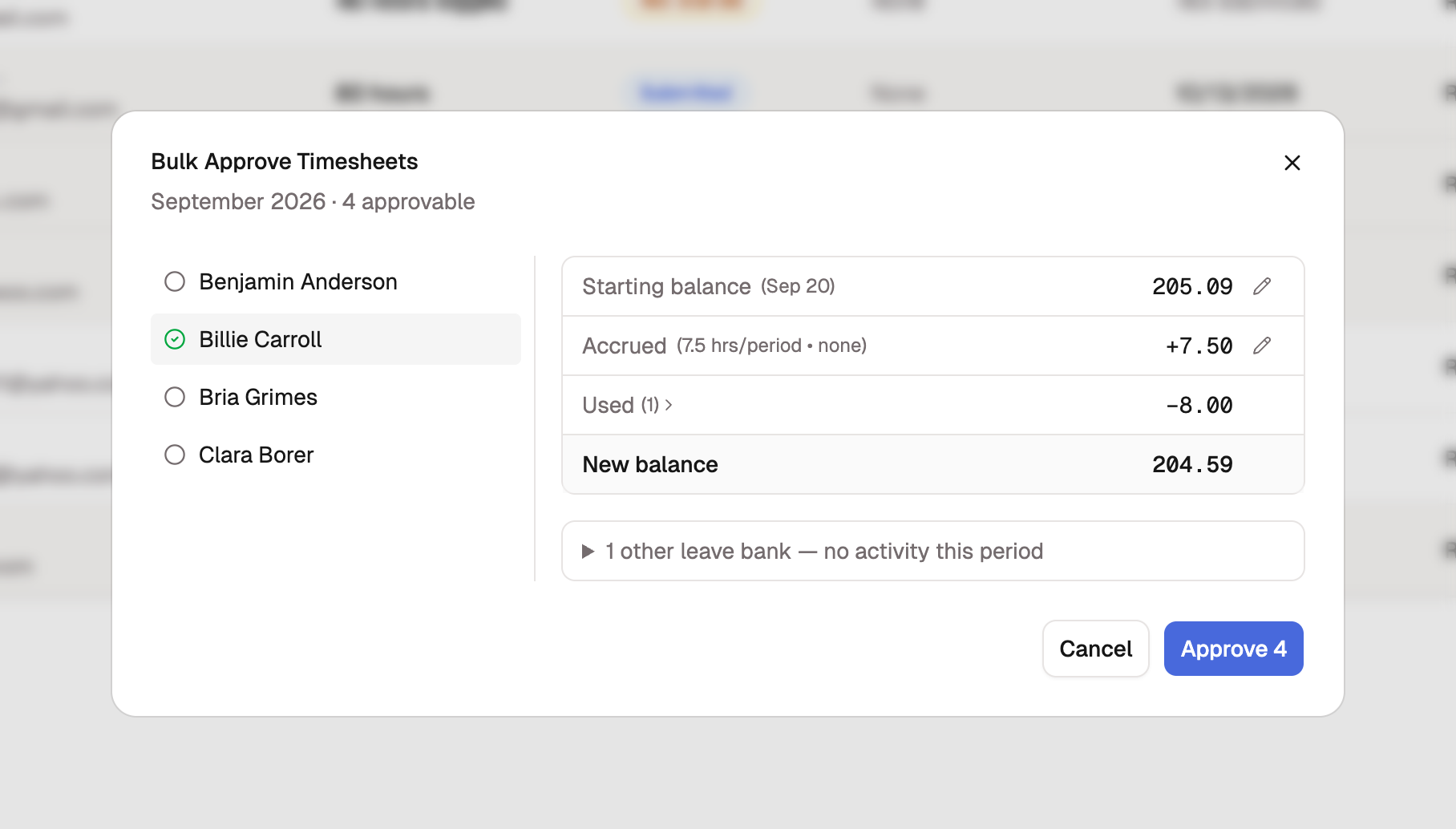
The Bulk Approve Timesheets dialog opens with your selected members listed down the side. Because each approval sets a PTO checkpoint, you can confirm or correct every member's balance before committing.
- Select a member to review their starting, accrued, used, and ending PTO for the period. An organization with several leave banks checkpoints each bank the member can spend from.
- Override a value and add a reason if a balance needs adjusting. Skip the ones that look right.
- Move through the members you want to check.
Finish and review the result
Select Approve N, where the count matches your batch. When every timesheet goes through, the dialog closes and a message confirms the count.
When some don't, the dialog stays open on a Not approved list. Each row names the member and the reason, grouped under Refused or Skipped:
- Refused: BadgeOut declined the approval, usually because something changed after you opened the dialog, such as the timesheet's status or the member's starting balance. The reason reads exactly as it would for a single approval.
- Skipped: the timesheet was left out on purpose, including the members the dialog flagged before you ran the batch.
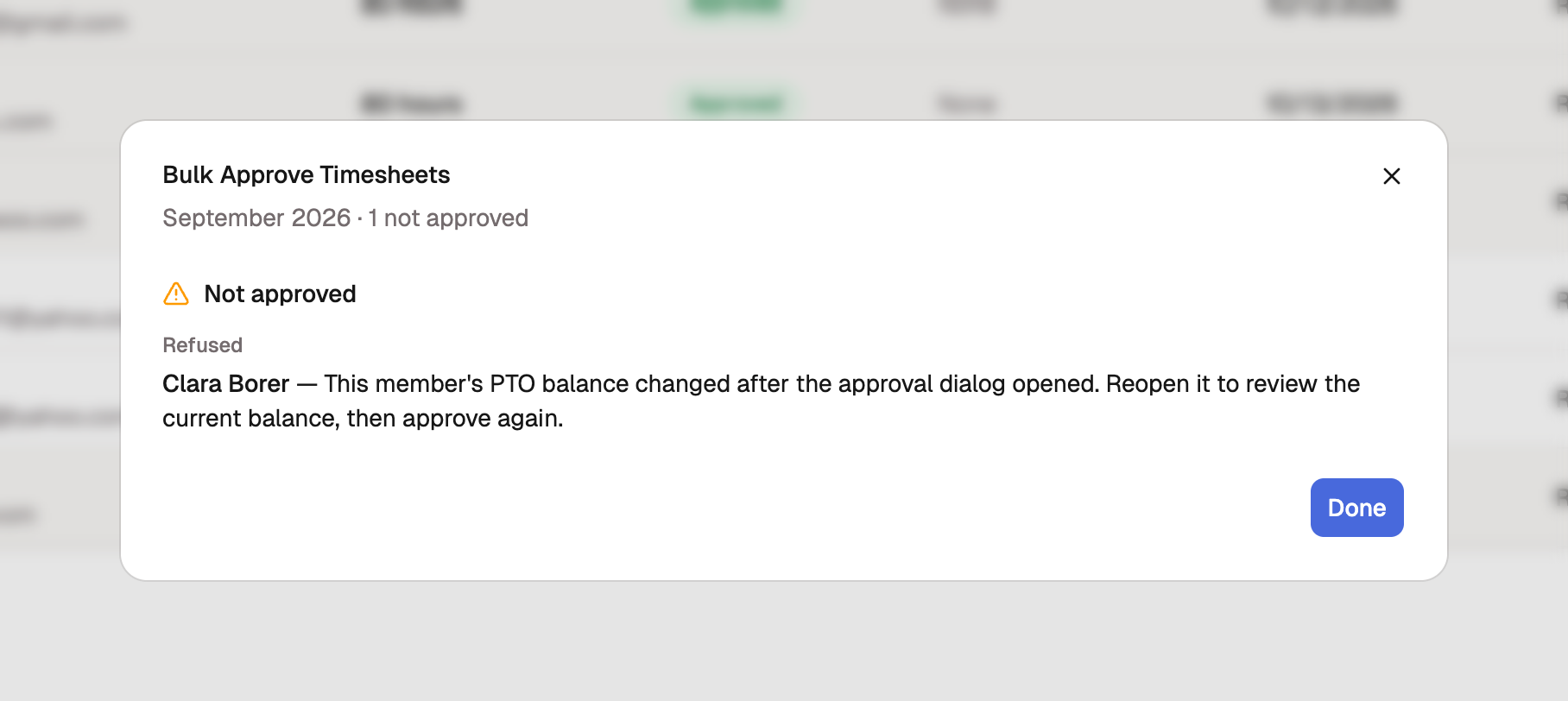
Select Done to close the list. Then fix what each reason names and approve that timesheet individually from the member's timesheet.
Some members are skipped on purpose
A timesheet that can't be safely checkpointed is left out of the batch rather than approved with bad data. The usual reasons are no starting PTO balance on record, or a period that would end on a negative balance when that leave bank doesn't allow one. On the member's timesheet you can set an initial balance and approve it there.