One-click anomaly fixes
One click corrects the timesheet anomalies that have exactly one right answer.
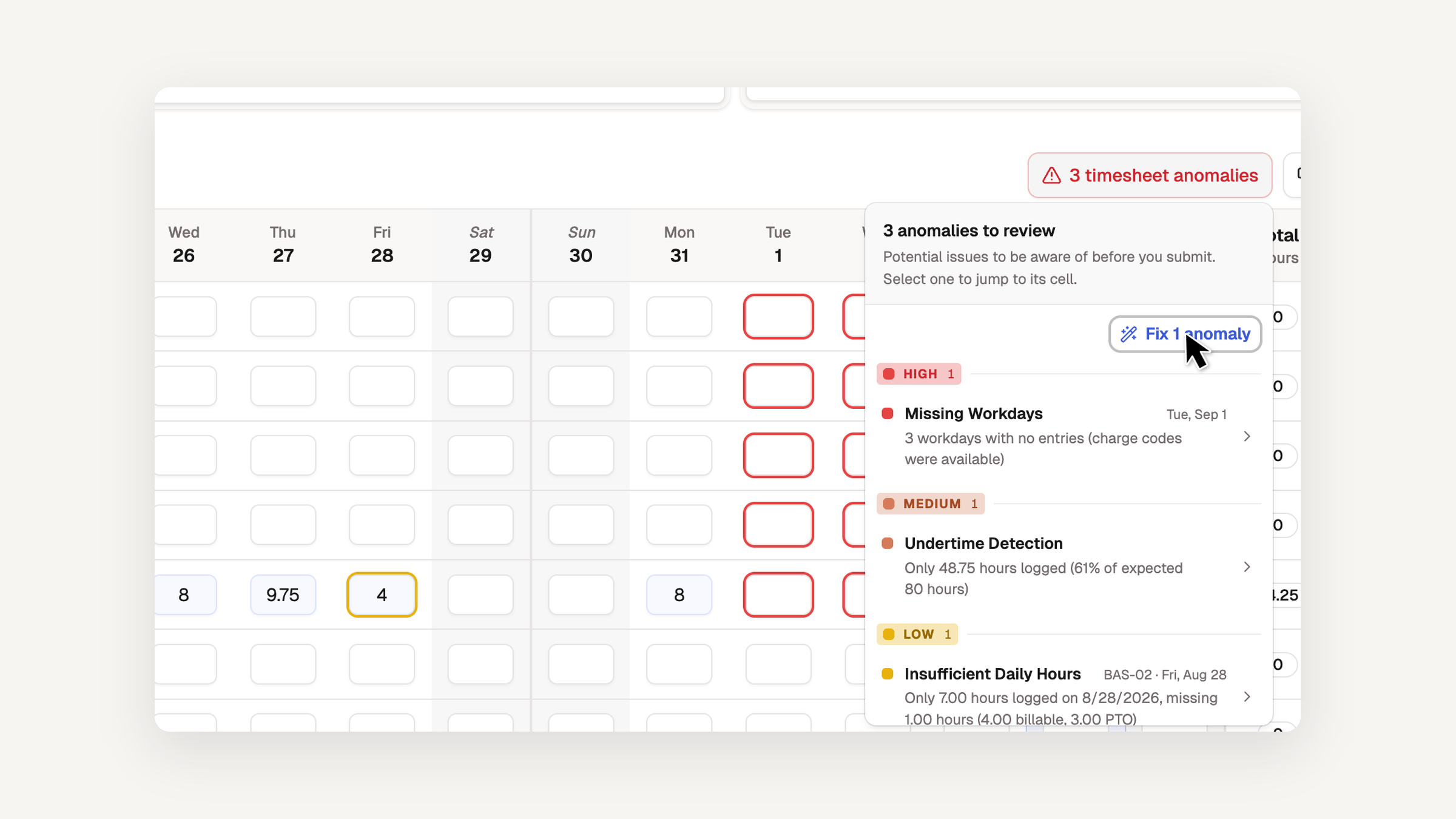
BadgeOut flags the things that look wrong on a timesheet: an entry that ignores the charge code's rounding, PTO stacked on top of a full day, hours booked on a date that hasn't arrived. Finding them was never the problem. Correcting them meant clicking into each cell by hand.
Introducing: Anomaly fixes.
A button in the timesheet's anomalies panel now corrects the flags that have one right answer and leaves the rest for a person to work through. That's the main change in 1.1.0, the first minor release since 1.0, along with reports that run over any date range and leave balances you can adjust without resetting them.
One click for the clear-cut anomalies
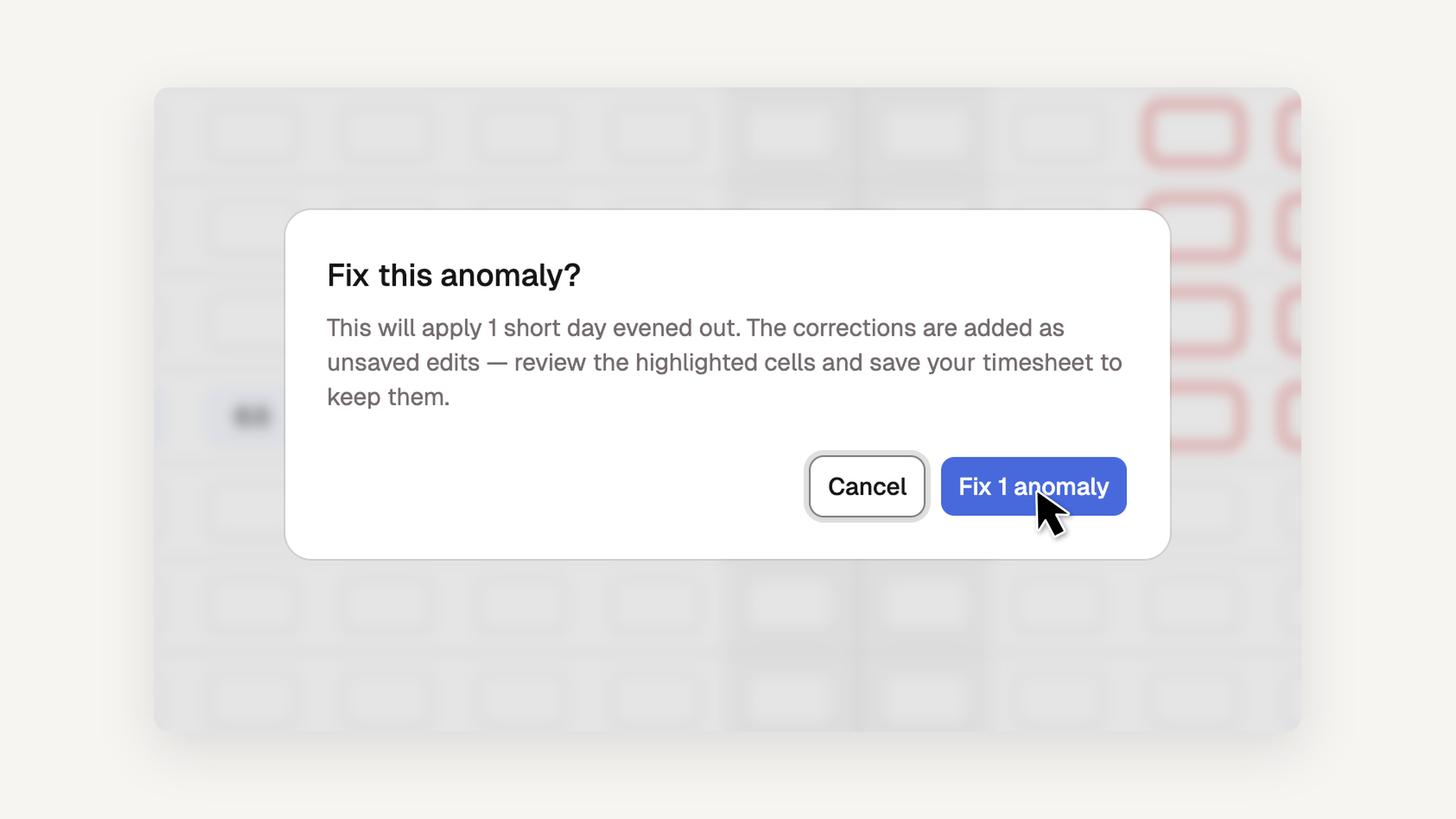
With the setting on, a Fix N anomalies button appears above the list in the anomalies panel. Rounding mismatches are set to the rounded value, PTO stacked on a full day is trimmed, and hours on a date that hasn't arrived are cleared. If you name an indirect charge code for short days, the fix tops those up too: 7.25 hours logged against an 8-hour day adds 0.75 to that code.
The count covers only the anomalies the button will actually fix, so it can be lower than the number the panel lists. Anything that needs judgment stays flagged, and when nothing on the list is fixable the button explains why rather than disappearing.
Corrections are applied as unsaved edits. A confirmation dialog summarizes them first unless you turn it off, the changed cells are highlighted for review, and nothing is written until the timesheet is saved through the normal flow.
Administrators turn the setting on under Settings → General, and it's off until they do.
Reports over any date range
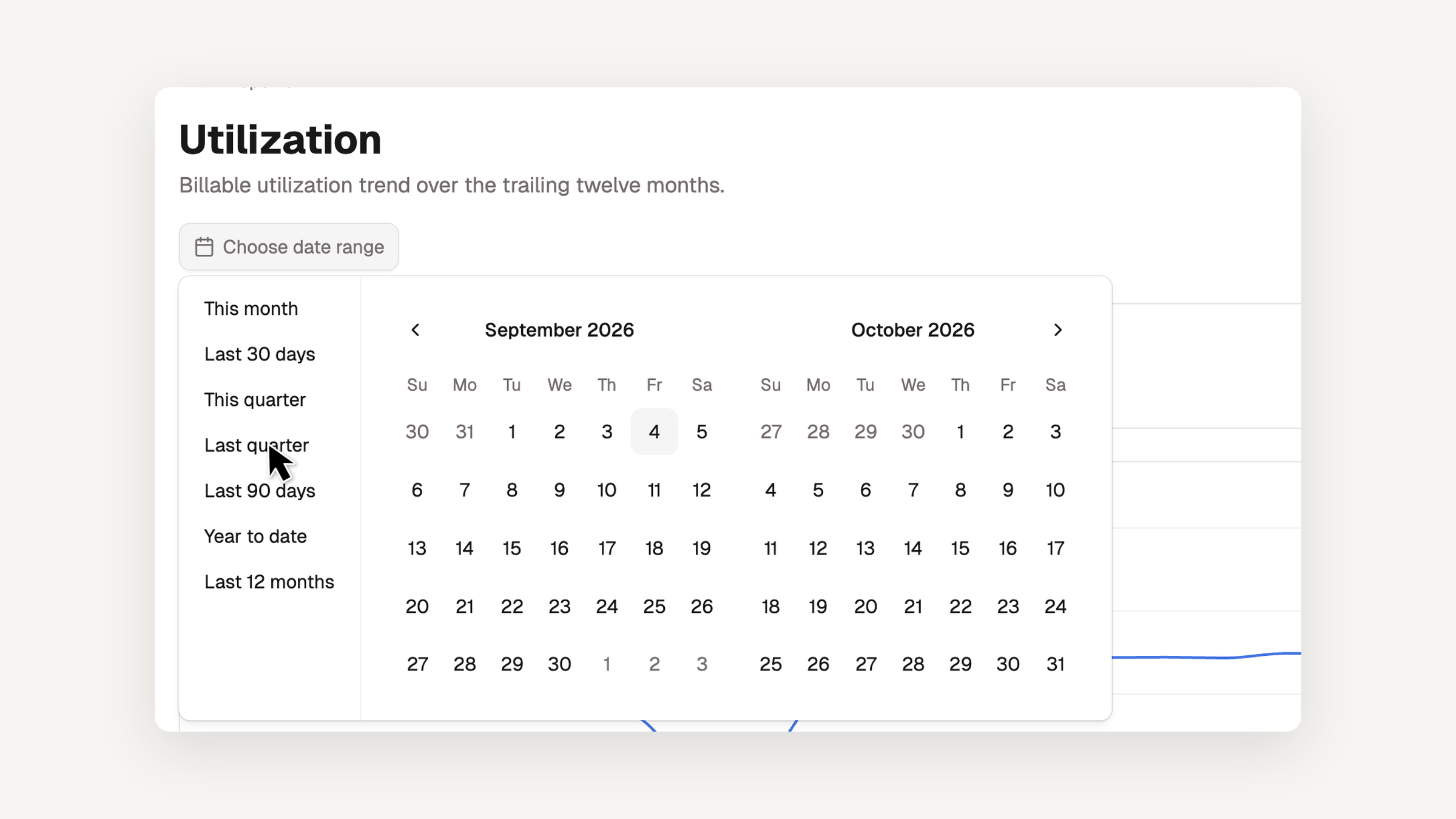
Billing cycles are how BadgeOut has always scoped a report, and they rarely line up with the span you want to look at. A fiscal quarter, a calendar year, the six weeks before a contract modification: none of those is a cycle.
Select Choose date range on Timesheet compliance, Utilization, or Spend summary to set the span yourself, up to 36 months, or pick a preset like Last quarter or Year to date. Custom chart reports get the same picker beside the Window chip, and custom table reports can save a range instead of a cycle selection.
Each report applies the range at its own grain. Hours and spend count only the entries dated inside it. Rates like compliance and utilization widen to whole periods so nothing is measured against half a cycle, and the report names the span it used. Project burn keeps its period of performance and takes no range.
Adjust a leave balance without resetting it
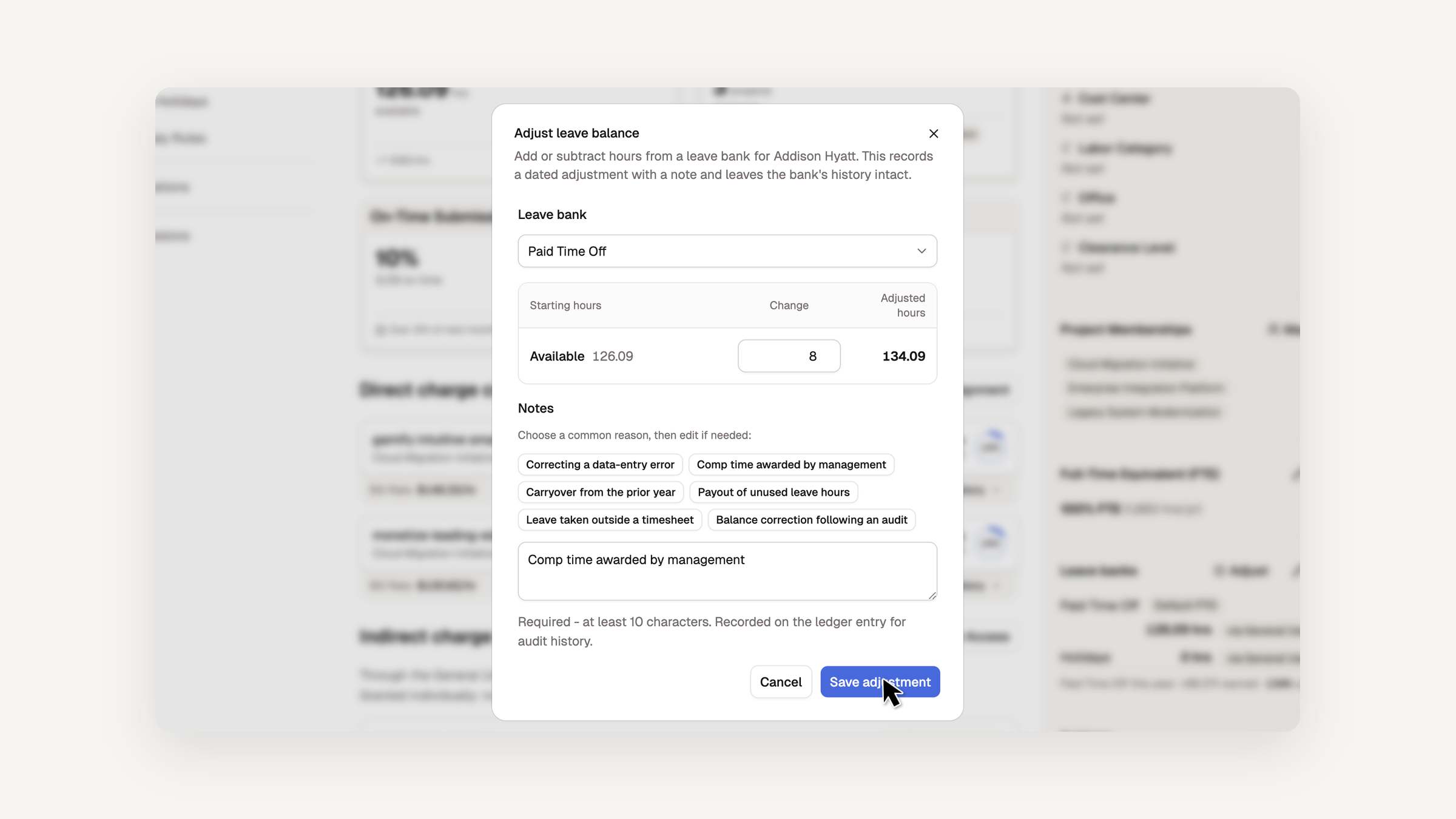
Moving a member's leave balance used to mean setting a new starting number, which re-anchored the bank and discarded the accruals and usage behind it. Admins can now adjust the balance instead: add or subtract hours, record why, and save.
The dialog shows the arithmetic Paylocity-style, from starting hours through the change to the adjusted total, for the leave bank you pick. It writes a dated Adjustment to the ledger with your note attached, so the balance moves right away and the history stays intact. Set balance is still the right choice when a member joins, and it now points at the new option so the two are easy to tell apart.