
Adjusting a balance
Add or subtract hours with a note, without re-anchoring a member's history.
Now and then a balance has to move for a reason your accrual rules don't cover: training hours the company is covering, a goodwill grant, a correction after a payroll import. Adjusting adds or subtracts hours against one leave bank and records why, leaving the history behind that balance intact.
When to adjust instead of set
Both paths change a member's balance, but they mean different things.
| Set balance | Adjust balance | |
|---|---|---|
| You enter | The balance itself | A change, positive or negative |
| History | Re-anchored: accruals and usage are tracked from your new number | Left intact, with one dated entry added |
| The ledger records | A new starting balance | An Adjustment, carrying your note |
| Reach for it when | A member joins, or you're bringing a team onto BadgeOut | A one-off grant or correction against a balance that's already running |
Setting a balance is the right call once, at the start. After that, adjusting is almost always what you want. For the starting-balance path, see Setting and verifying balances.
Adjust a member's balance
- Open Members and select the member.
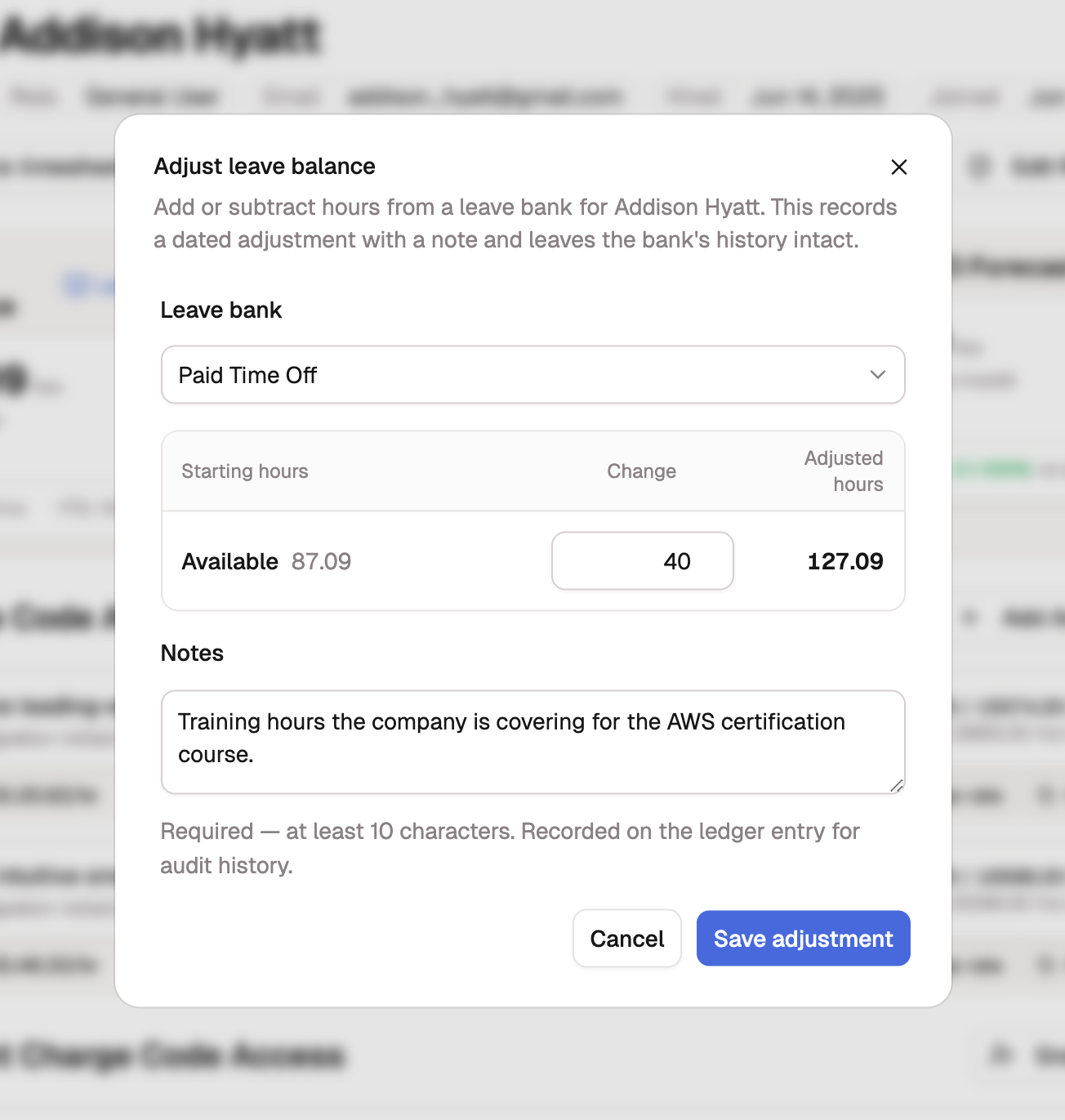
- Select Adjust on the Leave banks card.
- Choose the Leave bank. The dialog opens on your default PTO bank.
- Enter the Change in hours. A positive number adds hours, a negative one takes them away. Adjusted hours recalculates as you type, next to the Starting hours you're moving from.
- Enter your Notes, at least 10 characters. The quick-note chips above the field fill in a common reason with one click, from Correcting a data-entry error to Payout of unused leave hours; select one and edit it, or write your own. The ledger shows this text as written, so put down the reason someone would need a year from now.
- Select Save adjustment.
Two things you can't take back
An adjustment is dated the day you make it. There's no effective-date field, so you can't backdate one into a closed period. And you can't delete a ledger entry: to undo an adjustment, save an offsetting one. Both stay on the record, which is what an auditor wants to see anyway.
Where you can adjust from
The same dialog opens from three places:
- A member's page. Adjust sits beside Edit on the Leave banks card.
- A member's PTO ledger. Adjust balance sits beside the year selector.
- The Balances tab. Open Settings, select PTO & Holidays, then Balances. Each row has an Adjust balance action, and it opens on whichever bank the table is showing, so the hours land where you're looking.
Adjusting takes an administrator. Reviewers and managers can read a member's ledger and the balances table, but they can't change what's on them.
If the balance would go negative
When your change would leave a member below zero, or below the bank's Maximum negative balance, the dialog warns you and saves anyway. That limit governs the everyday path, where a timesheet refuses leave beyond what's left and an approval won't close a period in the red. An administrator's adjustment is the deliberate exception to it.
If a balance that low should be routine rather than exceptional, raise the cap or turn on Allow a negative balance from Leave banks.
What lands on the ledger
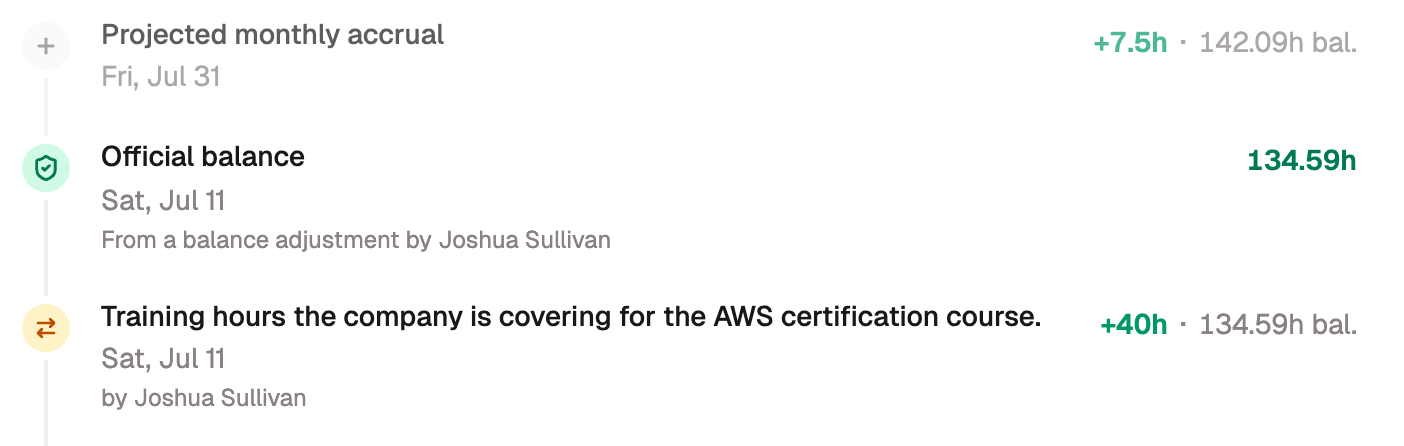
The member's PTO ledger gains an Adjustment entry dated today. Your note is the entry's headline, your name sits beneath it, and the signed hours and the new running balance sit beside it, so the record still explains itself a year from now.
On the default PTO bank, the adjustment moves the official balance right away. An Official balance row appears alongside your entry, reading From a balance adjustment by your name. Other banks read their balance straight from the ledger, so their number moves without a marker.
Adjusting moves the member's Available balance only. Used stays derived from the leave they logged on their timesheets, so neither dialog lets you edit it.