
Managing holidays
Build your holiday calendar, give a holiday to specific members, set the day it's observed, and carry it into next year.
Managers and up can view the holiday calendar.
Administrators can add, edit, copy, and delete holidays.
Your holiday calendar tells BadgeOut which days your organization takes off. Plenty follows from it: capacity and accrual math, the Holiday Work Detection flag, each member's timesheet marker, and the hours a banked-holiday bank credits. This page is where you keep that calendar right, including holidays that only some members have and holidays that fall on a weekend.
Find your holidays
- Open Settings, then select PTO & Holidays under Time-Related.
- Select Holidays.
The page manages one year at a time and lists every holiday in it, in the order the days off happen. Each row shows the holiday's Date (with the observed day beneath it when the two differ), its Type, who it Applies to, its properties, and controls to edit or delete it.
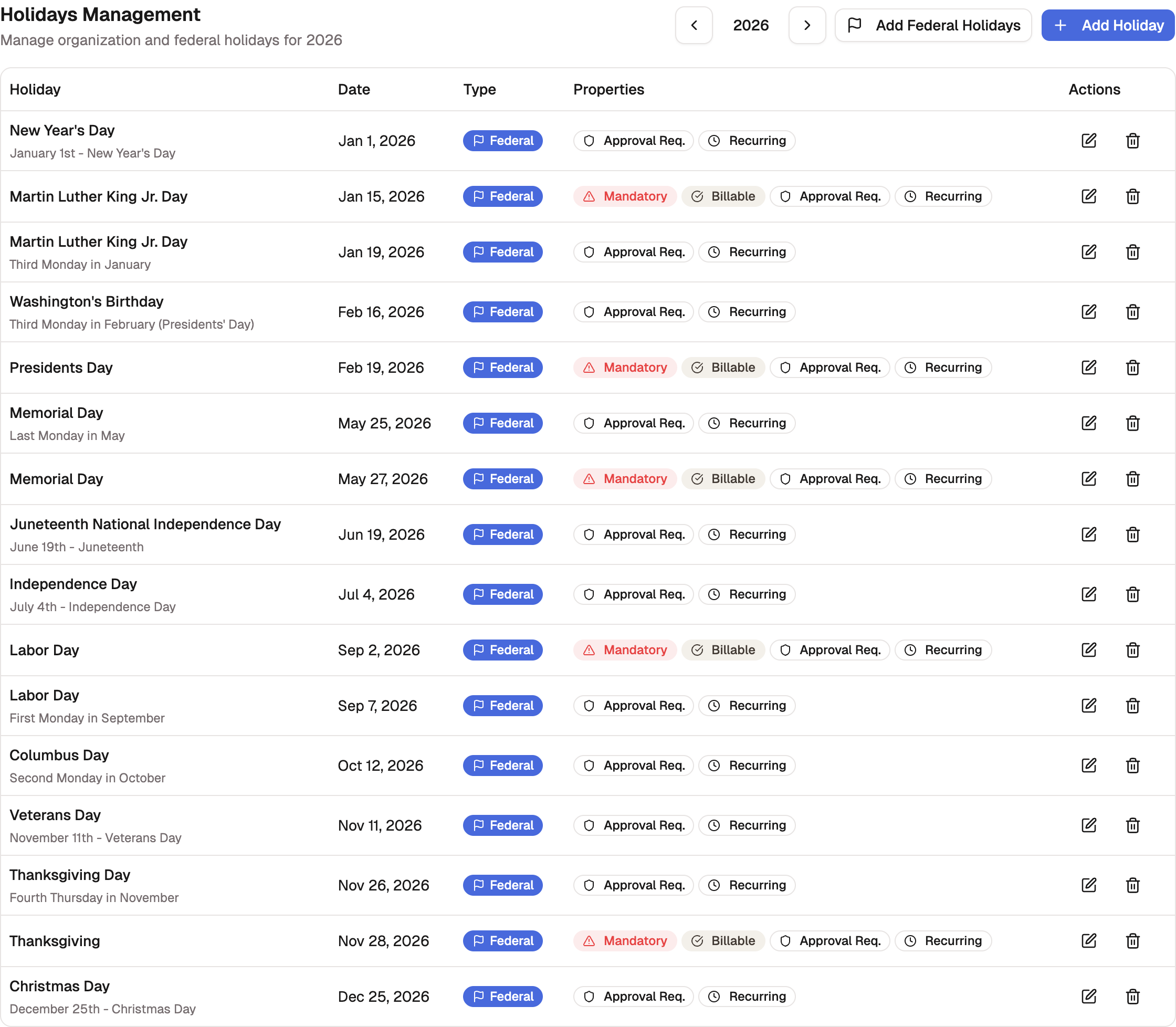
Work a year at a time
The year stepper in the header (Previous year / Next year) moves the
whole page between calendar years, with no limit in either direction, so you
can build next year's calendar before January arrives. The year rides in the
URL (?year=2027), so a link to a specific year keeps working.
A holiday always files under the year its Date falls in, even when that's not the year on screen. Save one dated elsewhere and the page follows it to the year it filed under, so you're never left looking at an unchanged list.
A holiday can be taken in one year and listed under another. New Year's Day 2028 falls on a Saturday and is observed on Friday, December 31, 2027, so it files under 2028 while the day off lands in 2027. The 2027 page says so in a note beneath the list, with a Show 2028 link to the row.
Import federal holidays
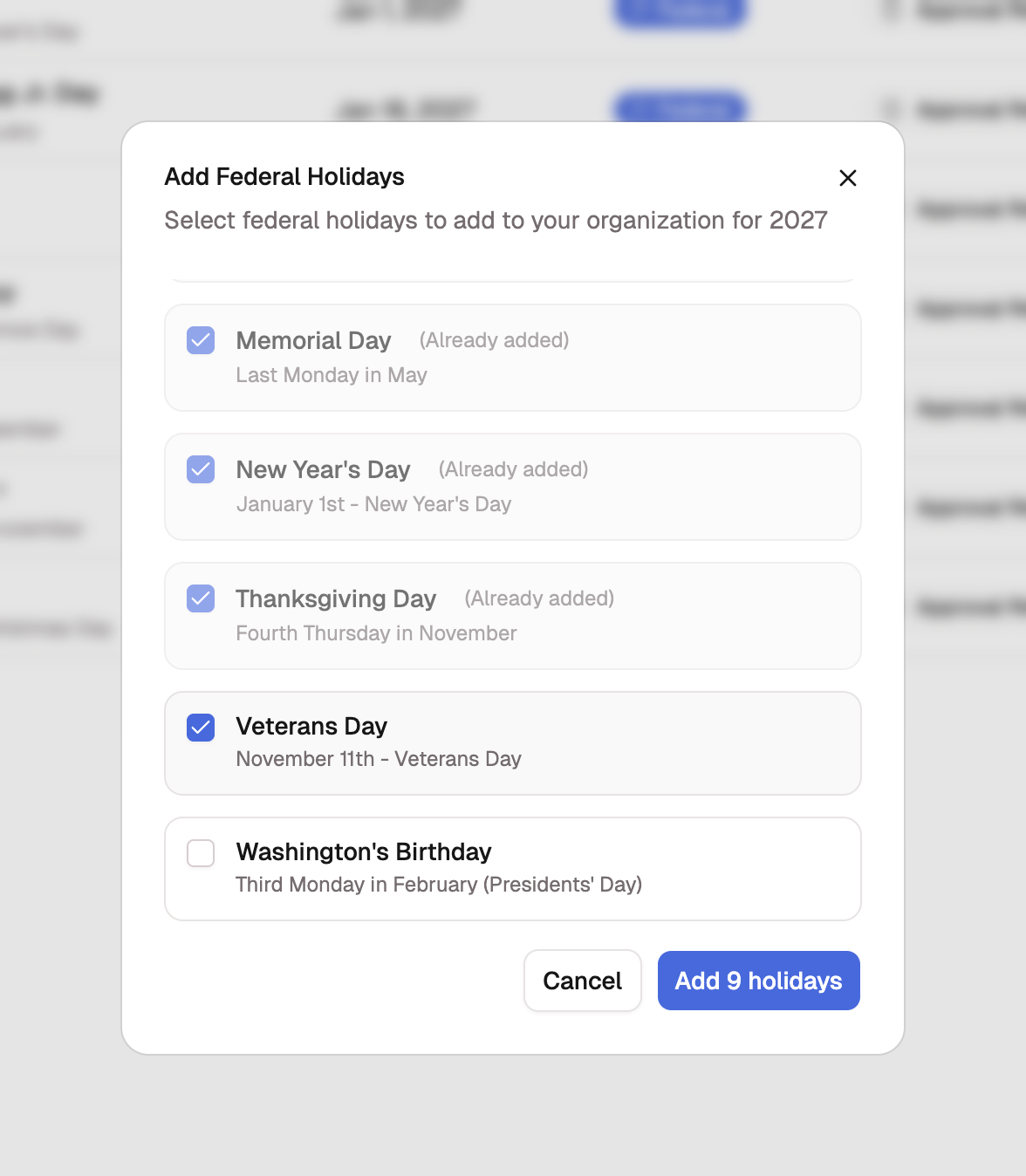
- Select Add Federal Holidays.
- Tick the holidays you want for the year on screen. Holidays your organization already has come pre-checked, dimmed, and marked (Already added).
- Confirm with the add button, which counts your selection ("Add 6 holidays").
The import never duplicates: a holiday you already hold for that year is skipped, so re-running the dialog is always safe. The skip is scoped to the year, so the same holiday is still importable for next year.
Each imported holiday arrives with its observed date already set by the federal rule (a Saturday holiday is observed the Friday before, a Sunday holiday the Monday after). You can change it afterward if your site observes a different day. See Set the day a holiday is observed.
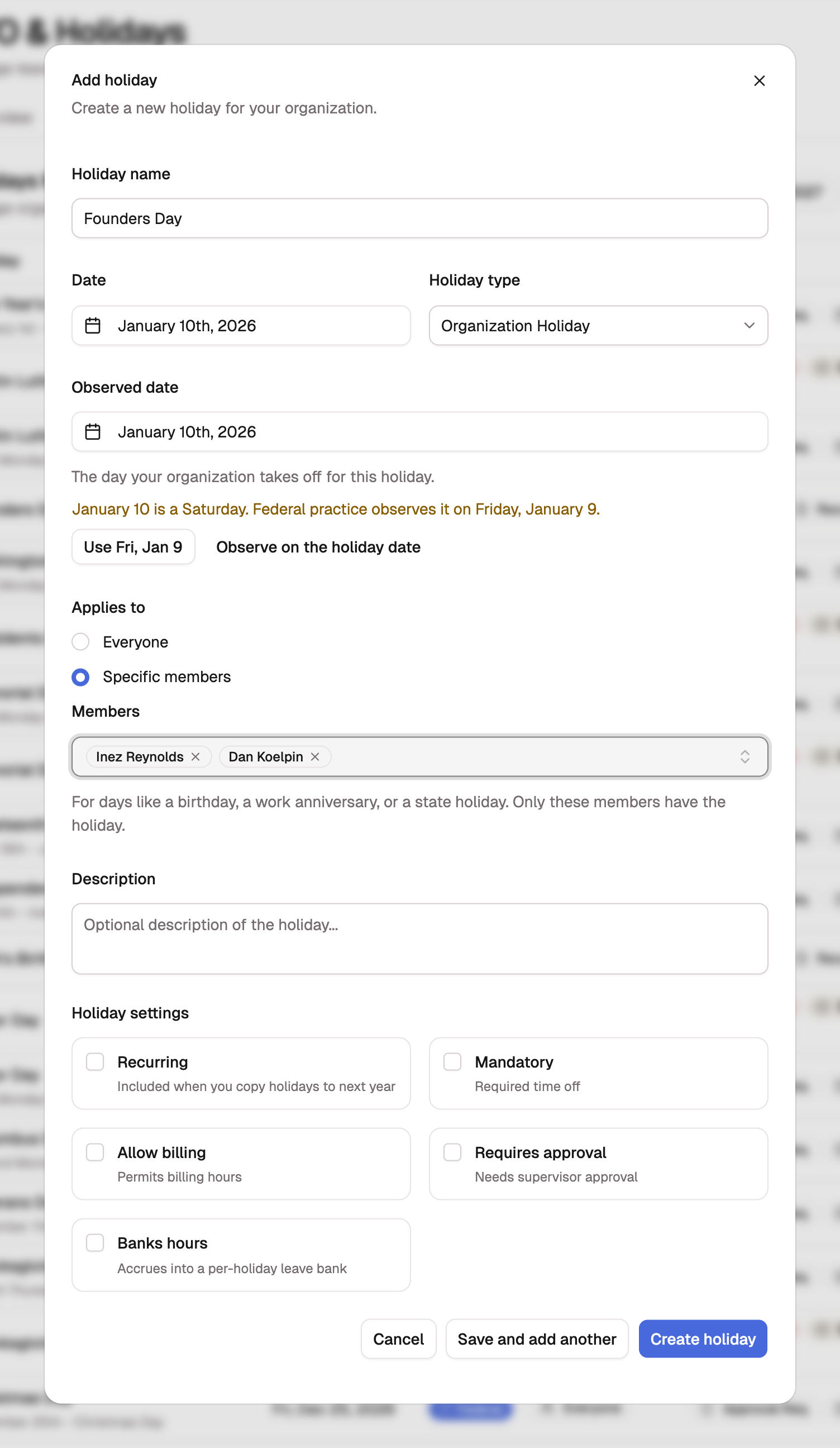
Add a holiday
- Select Add Holiday.
- Enter a Holiday name and choose the Date.
- Choose a Holiday type: Organization Holiday, Federal Holiday, or Floating Holiday.
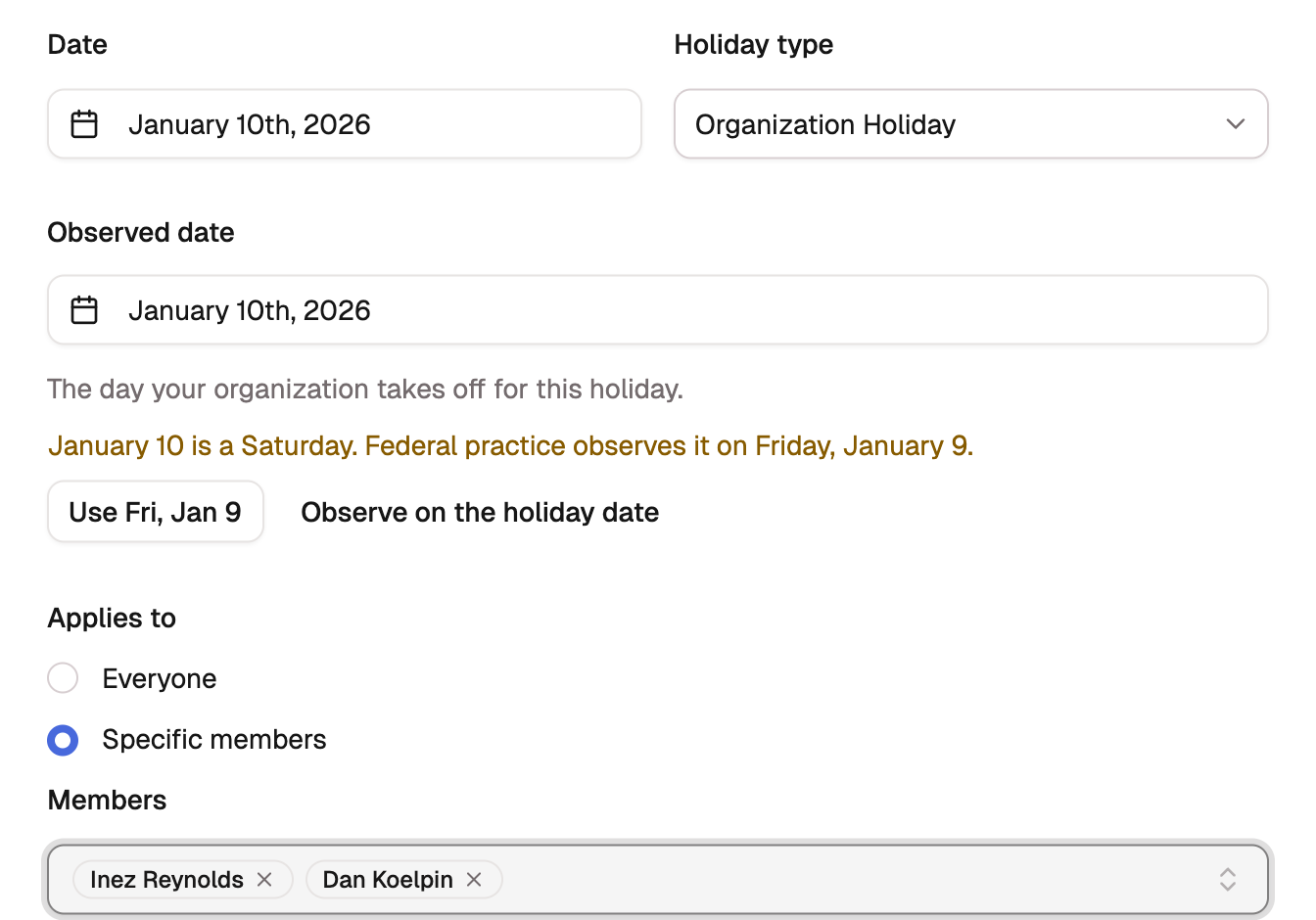
- If your organization takes the day off on a different date, set the Observed date. The field appears on its own when the date falls on a weekend; otherwise select Observed on a different day to open it.
- Under Applies to, leave Everyone selected, or choose Specific members and pick them in the Members field.
- Add a Description if the name needs context.
- Set its behavior under Holiday settings: Recurring includes it when you copy holidays to next year, Mandatory makes it required time off, Allow billing permits billing hours on the day, Requires approval needs supervisor sign-off for time logged on it, and Banks hours credits the day to a per-holiday leave bank.
- Select Create holiday, or Save and add another to keep the dialog open for the next one.
Save and add another keeps the type, the audience, and the settings from the holiday you saved and clears the name, the date, and the members. That's the quick way through a run of similar holidays, such as each member's birthday.
To change a holiday later, open it with its edit control; the same form appears as Edit holiday, ending in Update holiday. Moving a holiday's date across a year boundary refiles it under the new year automatically. Deleting a holiday asks you to confirm and takes effect right away. If a save fails, the dialog says why and keeps what you typed.
Tip
Leave Allow billing off for observed holidays. That's what lets Holiday Work Detection flag direct hours charged on a day your team should be off, while hours charged to the Holiday leave bank stay unflagged, because that's the correct entry.
Give a holiday to specific members
Not every holiday is for the whole organization. A birthday off, a work anniversary, a religious observance, a state holiday for the staff in one state, or a client-site closure for the members on one contract all have the same shape: a date you declare that some members have and others don't.
When you add or edit a holiday, choose Specific members under Applies to and pick who has it. The holiday then exists only for those members:
- Their timesheets mark the day, and direct time on it asks for a justification.
- They bank hours from it, if it banks.
- The day comes off their capacity and counts in their leave projections.
For everyone else the day is an ordinary workday. A colleague's birthday is never flagged as holiday work on someone else's timesheet, and the holiday doesn't appear on their timesheet at all.
The holidays list shows who a holiday applies to in its Applies to column: Everyone, a member's name, or a count such as 3 members (the names are listed beside it). A holiday whose members have all left the organization is flagged as applying to No members. It never widens back to everyone. Choose new members or delete it.
A holiday for specific members can say something personal, so its name is shown only to the people it applies to and to the reviewers, managers, and administrators who review their time. Everyone else sees Holiday on the team schedule, and never the date it falls on, only the day off. The holiday's change history is likewise limited to reviewers and up, because it records the name and who it applies to.
Set the day a holiday is observed
A holiday has two dates. The Date is the day the holiday falls on, and the Observed date is the day your organization takes off for it. Most of the time they're the same day and the form shows a single date. When they differ, the observed date is what counts everywhere: the timesheet marker, the holiday work flag, capacity, leave accrual, the team schedule, and cycle reviews all read it. A member who works Saturday, July 4 works an ordinary Saturday when the holiday is observed on Friday.
How the observed date is set depends on the holiday:
- Federal holidays open on the day the federal rule gives them. Change it if your site observes another day. When you've moved a weekday holiday, the form notes that the rule would observe it on the day it falls.
- Your own holidays are your policy, so BadgeOut suggests and you choose. When the date lands on a weekend, the Observed date field opens by itself, says what federal practice would do, and offers it as a button ("Use Fri, Jul 3"). Take the offer or choose any other day. Observe on the holiday date puts it back on the day it falls.
Two rules to know before you choose:
- A weekend observed date banks no hours. The dialog says so when it applies, for federal and company holidays alike. To bank a Saturday holiday, observe it on a weekday.
- One day off counts once. When another holiday is already observed on the day you pick, the dialog names it. A member who has both is off once. If both bank into the same leave bank, the day banks once; if they credit different banks, each bank gets its day.
In the list, a holiday whose two dates differ shows its observed day under the date ("Observed Fri, Jul 3"). On the timesheet, the marker names the holiday and says which day it falls on, and the team schedule labels the Friday "Independence Day (Jul 4)".
Copy recurring holidays to next year
Rather than re-entering the same holidays every December, mark each one Recurring and copy the year forward in one step. The copy carries each holiday onto the same month and day next year, together with the members it applies to, so birthdays and other holidays for specific members come along.
- Open the year you're copying from.
- Select Copy recurring to 2027 (the button names the next year).
- In Ready to copy, every recurring holiday is listed with its date next year and who it applies to, all chosen to start. Untick any you don't want.
- For a holiday that lands on a weekend next year, set its Observed date in the row, or select Use the federal rule for 3 holidays to take the federal suggestion for all of them at once. Nothing is filled in for you, because the weekday a date falls on changes every year.
- Select Copy 3 holidays.
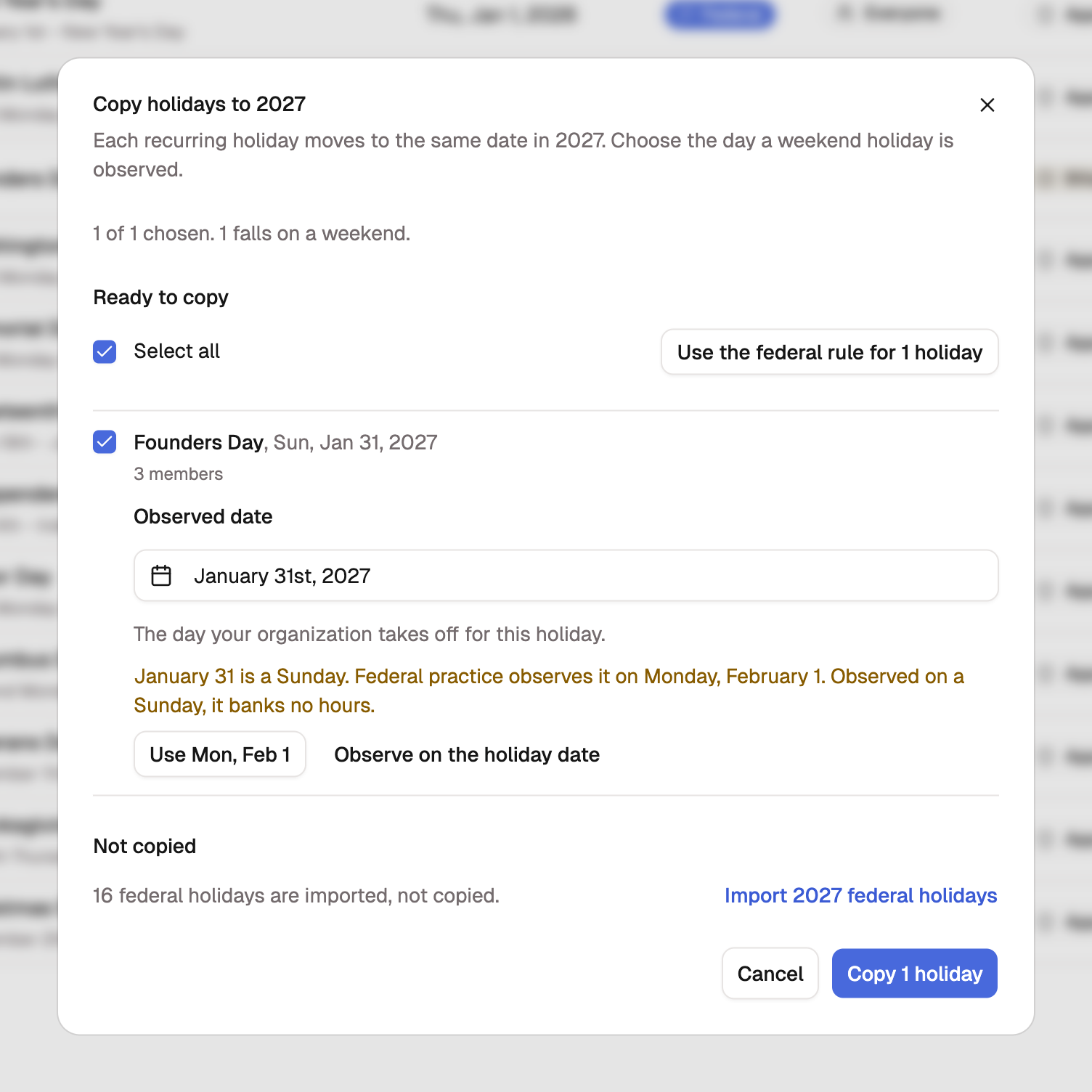
After the copy, the page moves to the year the holidays went to and confirms what it copied ("Copied 3 holidays to 2027"). Running the copy again is safe: a holiday that's already in the next year with the same name, date, and at least one of the same members is skipped.
The dialog lists what it won't copy, with the reason, before you confirm:
| Reason | What to do |
|---|---|
| Already in 2027 | Nothing. It was copied earlier or added by hand. |
| No members left in its audience | Choose members for the holiday, or delete it. |
| Feb 29 | Add it by hand on the day your policy gives. |
| Federal holidays are imported, not copied | Select Import 2027 federal holidays. Their dates move each year, so the federal import sets them. |
If another administrator changes the holidays while the dialog is open, nothing is copied, the dialog says so, and it shows the list read again. Any other failure keeps your choices so you can try the copy again.