
Team Schedule
See who's out across the month and put your own time off on the team's radar.
Team Schedule is your team's shared view of planned time off. It's where you see who's out on any given day before a pay period reaches your approval queue, and where you put your own leave on the calendar so everyone can plan around it.
Open Team Schedule
Select Team Schedule in the top header, next to Timesheet. The link appears once your role keeps a timesheet. If you only oversee the team and don't log your own hours, you start on the Dashboard and won't see it.
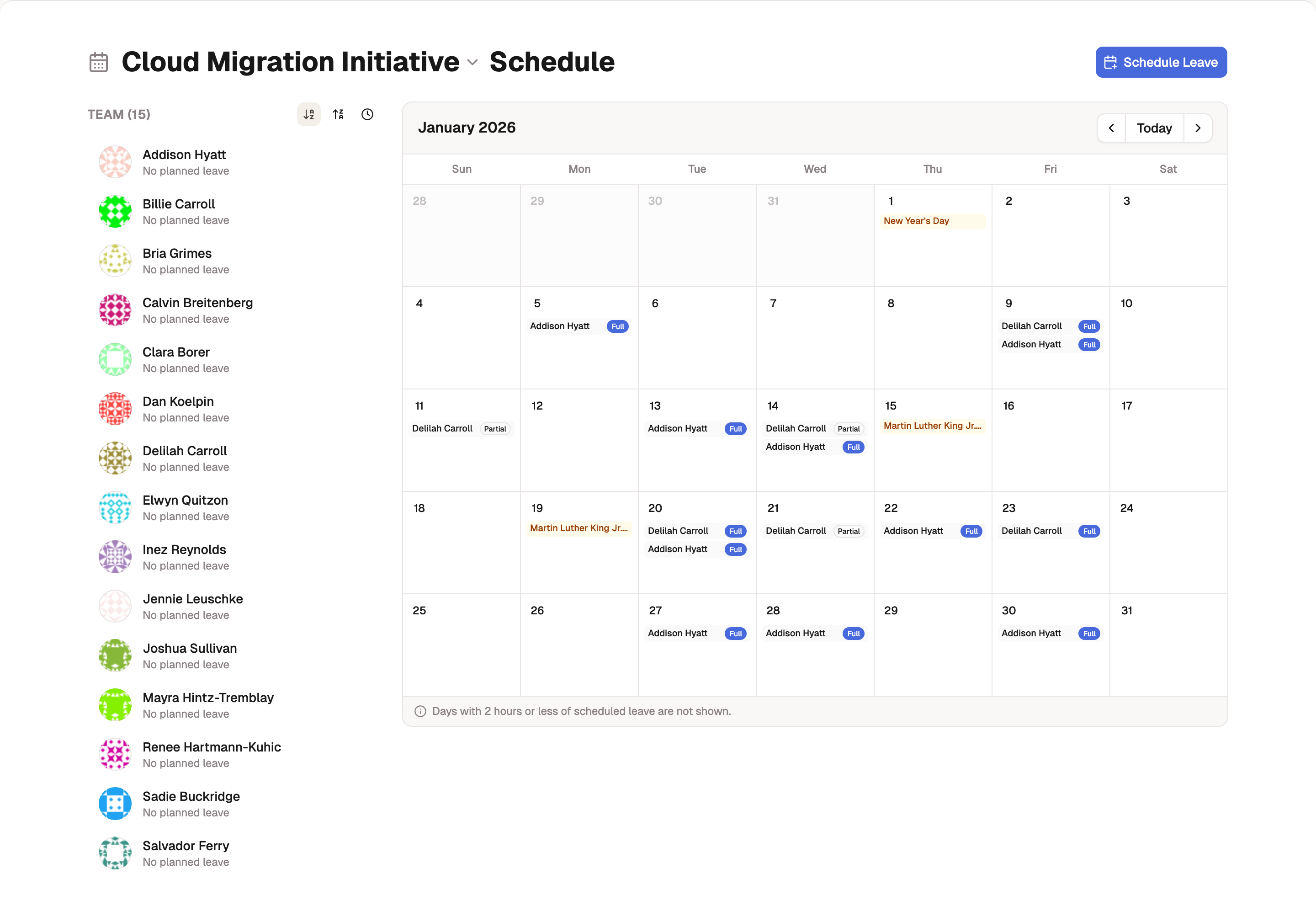
The page opens to the current month for your active project, and the title names the project you're viewing. If you're on more than one project, select the title to switch between them.
Read the calendar
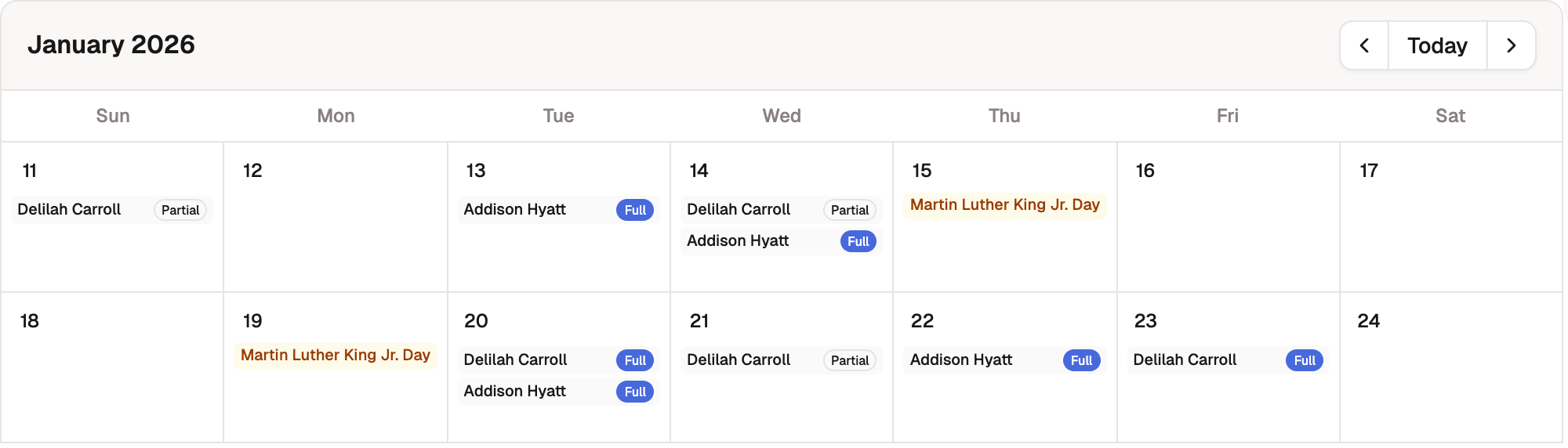
The calendar fills the right side of the page, one cell per day. Each cell lists the people out that day, so a glance tells you where coverage is thin.
- Select the back and forward arrows to step between months. Select Today to return to the current month.
- Each person out shows their name and a badge: Full when their leave covers their whole workday, or Partial for less. A workday is 8 hours scaled by the member's FTE, so 4 hours off is a full day for a half-time member. When more than three people are out, the cell shows +N more.
- Holidays appear as amber badges on the day they're observed. A holiday that falls on a weekend sits on its weekday and names the date it falls on ("Independence Day (Jul 4)"). A holiday for specific members leads with who has it. If its name is private to them, the badge reads Holiday.
Short entries stay off the calendar: days with two hours or less of scheduled leave aren't shown, so a brief appointment doesn't read as a day out.
See who's out
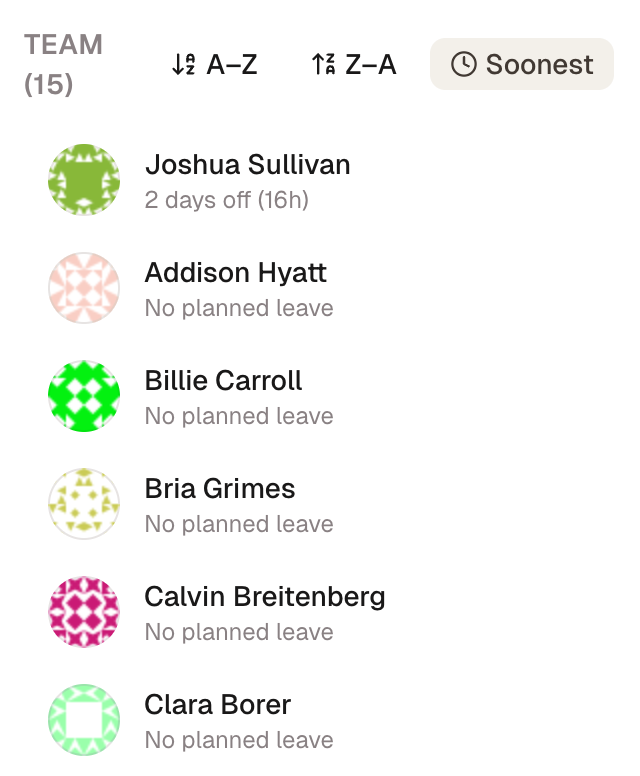
The left sidebar, Team (N), lists everyone on the project with a summary of their planned leave over the next two months: "3 days off (20h)", or "No planned leave" for anyone with nothing scheduled. It's a quick read on near-term coverage without scanning the whole grid.
Sort the list A–Z, Z–A, or by who's out soonest using the buttons above it.
Schedule your own leave
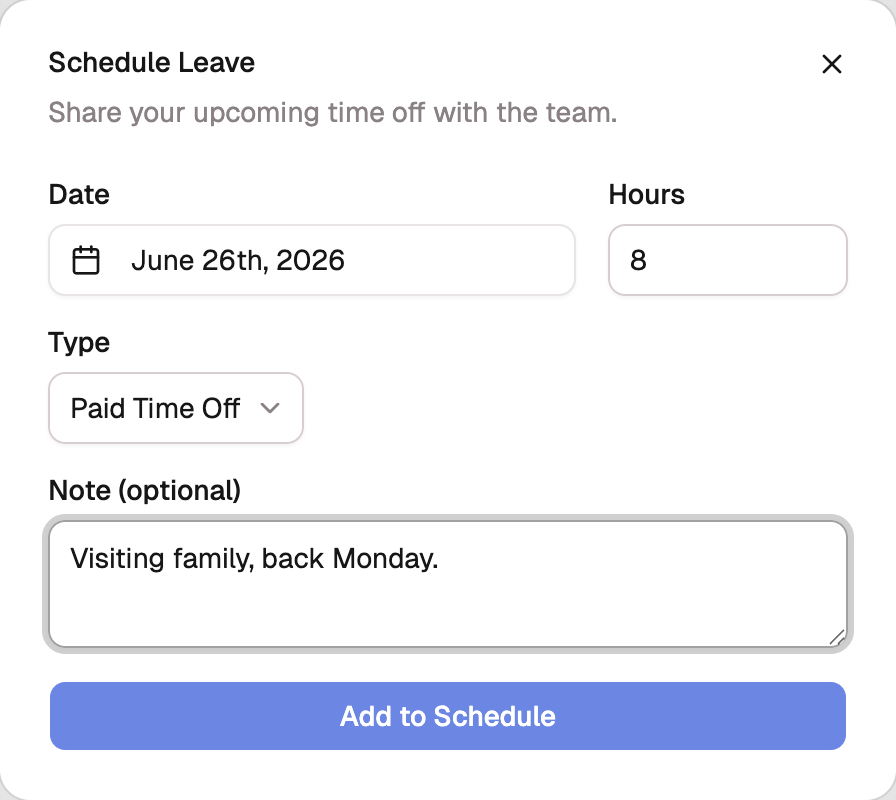
Select Schedule Leave to add time off, or hover any upcoming day on the calendar and select the + that appears.
- Choose a Date. You can't schedule leave in the past.
- Enter the Hours. This defaults to 8, a full day.
- Choose a Type. The picker lists the leave codes you can charge, sorted by name: indirect codes linked to a leave bank. A code with no bank attached, whatever it's called, doesn't appear here, because hours logged to it would draw no balance down.
- Add a Note if it helps, such as a reason or coverage detail.
- Select Add to Schedule.
Tip
Leave you schedule here lands on your own timesheet and draws down the leave bank the code is linked to. It's the same time off viewed two ways, not a separate record to keep in sync. A genuine leave type that's missing from the picker (Bereavement and Jury Duty are set up bank-less in some organizations) comes back the moment you attach its code to a bank, and starts drawing a balance like the rest.
Change or remove leave you scheduled
Select your own entry on the calendar (only yours is clickable) to reopen it. Adjust the hours, type, or note and select Update Scheduled Leave, or select the trash icon to delete the entry. A type change moves the hours between leave codes, so both ends have to be leave: the entry you're changing and the code it moves to. You can only change your own leave. Anyone else's is theirs to edit.
Locked once the timesheet moves
After the timesheet covering an entry is submitted, reviewed, or approved, the entry locks and shows "This timesheet is ... and cannot be modified from here." To change locked leave, reopen the timesheet first: send it back from your approval queue so its owner can edit it.