
BadgeOut Rating
Read the automatic first-pass verdict on each submitted timesheet, and decide where to look first.
Reviewers and up see ratings on the timesheets they review.
Administrators turn the rating on or off for the organization.
Anomaly rules flag the patterns you can name in advance: a 15-hour day, hours on a weekend, PTO on top of a full shift. They can't tell you that a timesheet is a copy of last period's, or that a charge code just tripled against what that member usually logs. BadgeOut Rating reads each submitted timesheet before you do and gives it a verdict with a short explanation, so you know which ones to open first and can work the queue faster. It never approves, rejects, or blocks a timesheet. The decision stays with you.
How a rating is made
When a member submits, BadgeOut builds a compact summary of the timesheet and hands it to an AI reviewer. The summary covers:
- Hours against what the period expects, split into direct, indirect, and leave.
- The charge-code mix and how it compares with the member's usual mix.
- Every anomaly your anomaly rules flagged, by severity.
- The member's own history, drawn from up to six earlier approved periods.
- Pattern signals such as uniform days, round numbers, and whether the period is identical to the last approved one.
When the summary isn't enough, the reviewer can look up the member's earlier periods, past rejection reasons, and the organization's norms for the same period. It never reads entry descriptions, daily notes, or timesheet notes, and it never sees the member's name.
The rating runs in the background after the submit and never delays it. A resubmitted timesheet gets a fresh rating, so the verdict you see matches the hours in front of you. Until the new rating lands, the column shows a dash.
A timesheet submitted with no hours at all is rated Likely issue without an AI pass. There's nothing to weigh.
Read the verdicts
Each rated timesheet carries one of three verdicts.
| Verdict | What it means |
|---|---|
| Looks correct | Nothing stood out. The hours, mix, and flags fit the member's history. |
| Needs a look | Something is unusual but not clearly wrong. Read the reasoning before you approve. |
| Likely issue | The timesheet deviates from the member's history in a way the reviewer can name, or your rules flagged it heavily. Open it first. |
The verdict is the reviewer's judgment of the whole timesheet, not a tally of anomalies. A timesheet with no flags can still be Likely issue when it copies the prior period exactly, and one with a few low-severity flags can still be Looks correct.
On the review queue
The BadgeOut Rating column sits beside Anomalies in the cycle's review queue. Hover a badge to read the reasoning without leaving the list.
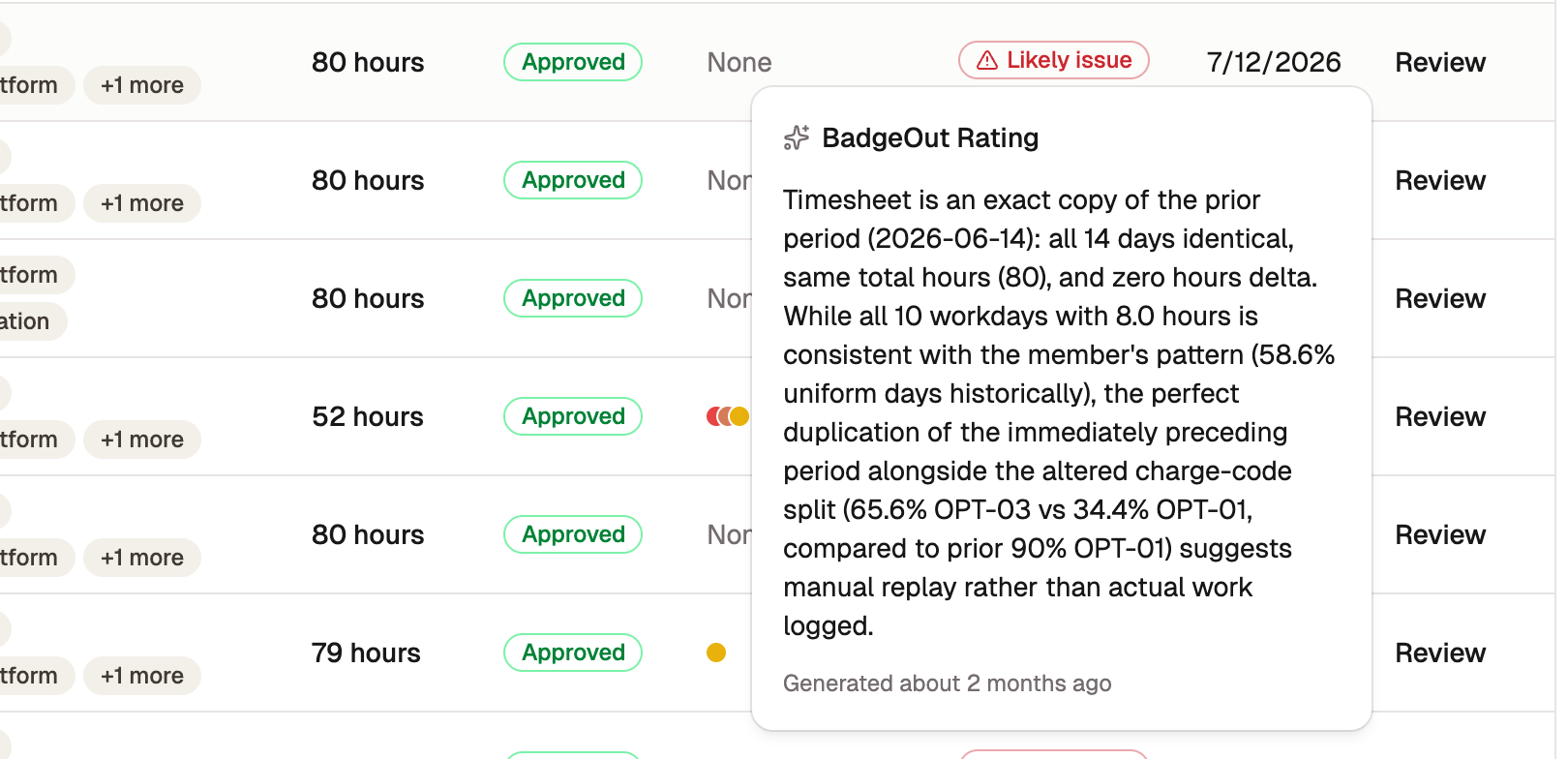
Read the reasoning
Open a timesheet from the queue and the verdict sits beside the anomalies button above the grid. Select it to read the full explanation, which names the days, codes, and history the reviewer weighed and when the rating was generated.
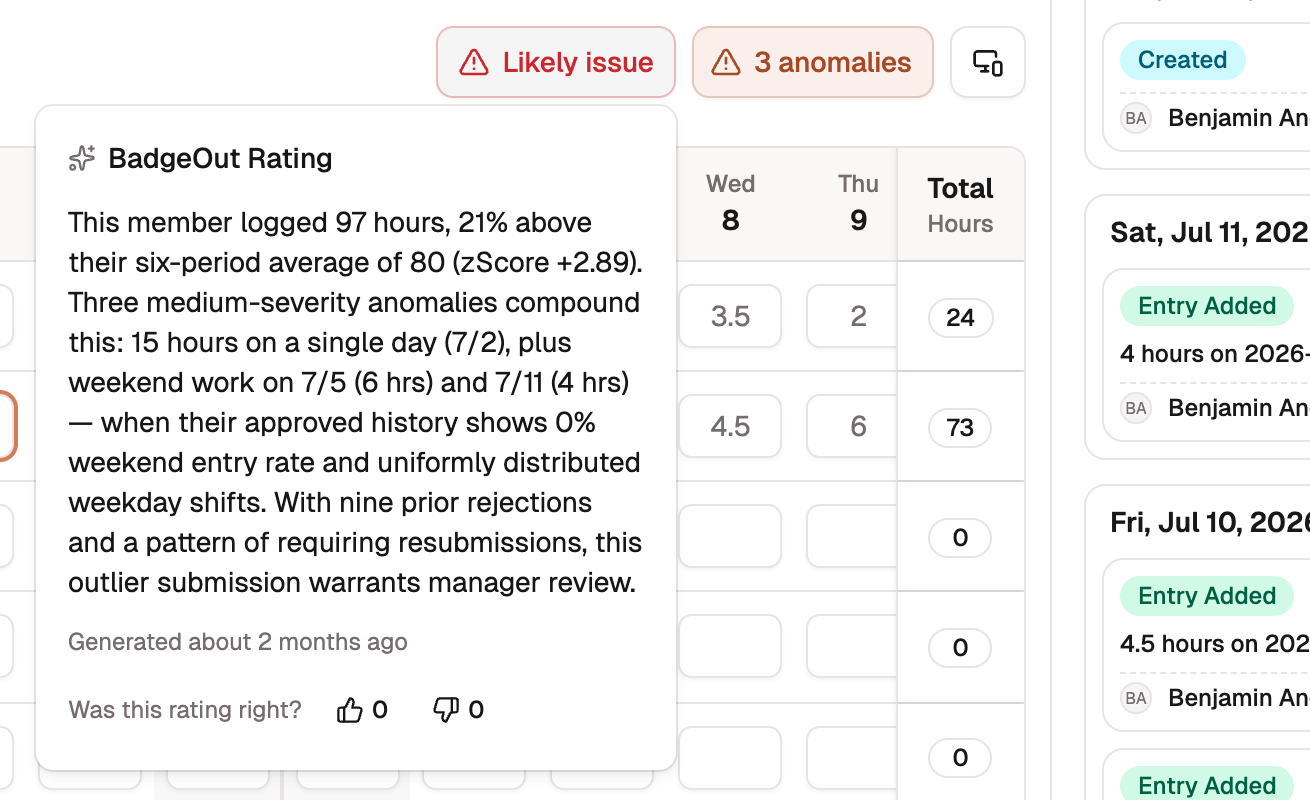
The same badge and reasoning appear in the Approve & Set PTO Balance dialog, so the verdict is next to the decision when you make it.
Tell BadgeOut when it's wrong
Every rating asks Was this rating right? with a thumbs up and a thumbs down. Vote once you've looked at the timesheet yourself. You get one vote per rating and can change it, and the counts show how other reviewers voted. The votes are how BadgeOut measures the rating's accuracy, so each one counts.
Turn it on or off
The rating is on for every organization on the Plus plan. To switch it off, or back on:
- Open Settings from the gear in the top header.
- Under Timesheet Settings, find BadgeOut Rating.
- Turn the switch off or on, then select Save Settings.
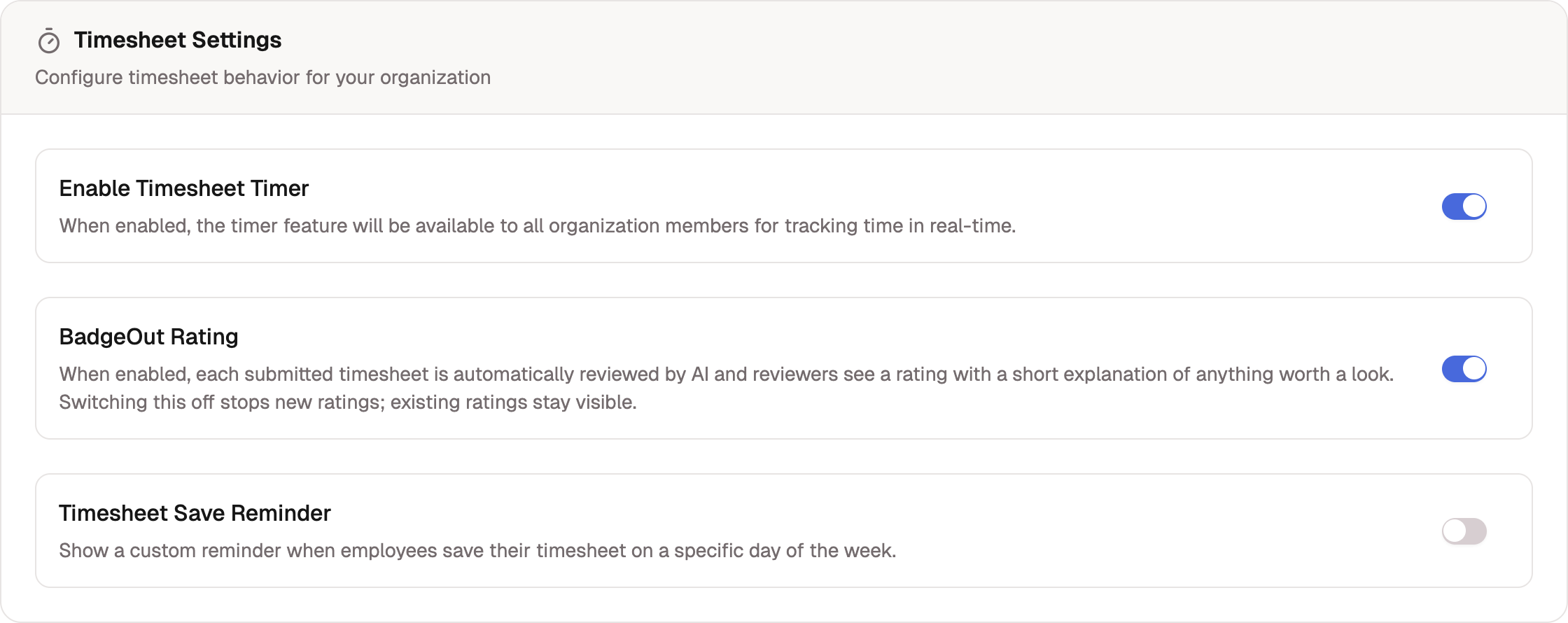
Switching it off stops new ratings. Ratings already produced stay visible on the queue, the timesheet, and the approval dialog, and the column stays in the queue. On the Starter plan the switch shows but can't be turned on.
Who sees ratings
- Reviewers, managers, and administrators see the rating on every timesheet they review.
- Members never see a rating on their own timesheet.
- Reviewers and managers never see the rating on their own timesheet either. Administrators do.
There's no way to re-run a rating from the app. If a verdict looks wrong, vote it down and review the timesheet as you normally would.