1.1.16
Date formats and empty cells in exports
Table report exports now follow the date format you choose, and fill empty cells with a value you set.
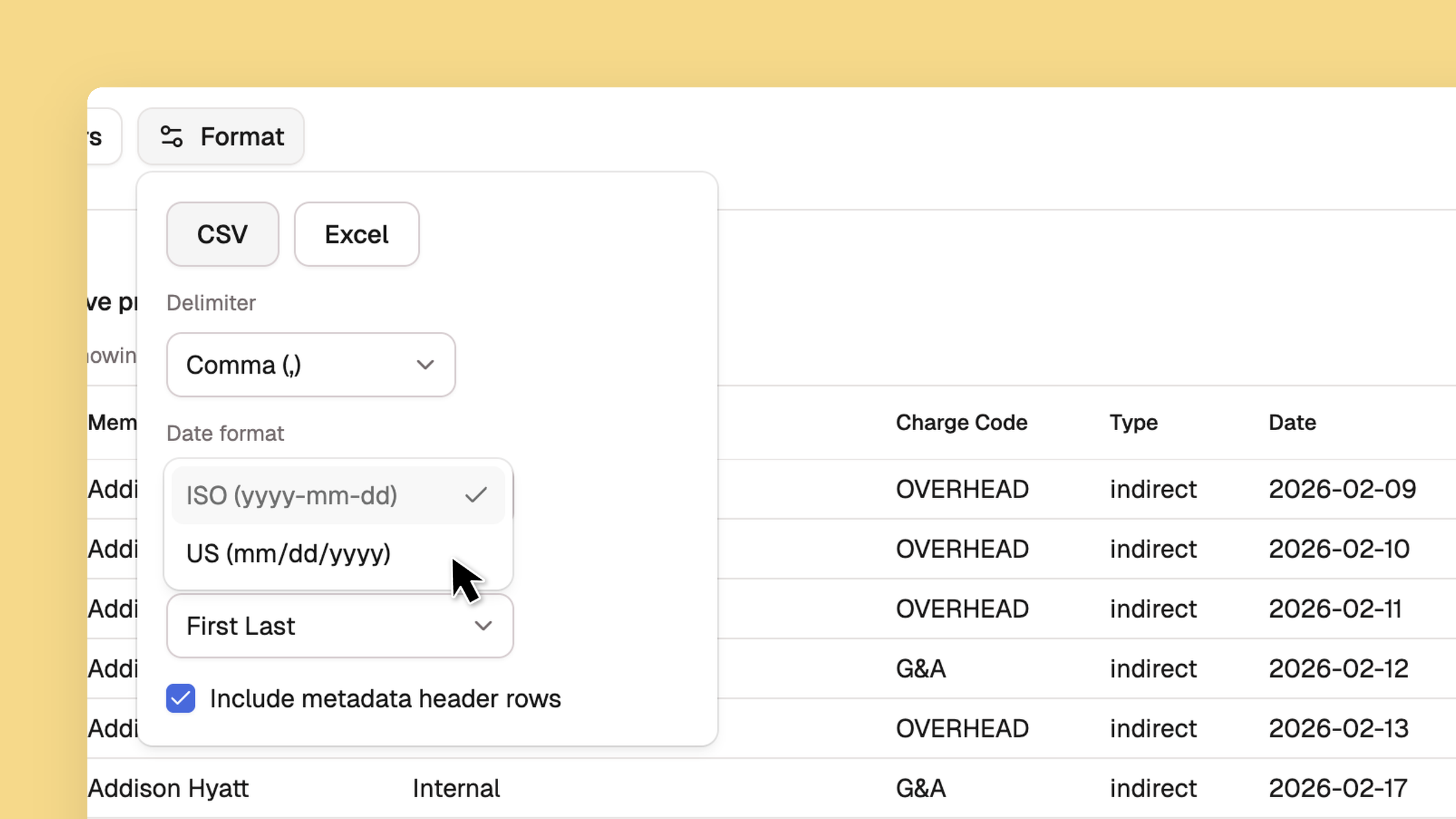
Most table reports end up somewhere else: a payroll import, an accounting system, a spreadsheet another team owns. Two new options in the builder let you match what those systems expect.
- Set Date format in the
Formatpanel to ISO (yyyy-mm-dd) or US (mm/dd/yyyy). Every date in a detailed export follows the one you pick. - Hover a selected column, open the Column options cog, and give it an Empty cell value. It appears wherever that column has nothing for a row, in the live preview and in both export formats.
- Set one on Project and indirect hours — PTO, overhead, G&A — come out with a project on every line instead of a gap.
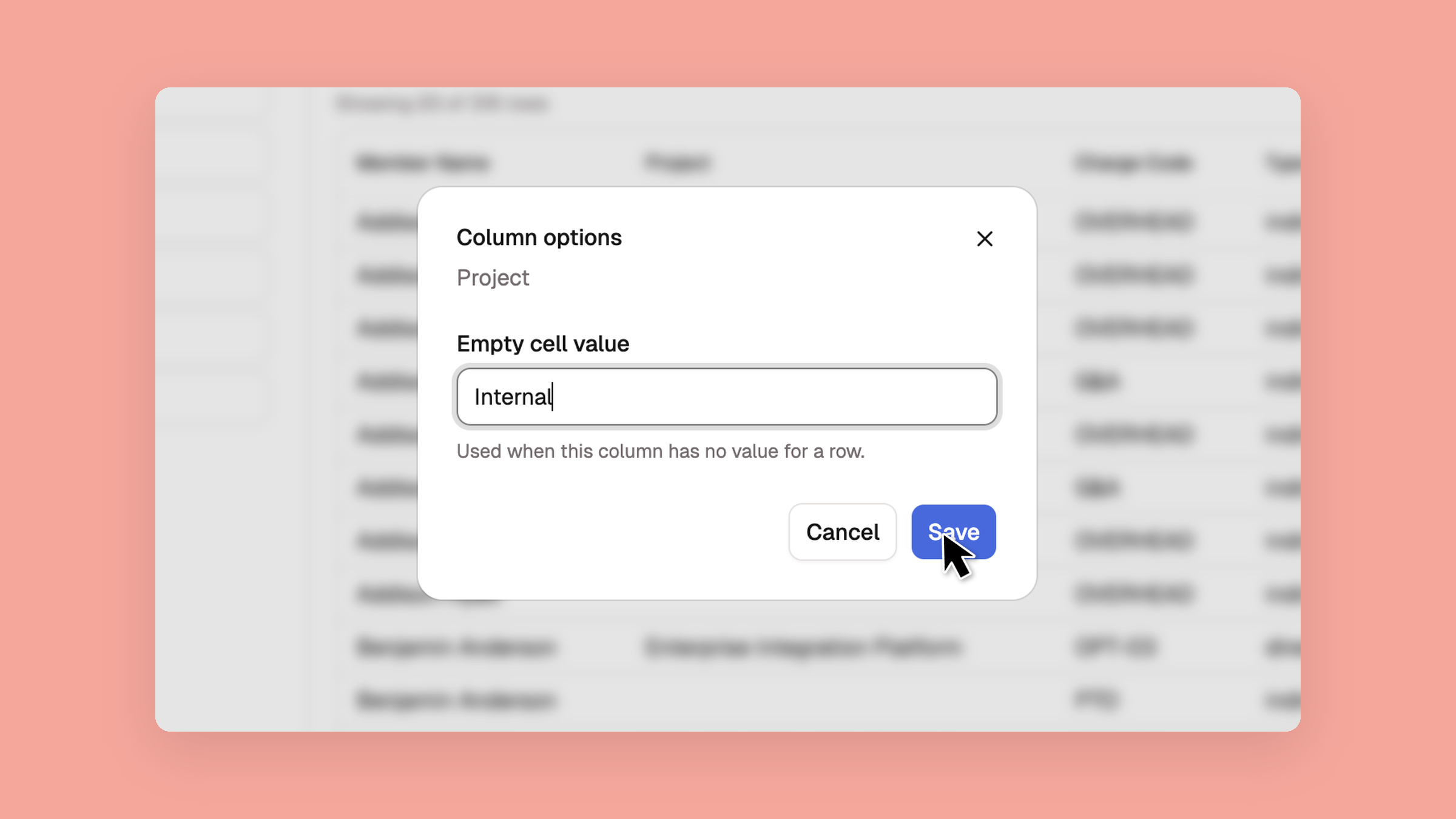
A missing project also exports as a blank cell now. It used to come through as the words "No Project", which an import has to strip out before the column means anything.
Available to administrators on the Plus plan.