
Inviting members
Add someone to your organization and set their role, access, and details up front.
You bring your team into BadgeOut from one place, and the details you set as you invite someone follow them in. Their role, the contracts they're on, and their PTO are all ready the moment they accept.
Open the invite form
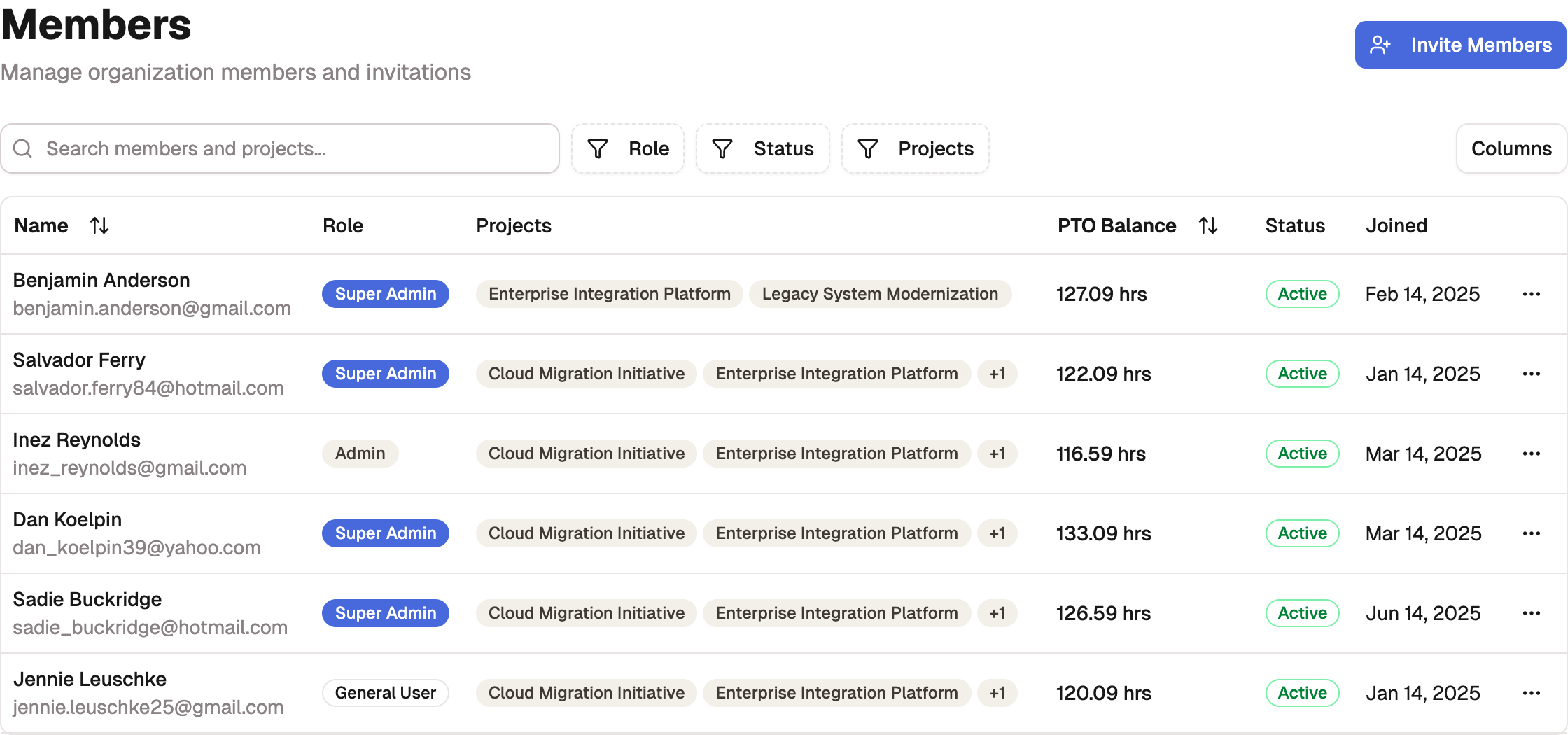
- Open Settings, then select Members.
- Select Invite Members.
The Members page lists everyone in your organization alongside invitations that haven't been accepted, so you can see who's active and who's still pending.
Invite a member
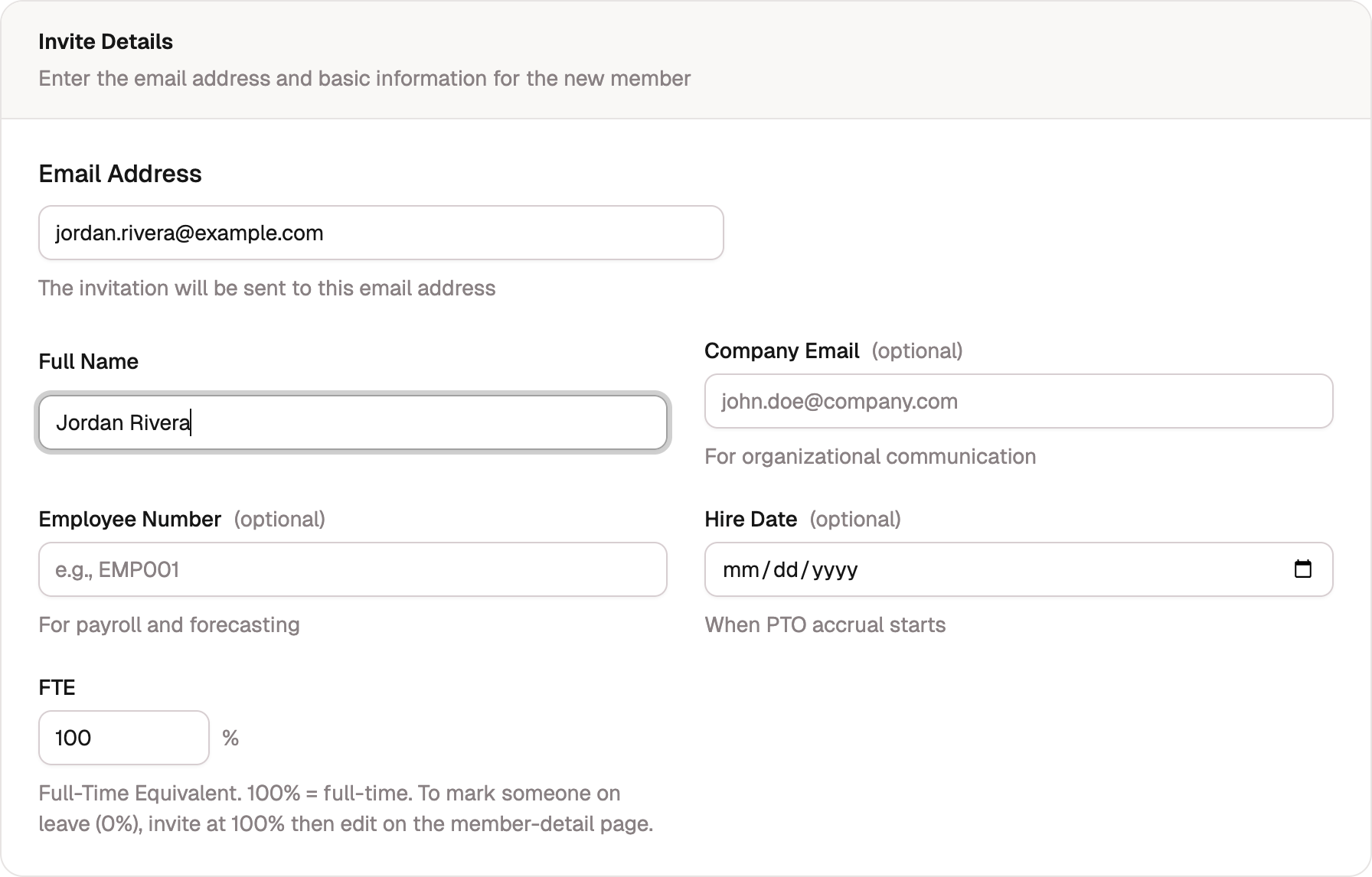
The invite form opens on the Single Member tab. Fill it in for the person you're adding:
- Enter their Email Address. The invitation goes here, and it's the address they'll sign in with.
- Enter their Full Name.
- Optionally add a Company Email and Employee Number for your own records and payroll.
- Optionally choose a Hire Date. This sets when PTO accrual starts, so it's worth getting right for new hires.
- Set their FTE. Leave it at 100% for full-time. To bring someone on at 0% (on leave), invite them at 100% and adjust it on their member page afterward.
Set their role and access
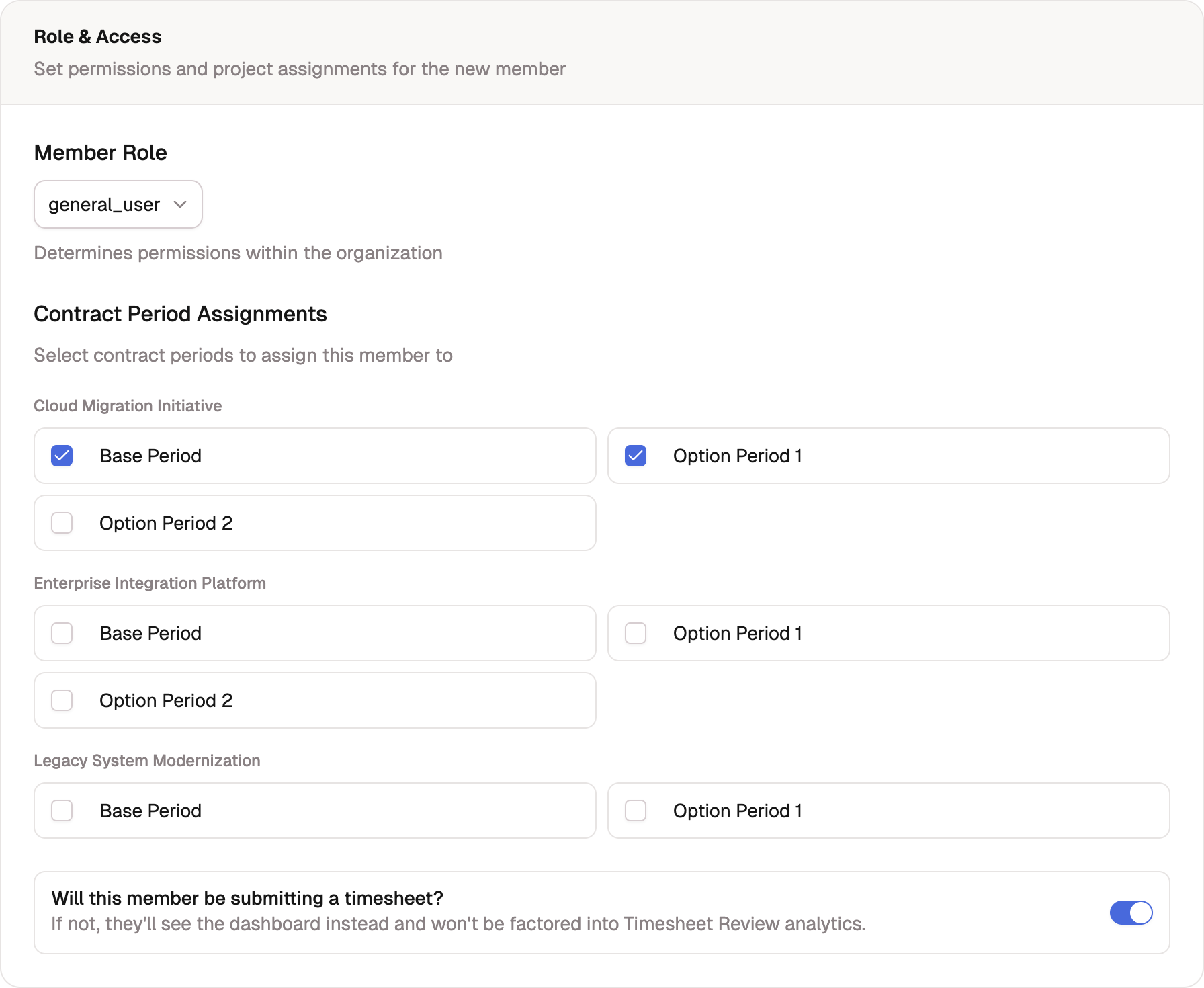
The same form sets what the new member can do and what they work on.
- Choose a Member Role: General User, Reviewer, Manager, Admin, or Super Admin. These are the roles described in Roles and permissions, so pick the one whose access matches what the person needs.
- Select any Contract Period Assignments to put them on the right contracts from day one.
- Leave Will this member be submitting a timesheet? on for anyone who logs hours. Turn it off for someone who only needs the dashboard; they won't appear in Timesheet Review analytics.
Tip
You can also set a starting PTO balance and accrual rate on this form. That's part of pre-provisioning a member, covered in Pre-provisioning and deferred invites.
Send the invitation
Select Send Invitation. The member is created with a status of Pending, and BadgeOut emails them an invitation link. The link expires after 14 days. On the Plus plan you can hold that email and send it later, in which case the button reads Create Member instead. See Pre-provisioning and deferred invites.
A pending invitation isn't a dead end. From the Members page, open the invitation's ⋯ menu to send it again or cancel it if you invited the wrong person.
What your member does
Once the invitation is sent, the rest is on the invitee:
- Your member opens the email and follows the invitation link.
- They sign in with the same provider the invitation was sent to, creating their account if they don't have one.
- They land in your organization with everything you set already in place: their role, contracts, and PTO.
Inviting one person at a time is the common case. To bring on several at once, the Bulk Entry and CSV Import tabs take a pasted list or a spreadsheet.