
Building anomaly rules
Craft flexible rules that flag the timesheet patterns your team needs to catch.
Anomaly rules are how BadgeOut watches your team's hours for you. When a period reaches review, each timesheet is checked against the rules you've set, and anything unusual (a day of overtime, weekend work, a missing entry) is flagged before you approve. The builder is where you decide what counts as unusual for your organization.
Find your anomaly rules
- Open Settings, then select Anomaly Rules under Time-Related.
- Review the rules already in place. Each one shows its name, a severity badge, and a switch to turn it on or off.
BadgeOut seeds every organization with a starter set, already enabled:
- Overtime Detection
- Undertime Detection
- Weekend Work Detection
- Missing Workdays
- Punch Rounding Mismatch
- Unnecessary PTO Usage
- Insufficient Daily Hours
- Future Hours Entry
Use these as they are, adjust them, or add your own.
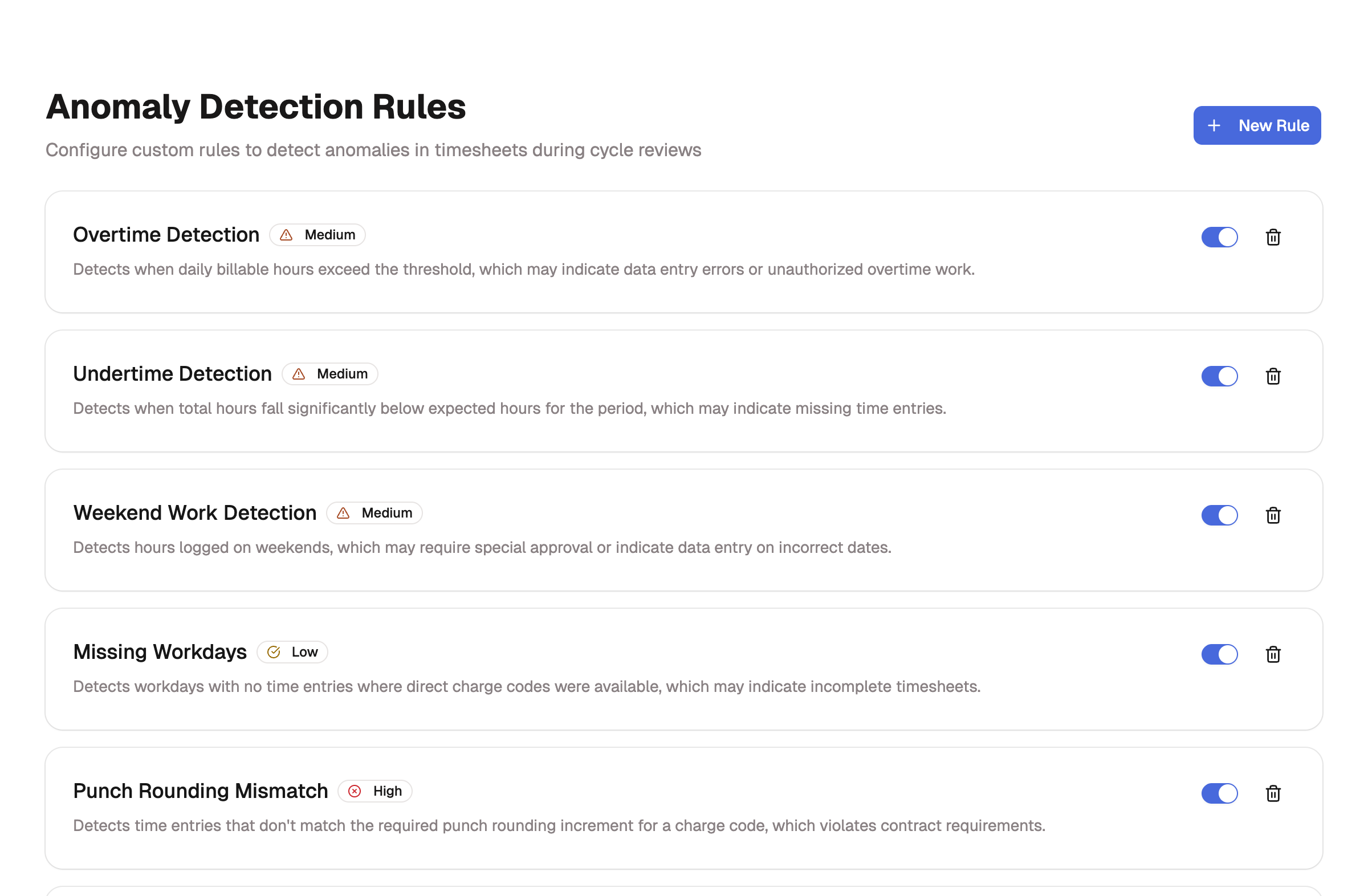
Select New Rule to build one from scratch, or select an existing rule to edit it.
How a rule is built
Every rule has two parts: the details that describe it, and one or more conditions that define what it catches. When you add more than one condition, they chain with AND, so the rule fires only when all of them match. That's what makes a rule precise: each condition you add narrows what gets flagged.
A new rule walks you through these two parts as a wizard. Editing an existing one puts them on two tabs, Rule Details and Configuration, with a Save Changes button pinned to the bottom.
Set the rule details
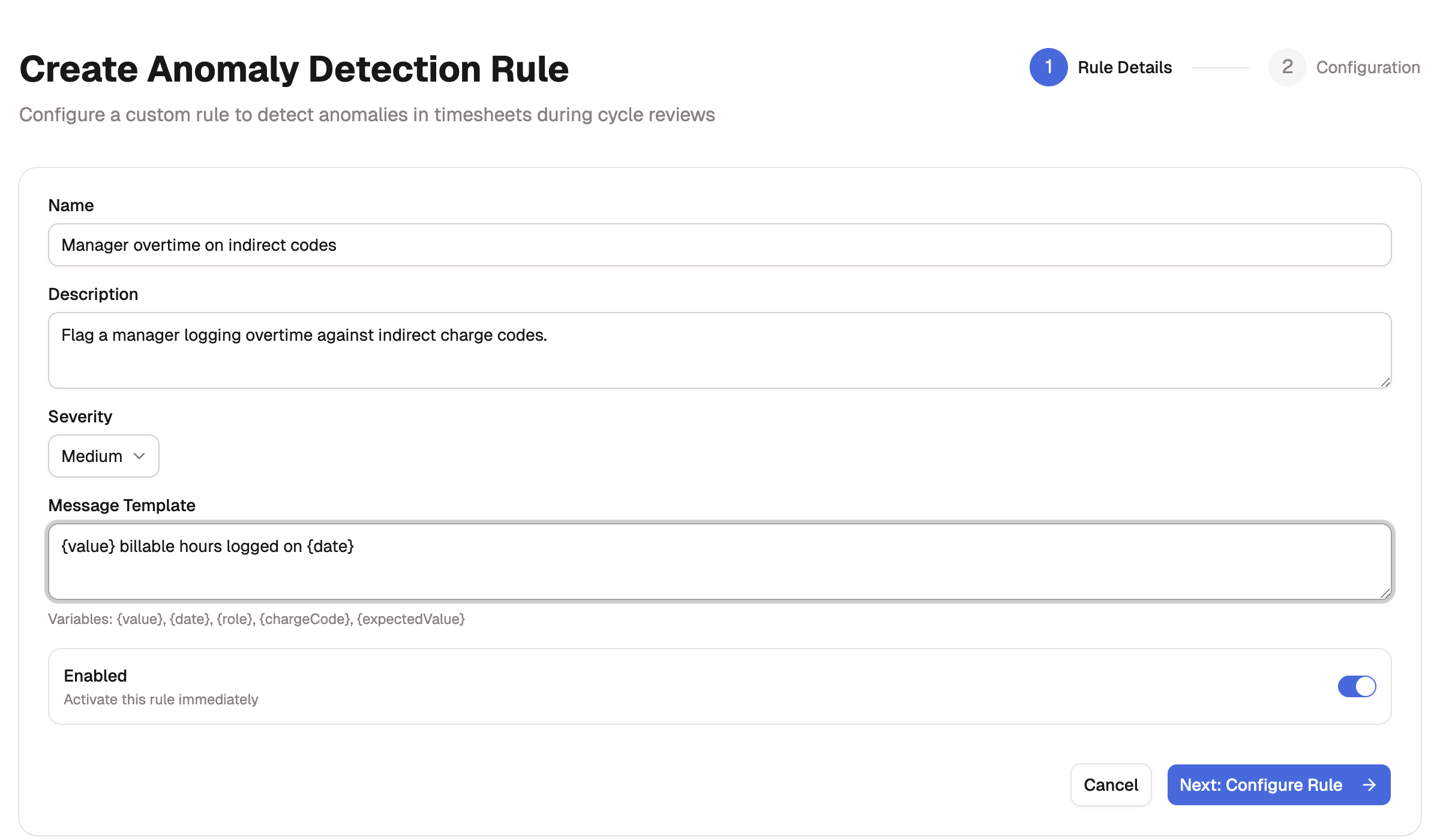
On the Rule Details step, describe the rule and how it should read when it fires:
- Enter a Name, such as "Manager overtime on indirect codes".
- Optionally add a Description noting when the rule should trigger.
- Choose a Severity: High, Medium, or Low. Severity sets how much a flag stands out, from a red high marker down to a green low one.
- Write a Message Template, the text shown on each flag. Drop in variables and
BadgeOut fills them with the real values:
{value},{date},{role},{chargeCode}, and{expectedValue}. For example,{value} billable hours logged on {date}. - Leave Enabled on to put the rule to work right away, or turn it off to keep it as a draft.
On a new rule, select Next: Configure Rule to move on.
Add conditions
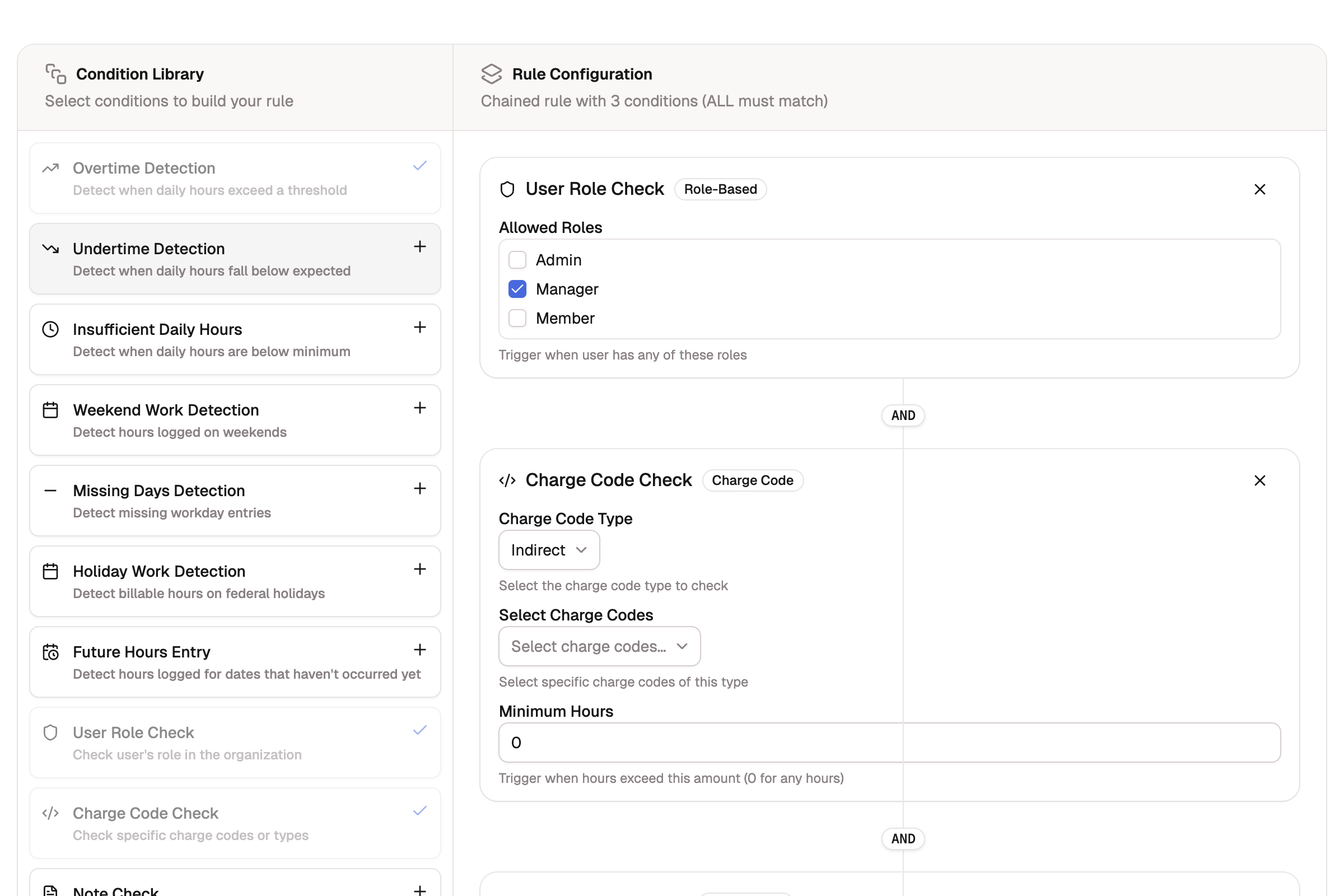
The Configuration step has two panels. The Condition Library on the left lists every condition you can add; the Rule Configuration panel on the right is where you assemble and tune them.
- In the Condition Library, select a condition to add it. Each condition can be used once per rule, so it's marked with a check once it's in.
- In Rule Configuration, fill in that condition's settings (a threshold, a minimum, a set of roles, and so on).
- Add more conditions to narrow the rule. Each new block joins the one above it with an AND connector, and the panel notes "Chained rule with N conditions (ALL must match)".
- Select Create Rule, or Save Changes when editing. A rule needs at least one condition before you can save it.
Conditions you can combine
Each condition watches for one kind of pattern. Mix and match them to describe exactly what your team needs to catch.
| Condition | What it flags | Key setting |
|---|---|---|
| Overtime Detection | Daily hours above a ceiling | Hours Threshold |
| Undertime Detection | Daily hours below what's expected | Percentage Threshold (0.8 for 80%) |
| Insufficient Daily Hours | A day under a set minimum | Minimum Hours Required |
| Weekend Work Detection | Any hours logged on a weekend | None |
| Missing Days Detection | Workdays left with no entries | Minimum Consecutive Days |
| Holiday Work Detection | Billable hours on a federal holiday | None |
| Future Hours Entry | Hours logged for a date that hasn't happened | None |
| User Role Check | Only members in certain roles | Allowed Roles (Admin, Manager, Member) |
| Charge Code Check | Specific charge codes or a code type | Charge Code Type, Select Charge Codes, Minimum Hours |
| Note Check | Entries missing a required note | Require Note |
| Unnecessary PTO | PTO that pushes a day past its expected hours | None |
| Punch Rounding Mismatch | Entries that break a code's rounding increment | None |
Craft a flexible rule
A single condition catches a broad pattern. Chaining a few together catches a specific one. Say you only want to hear about a manager logging overtime against indirect charge codes, not everyone who runs long:
- Add User Role Check and set Allowed Roles to Manager.
- Add Charge Code Check and choose your indirect Charge Code Type.
- Add Overtime Detection and set the Hours Threshold.
Because the three conditions join with AND, the rule fires only when all of them are true at once: a manager, on an indirect code, over the threshold. Drop the role condition and it widens to anyone; swap the charge-code condition and it watches a different set of codes. Same building blocks, a different question each time.
Tip
Set a generous Hours Threshold so a normal full day doesn't trip the rule. The seeded overtime rule uses 14. Start broad, see what the next cycle review surfaces, then tighten.
Edit, disable, or delete a rule
- Edit: select a rule from the list, change it on the Rule Details or Configuration tab, and select Save Changes.
- Disable: turn off a rule's switch on the list. It stops flagging right away but keeps its configuration, so you can switch it back on later. This is the reversible way to pause a rule you might want again.
- Delete: select the trash icon on the rule and confirm.
Deleting is permanent
Deleting a rule can't be undone, and you'd have to rebuild it from scratch. If you only want to stop a rule for now, turn its switch off instead.
Where flagged anomalies show up
BadgeOut checks logged hours against your rules and surfaces what they catch in two places. During a cycle review, a banner at the top tallies how many anomalies were found and across how many people. On a timesheet, each flag appears on the entry it relates to. Either way, you see what needs a second look before you approve. See Reviewing timesheets.