Quickstart
Sign in, get your bearings, and find the controls you run BadgeOut from.
You run BadgeOut for your team. This page takes you from signing in to knowing where the day-to-day controls live: your team's timesheets, the charge codes they log against, and your own time.
Sign in
Most people reach BadgeOut through an invitation from an administrator. Open the invitation, follow the link to your organization, and set up your access:
- New to BadgeOut: check your First name and Last name (prefilled from the invitation) and enter a Password, or select Continue with Google. Then select Create Account & Join.
- Already have a BadgeOut account: select Accept invitation to your organization.
You land in your organization. As an administrator, you start on the Dashboard; your members start on their Timesheet.
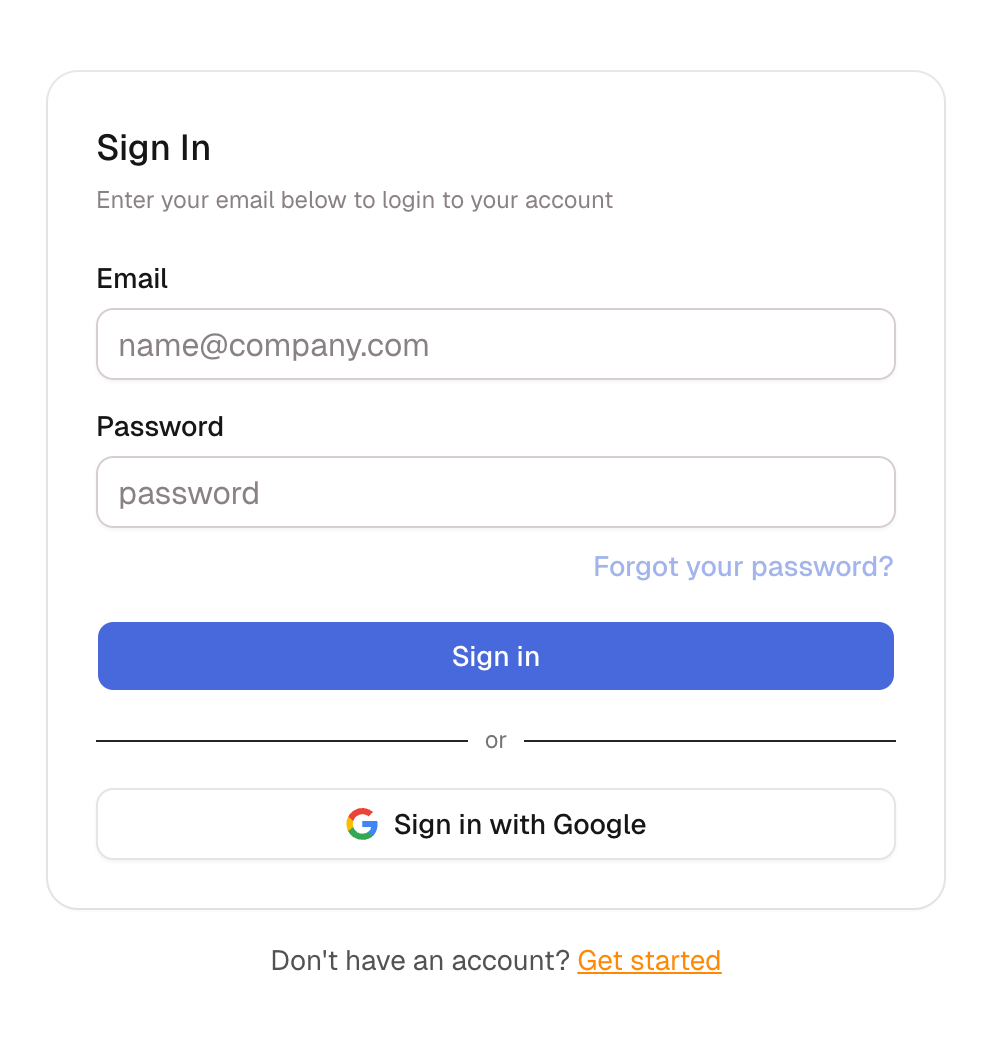
Coming back later? Open the sign-in screen, enter your Email and Password (or select Sign in with Google), then select Sign in. For choosing between Google accounts and what to do when you land on the wrong organization, see Signing in.
Didn't get an invitation?
Administrators are added by an existing administrator. If no invitation arrived, check your spam folder, or have another administrator confirm your account was added.
Get your bearings
The Dashboard shows your organization's current cycle at a glance: how many timesheets are in versus outstanding, your team's hours for the month, and utilization trends. It's where you spot what needs attention before the period closes.
Belong to more than one organization? Switch between them from the organization menu beside the logo. Each keeps its own timesheets and settings.
Find the controls you'll use most
Everything you manage lives in the navigation bar across the top. These are the controls you'll reach for most:
| Control | What you use it for | Where to find it |
|---|---|---|
| Dashboard | Your organization's current cycle at a glance | Top bar |
| Timesheet | Log your own hours | Top bar |
| Team Schedule | See who's scheduled when | Top bar |
| Projects | Track contracts, funding, and project health | Management menu |
| Charge Codes | Define the codes your team logs time against | Management menu |
| Review Timesheets | Approve the timesheets your team submits | Management menu |
The Management menu and the Organization settings gear (top right, beside Notifications and your avatar) appear for administrators and reviewers. Members see only their own work.
A question-mark Help button sits between Notifications and the gear. It opens this help center, starts a support email, and lists the three most recent release posts under What's new? A dot on the button means one of them is unread.
