
Reports overview
Where your team's spend, utilization, and compliance reports live, and who can open them.
Reports turn the hours your team logs into a picture of the whole organization: what you've spent against funding, how billable your people are, and whether timesheets land on time. This page covers where Reports lives, how to move through a report, and how to get the numbers out.
Open Reports
Reports is administrator-only. Reviewers and members don't see it, so the org's spend and budget stay with the people who own them.
Reports isn't in your top navigation yet. While it's being finalized, open it
directly at /<your-org>/reports (for Acme LLC, that's /acme-llc/reports). When it
rejoins the navigation, you'll find it in the Management menu under Setup.
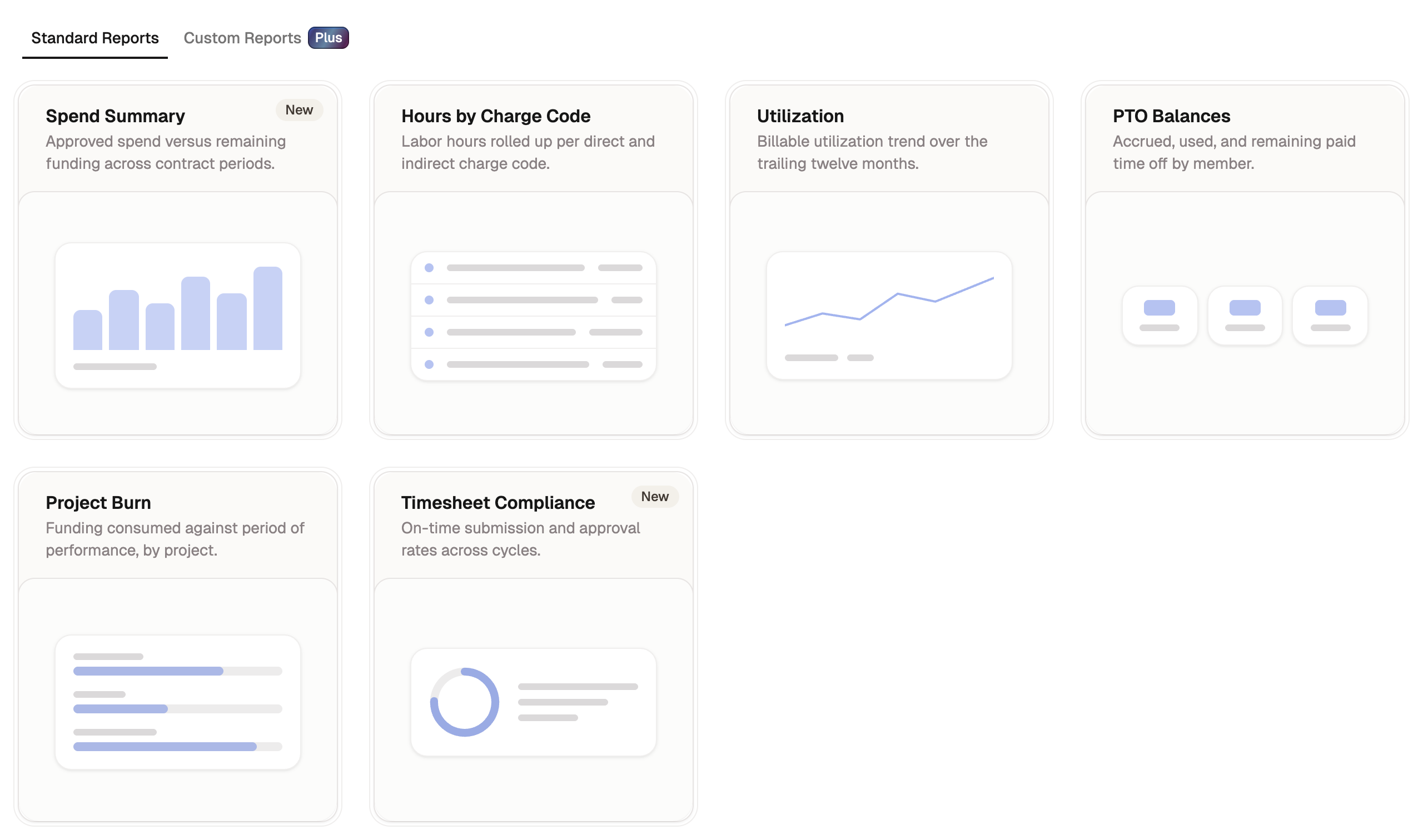
Standard and custom reports
The hub has two tabs:
- Standard: six ready-made reports that need no setup. Available on every plan.
- Custom: build your own report by choosing what to group, measure, and filter. Available on the Plus plan.
Move through a period
A report opens on its most recent complete window. Step through time without leaving the page:
- For period-based reports, use the Previous period and Next period arrows beside the period label.
- For year-based reports like PTO Balances, use the year picker to step between calendar years.
Periods follow the pay-period cadence you set for your organization, so the buckets you compare match how your team actually keeps time.
Export a report
Every report exports to a spreadsheet for sharing or deeper analysis.
- Open the report you want.
- Select Export.
- Choose Export as CSV or Export as Excel.

Export needs a paid plan. Starter and Plus both include CSV and Excel. On the free tier the Export button stays disabled.