
Creating your organization
Set up a new organization: name it, choose a timesheet cadence, and set your PTO and holiday defaults.
An organization is the home for everything your team tracks in BadgeOut: timesheets, charge codes, time off, and reports. When you set up BadgeOut for the first time, or start a separate organization for another company or division, a short wizard walks you through it. You name the organization, choose how often timesheets close, and set the defaults everything else builds on.
Start a new organization
When you sign up for BadgeOut and don't belong to an organization yet, you land on Get started. Choose Create New Organization to open the setup wizard.
Already in an organization?
You can start another one at any time without leaving the one you're in, say for a separate company or division. Open the organization switcher in the top header beside the BadgeOut logo, then select Create Organization.
Name your organization
The first step covers the basics. The name and handle are how people recognize and reach the organization, so set them with the company or team you're running in mind.
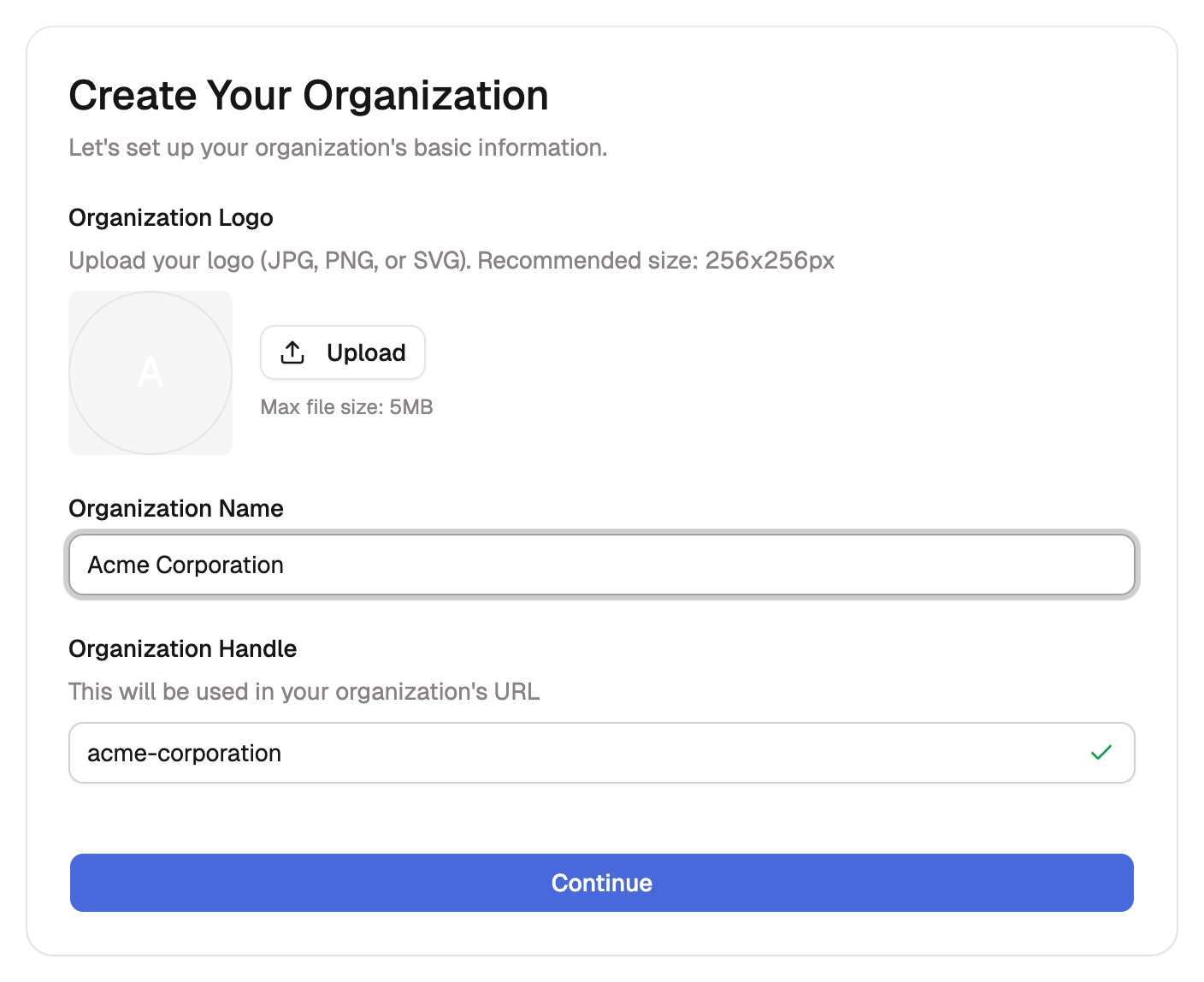
- Upload an Organization Logo if you have one. It's optional, takes a JPG, PNG, or SVG, and looks best as a square (around 256×256). You can add or swap it later.
- Enter your Organization Name, for example Acme Corporation.
- Confirm the Organization Handle. BadgeOut builds it from the name and uses it in your organization's URL. The handle must be unique, so BadgeOut checks it as you type and shows a green check when it's available. If the one you want is taken, edit it until the check clears.
Select Continue.
Choose a timesheet cadence
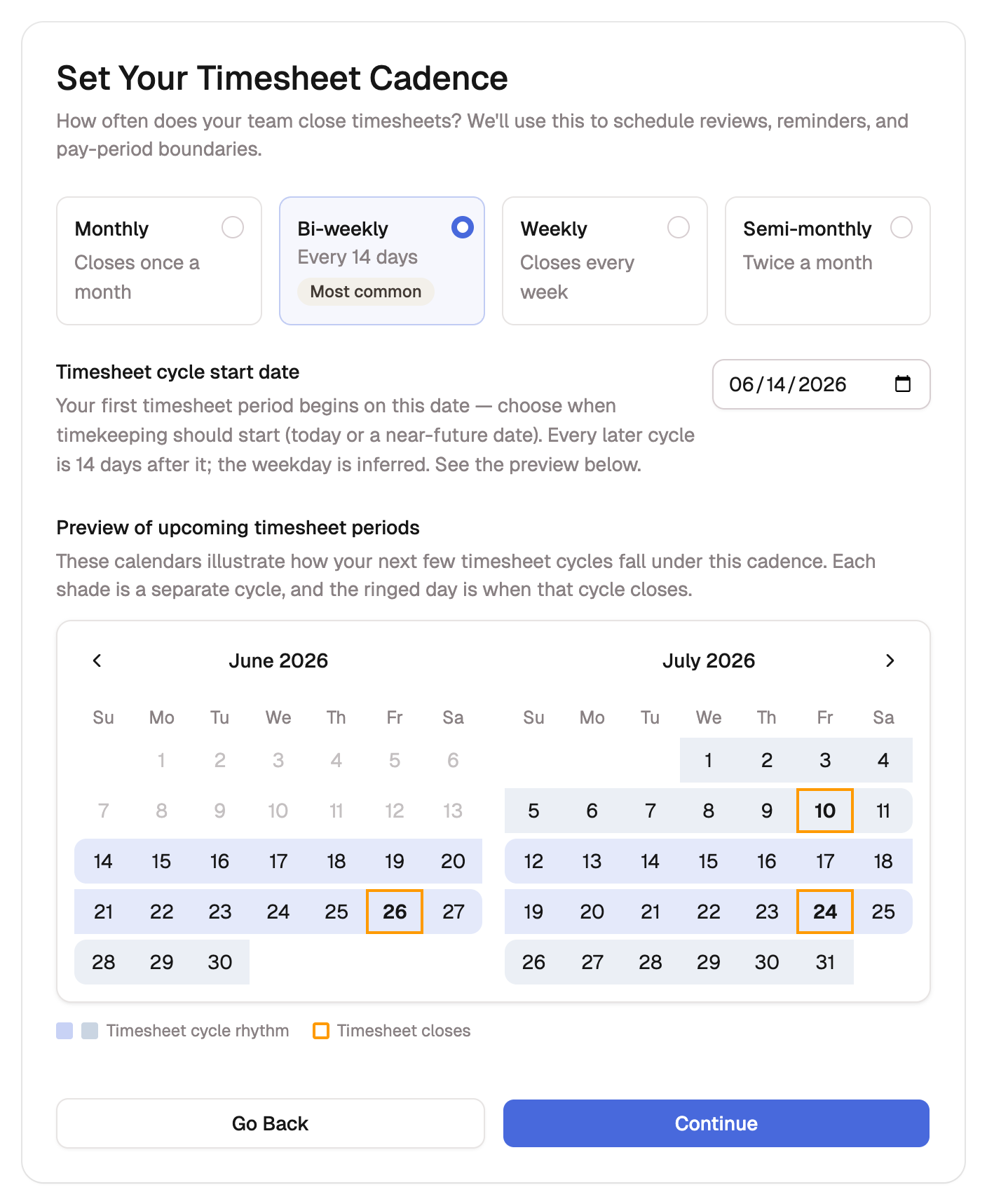
Next, choose how often your team's timesheets close. The cadence sets the rhythm of every pay period, submission deadline, and approval cycle, so match it to how you run payroll.
Pick one:
- Weekly, closing every week
- Bi-weekly, every 14 days (the default, marked Most common)
- Semi-monthly, twice a month
- Monthly, once a month
Then set the Timesheet cycle start date, the day your first period begins. Every later cycle follows from it, and BadgeOut infers the closing weekday from the date you pick. A preview shows your next few periods so you can check the rhythm before moving on. Select Continue.
Set your defaults
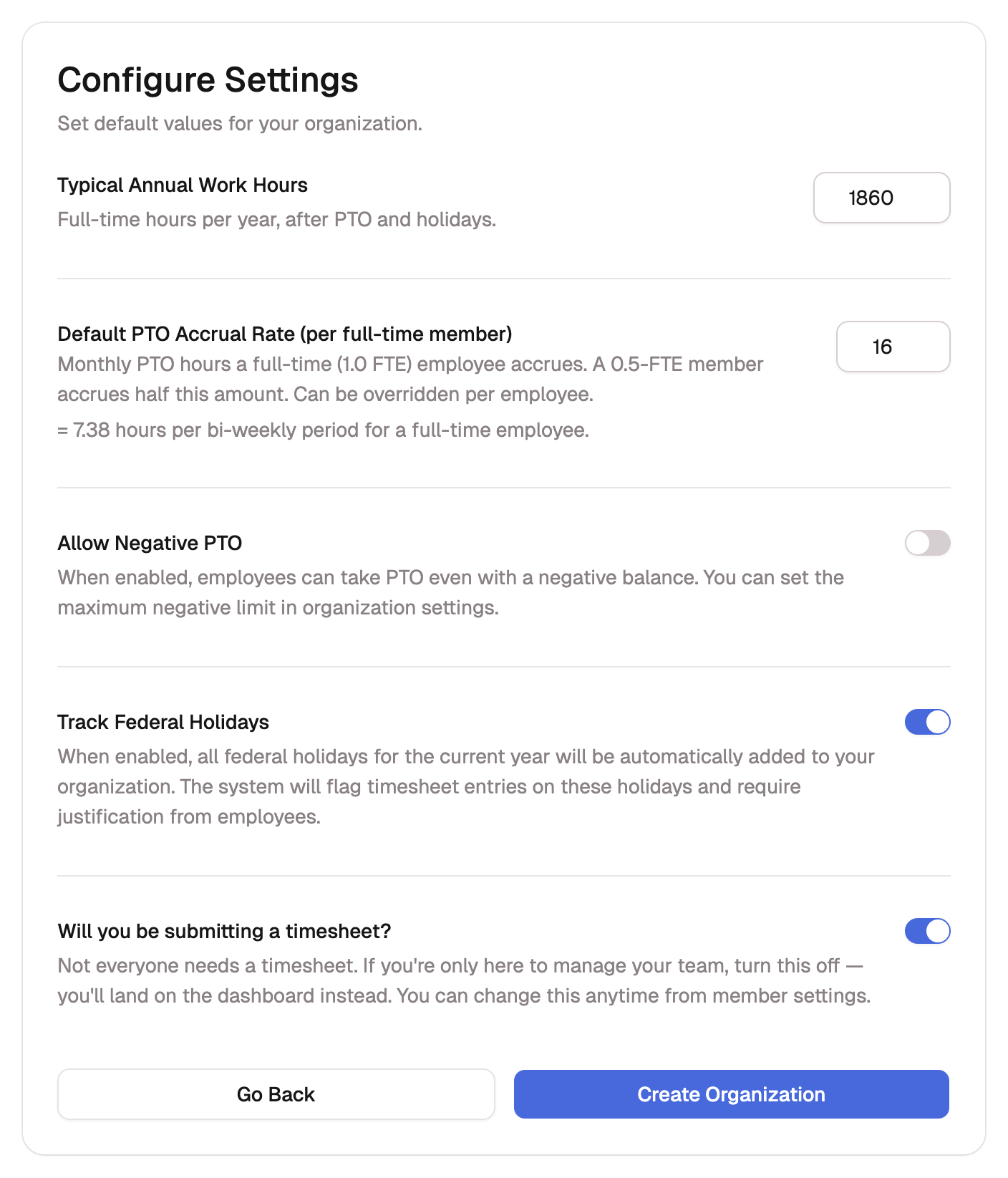
The last step sets the defaults BadgeOut applies across the organization. Each one starts with a sensible value, so you can keep the defaults and move on, or adjust any of them now.
| Setting | What it does | Default |
|---|---|---|
| Typical Annual Work Hours | Full-time hours per year after PTO and holidays. Feeds utilization and capacity. | 1,860 |
| Default PTO Accrual Rate | Monthly PTO hours a full-time (1.0 FTE) member earns. A half-time member accrues half, and you can override it per person. | 16 |
| Allow Negative PTO | Lets members take PTO past a zero balance, up to a limit you set in settings. | Off |
| Track Federal Holidays | Adds this year's federal holidays and flags time logged on them for a quick justification. | On |
| Will you be submitting a timesheet? | Keep it on to log your own hours. Turn it off if you only manage the team, and you'll start on the dashboard. | On |
Select Create Organization. BadgeOut sets everything up and opens your new organization.
You can change these later
The cadence, work hours, PTO accrual, and holiday settings all live in Organization settings after setup. Nothing you choose here is locked in, so pick reasonable starting values and refine them once your team is in.
What BadgeOut sets up for you
Creating an organization does more than save a name. So your workspace isn't empty on day one, BadgeOut also:
- Makes you the organization's administrator, with full access to members, charge codes, policies, and settings.
- Adds a starter set of charge codes for common indirect time: PTO, Overhead, G&A, and B&P.
- Loads this year's federal holidays if you left Track Federal Holidays on.
- Starts your organization on a 30-day Plus trial, no card required.
You land on a welcome checklist that walks you through what's next, starting with inviting your team.