Navigating your timesheet
Find your timesheet, move between pay periods, and read the grid at a glance.
Your timesheet is where you log your own hours, and it's the same view every member on your team uses. Knowing your way around it keeps your time straight and lets you answer questions when someone gets stuck.
Open your timesheet
Select Timesheet in the top header. The header runs across every screen, so your timesheet is always one step away.
It opens to the current pay period. If you log your own hours, you also land here right after signing in. If you only manage the team and don't submit time, you start on the Dashboard instead, with Timesheet still in the header.

Move between pay periods
The period navigator sits at the top of your timesheet. Use it to review a past period or get ahead of an upcoming one.
- Select the back and forward arrows to step to the previous or next period.
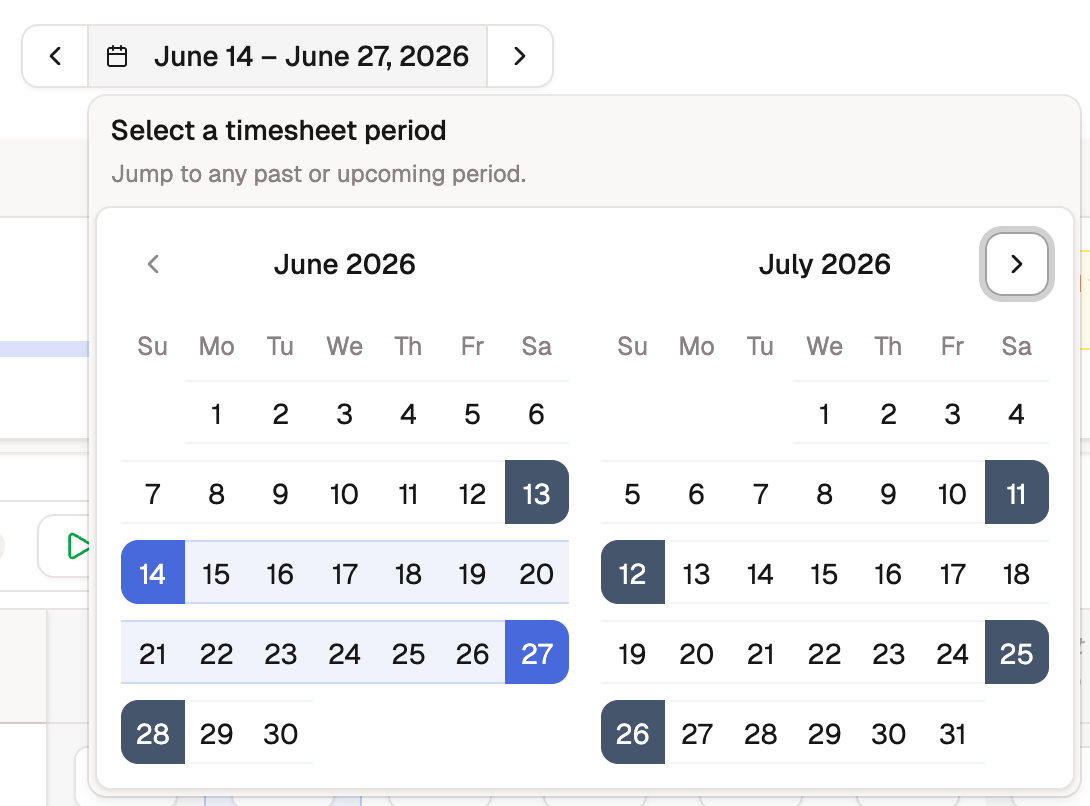
- Select the period label between them to open a picker and jump to a specific period. The picker follows your organization's cadence: a month and year for monthly or semi-monthly, a date range for weekly or bi-weekly.
- Select Return to current to come back to the period in progress.
Tip
Opening an earlier period is how you check or fix hours you already logged. What you can change depends on the timesheet's status, covered below.
Read the grid
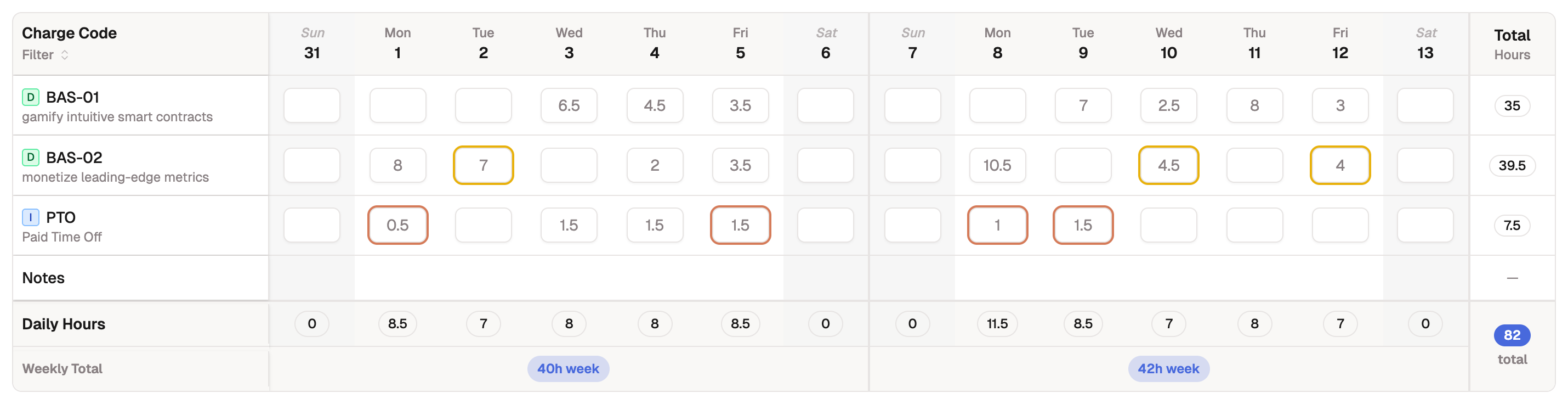
The grid is the heart of the page. Each row is a charge code assigned to you, and each column is a day in the period. The charge-code column stays pinned on the left as you scroll across the days, and each row's total for the period sits on the right.
Check your totals
A row of summary cards sits above the grid: the hours you've logged against what's expected, your PTO balance with a link to your full ledger, and your charge code utilization for the period.

Show or hide charge codes
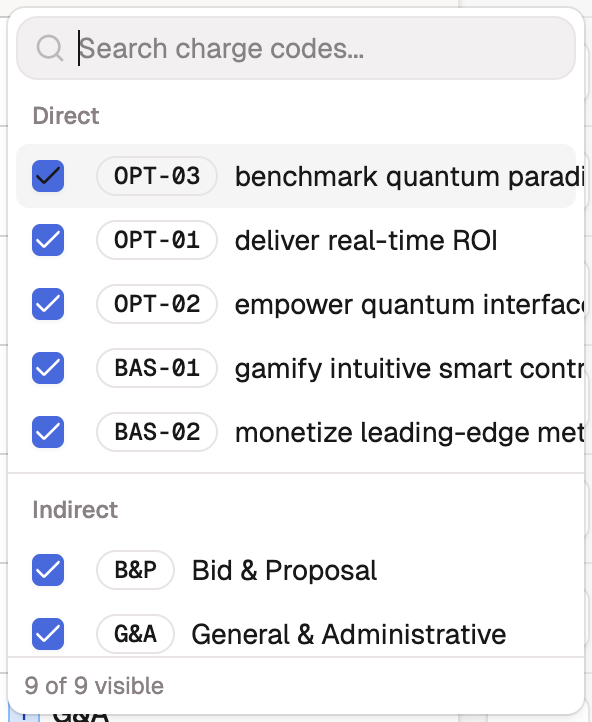
A long list of codes can crowd the grid. Use Filter to choose which rows you see.
- Select Filter above the grid.
- Search by name, or pick from the Direct and Indirect groups.
Select Reset to return to the default set. You won't add charge codes here, only show or hide them. A row that already has hours stays visible, so you don't lose sight of logged time. As an administrator, you assign charge codes to people in Charge codes.
Know where your timesheet stands
The header shows the timesheet's status and the action you can take on it. A timesheet moves through a few states:
| Status | What it means |
|---|---|
| Draft | Yours to edit. Hours aren't in the approval queue yet. |
| Submitted | Sent for review and locked from edits. |
| Reviewed | A reviewer has looked it over, ahead of approval. |
| Approved | Signed off and final. |
| Rejected | Sent back for changes, and editable again. |
Select Save to keep your changes as a draft, or Submit Timesheet when the period is complete. Submitting is covered next.